Viewing the Enhanced Similarity Report
The Enhanced Similarity Report is Turnitin’s redesigned interface for reviewing similarity matches within student submissions. The report introduces a modern interface with improved navigation and new features that help instructors interpret similarity matches more efficiently.
The report is designed to make it easier to review matched content by organising text into categories, providing additional context about matching sources and offering enhanced filtering options.
Check out Turnitin’s web-based self-guided tour to familiarise yourself with the Enhanced Similarity Report and its features.
Use Turnitin’s interactive demo to interact with the Enhanced Similarity Report at your own pace.
Key Features
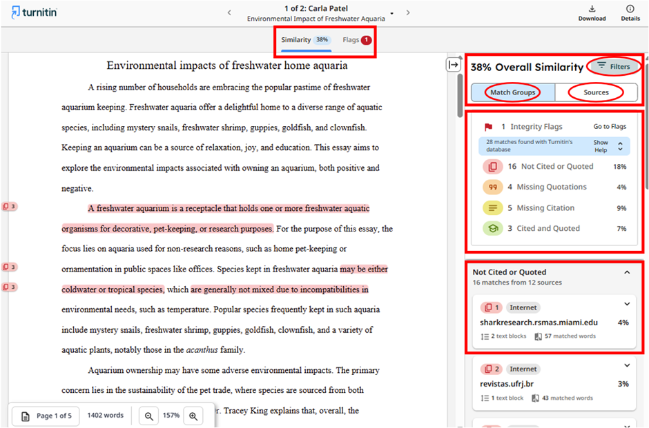
- Tab Navigation - The new tab navigation allows users to easily access different report functionality, such as the similarity and flags panel.
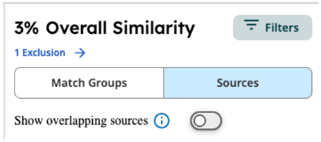
- Overall Similarity Score - Displays the percentage of matched text within the submission.
- Match Groups - Organises matches based on the presence of quotation marks and citations.
- Source Cards - Provide detailed information about each matching source.
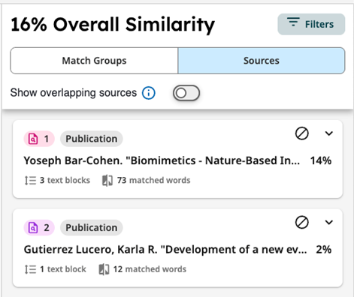
- Sources tab - Displays all matching sources associated with highlighted text.
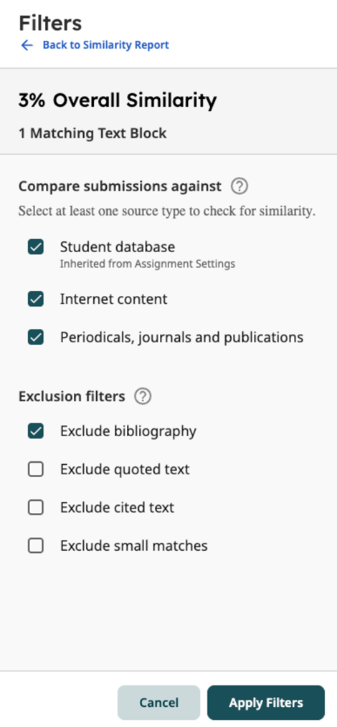
- Filters and Exclude Settings - The new filters panel allows instructors to exclude quotations, bibliographies or selected sources during review.
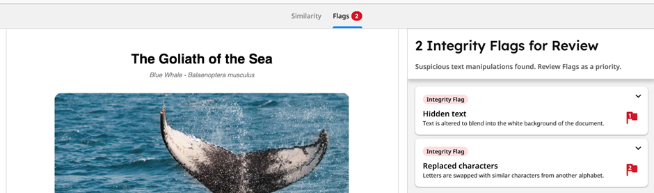
- Flags tab - Identifies potential text manipulation like hidden or replaced text.
Overall Similarity Score
The overall similarity is a percentage that shows how much of the submission matches sources in the Turnitin database. Matched text is highlighted in the submission and detailed in the Similarity Report. Depending on the assignment settings, these databases include:
- Billions of pages of active and archived internet information
- Previously submitted works
- Tens of thousands of periodicals, journals and publications
It is important to remember that the similarity score does not always indicate plagiarism, as matches could be a quote or cited material listed in a bibliography. It is simply the percentage of a submission’s text that matches other sources.
Match Groups
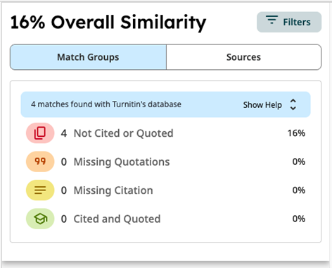
One of the most significant changes in the Enhanced Similarity Report is the introduction of Match Groups. Rather than displaying all matches as one continuous list, Turnitin categorises matching text into four groups based on whether quotation marks and citations are detected. The four Match Groups are:
- Not Cited or Quoted - The number of text matches that are not written as a quotation or have no citation to their source.
- Missing Quotations - Text is cited, but the match is so exact that it may also require quotation marks.
- Missing Citation - This text is written as a quote but lacks a citation to the source.
- Cited and Quoted - Text contains a quotation and is cited to a source.
Source Cards
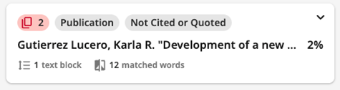
Contain details about the highlighted match and its source material. You can expand a source card for more information.
- The top row indicates the top-matching source ranking number (also appears next to the corresponding highlighted match in the documents), the database type, and the match group criteria.
- The second row contains the name of the top-matching source and the percentage of the document it matches.
- The third row indicates the number of matching text blocks to that source and match group, as well as a total word count for all matches with the same criteria.
Sources Tab
Provides a list of sources organised in descending order by highest total similarity percentage. These sources are the same as those detailed in Source Cards in the Match Groups tab.
You can select to Show overlapping sources. Similar text can be found within multiple sources. When text is similar to more than one source, whichever source has the most matched words will display first. The report will prioritise sources as best match or top source in this order:
- Internet
- Publications
- Submitted Works (student papers)
Filters and Exclude Settings
Filters control which type of content a submission is compared against within the Similarity Report. Filters don’t alter the submitted content; instead, they make the report clearer and more focused on the most relevant similarities.
Exclusions hide specific types of text that shouldn’t count toward similarity, such as properly formatted quotations, bibliographies or in-text citations. They can help make similarity scores fairer and more accurate by ignoring expected or properly referenced text.
Flags tab
If any flags are detected, a number will appear next to the Flags tab at the top of the report, just above the submission. A flag is not necessarily an indicator of a problem; instead, it is recommended that you review it further. Select the Flags tab to open further details in the panel on the right of the screen. You will find an overview of any instances of text manipulation, such as hidden text or replaced characters.