
Creating a Manual Column
Two views are available, using the toggle at the top of the gradebook:
Under Gradebook, use the toggle to choose between Gradebook screens
- Grid view (Marks): a table of students and grades.
- List view (Markable Items): every markable item in your module

Adding a Manual Calculation Column for Offline/Manual Assignments
- Click on the list view in the top left of the Gradebook.
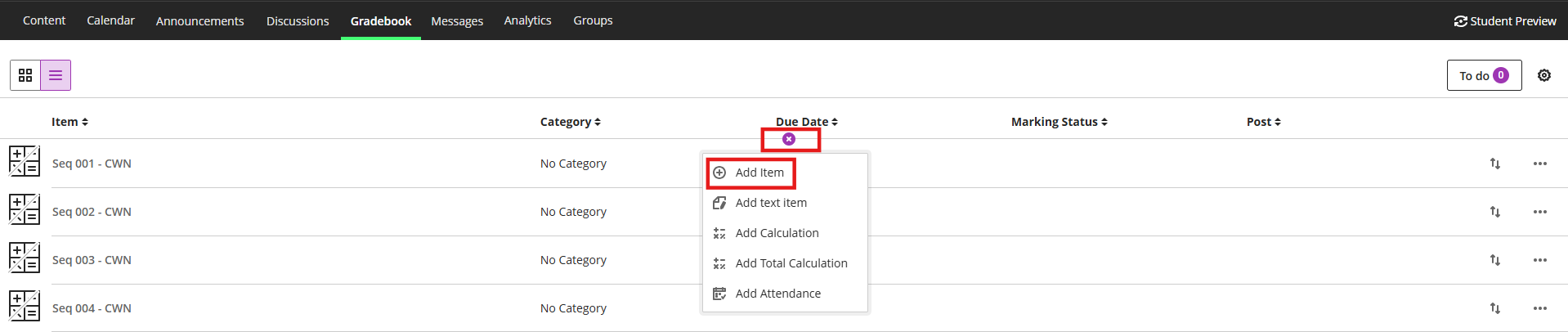
Hover over a line between two gradable items and click on the "+" that appears.
Select Add Item.
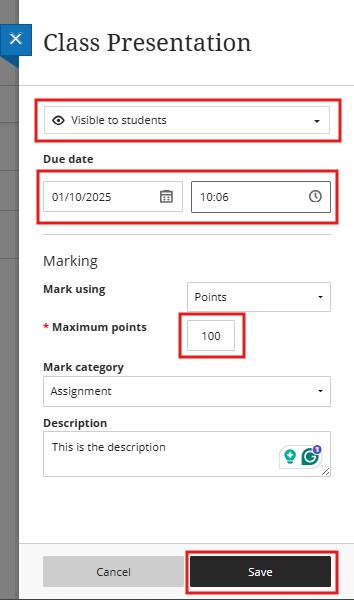
- Enter a descriptive name for the column.
- Choose whether the item is Visible to students.
- Select a mark schema from the dropdown menu.
- To use Grades Journey, the maximum points need to be 100.
- Select the correct Mark Category.
- Add a description.
- Click Save.
Click on Grid view to view your Manual Column.
Students are listed on the left (Name, ID). Each markable item or assignment has its own column on the right.
In the markable item columns:
-
Select the Needs Marking icon (a page with a pencil in the corner) to open the submissions view, filtered to Needs Grading, for that item.
-
Select the Post Marks icon (a paper aeroplane) to post all marks for that item at once.
-
Select the item's name to open the Assessment Details panel.
-
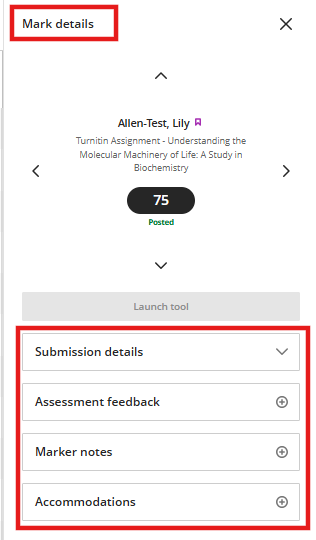
Select an individual mark cell to open the Mark Details panel.
Assessment Details panel
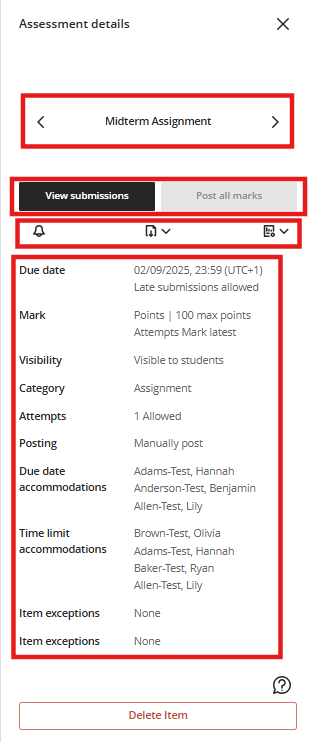
Select an assignment name to open this panel. Use the left/right arrows to move to the next item without closing it. From here, you can:
-
Select View submissions to go to the submissions view for all submissions on that item
-
Select Post all marks if there are marks ready to post
-
Select the bell icon to send a reminder to students who haven't submitted yet
-
Select the download icon to download results. Before downloading the results, you can define the file type, the result format (by student or by question and student), and which attempts to include in the download.
-
Select the statistics icon to view statistics for the item
-
View details such as due date, mark settings and accommodations, exceptions, and exemptions for that item
-
Select Delete item to remove the item and associated submissions, marks and student data