
Gradebook Tabs
You can now manage items from two views: Grid View (Marks) and List View (Markable Items)
Use the toggle to choose between Gradebook screens
- Grid view (Marks): a table of students and grades.
- List view (Markable Items): every markable item in your module.

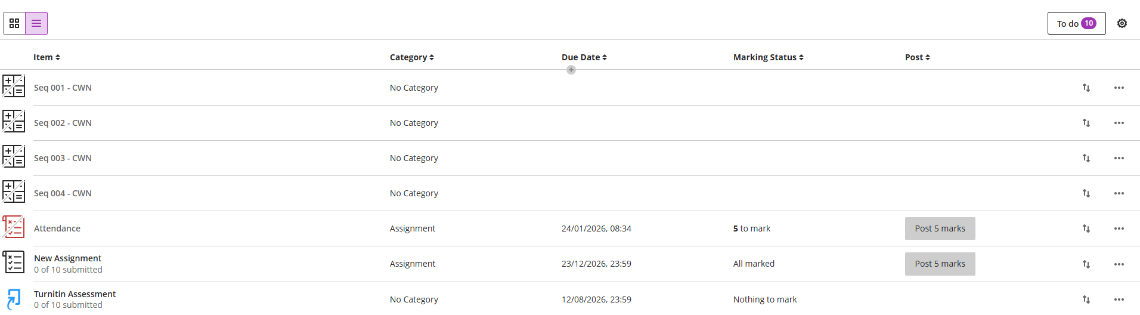
List View (Markable Items)
The Markable Items view displays all gradable items in your module. You can view due dates, grading status, and item categories.
- Items with missing submissions past their due date are displayed in red.
- Use the move button to reorder items.
- Select an item's name to go to its Submissions or Grades & Participation page.
- To edit, find the relevant Assignment in the list and click the three dots (the ellipsis). Select Edit.
Grid View (Marks)
The Marks view displays each student's grade for a specific assignment, with one student per row and one gradable item per column. Use the arrow buttons to sort columns into ascending or descending order.
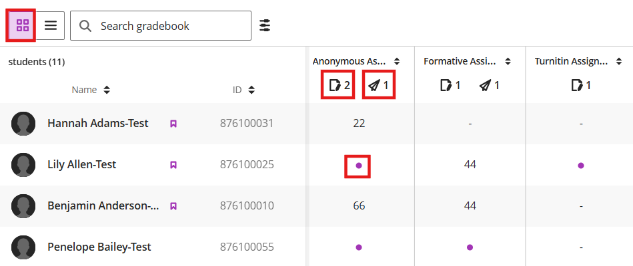
In the markable item columns:
- Select the Needs Marking icon (a page with a pencil in the corner) to open the submissions view, filtered to Needs Marking, for that item.
- Select the Post (Release Marks) icon (a paper aeroplane) to post all grades for that item at once. A confirmation message appears before anything posts.
- Select the item's name to open the Assessment Details panel.
- Select an individual grade cell to open the Mark Details panel.
- A purple dot signifies a new submission from the student.
Assessment Details panel
Select an item's name to open this panel. Use the left/right arrows to move to the next item without closing it. From here, you can:
- Select View submissions to go to the submissions view for all submissions on that item
- Select Post all marks if there are grades ready to post
- Select the bell icon to send a reminder to students who haven't submitted yet
- Select the download icon to download results. Prior to downloading the results, you can define the file type, the result format (by student or by question and student), and which attempts to include in the download.
- Select the statistics icon to view statistics for the item
- View details such as due date, mark settings (attempts, visibility, category, posting), and accommodations, exceptions, and exemptions for that item
- Select Delete Item to remove the item and associated submissions, marks and student data
Mark Details panel
Select any cell to open the Mark Details panel for that student's submission. From here, you can:
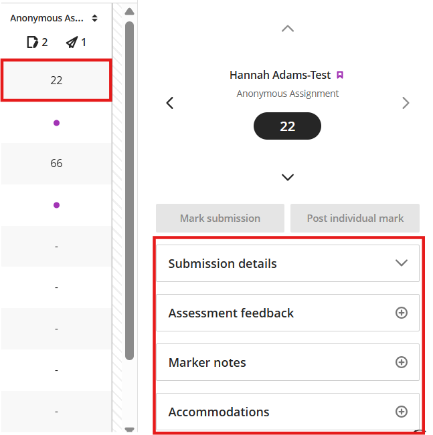
- View the submission
- Enter or post a mark
- Leave feedback
- Add marker notes
- Manage accommodations for that student and item
Click to learn more about Marks from Blackboard