
Blackboard Rollover Guide
Each summer, new modules for the upcoming academic year are made available for staff. Please follow the guidance below on how to copy your Blackboard module content to these new modules.
- Guide 1: How to copy (or “rollover”) course material from a current Blackboard module to an upcoming module.
- Guide 2: How to copy (or “rollover”) course material from an older Blackboard “Original” module to an upcoming module.
Rollover Options: Please choose option 1 or 2
Rollover material from a current module to an upcoming module
Watch video guide for copying module content within Blackboard Ultra
Your Blackboard module for the upcoming academic year should be listed on your Module List when you log in to Blackboard.
(If the modules are not present on your module list, please contact your School Office to ensure you are timetabled to the modules in CMIS).
For this example, the copy process moves course material from current academic year module " Rollover Module Current Year" to the upcoming academic year module " Rollover Module Upcoming Year".
- Click on and open the upcoming Blackboard module from your module list on Blackboard i.e. Rollover Module 202627
- Within the "Content" tab, select the ellipsis tool (three dots) in the top right of the page

- Select "Copy Items" from the menu that appears
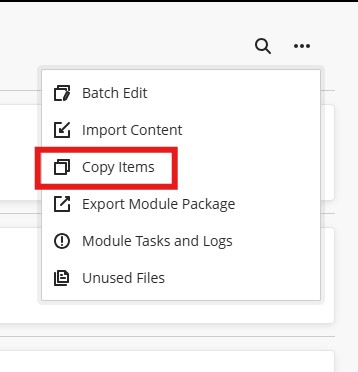
- Search for your current academic year module e.g. Rollover Module Current Year.
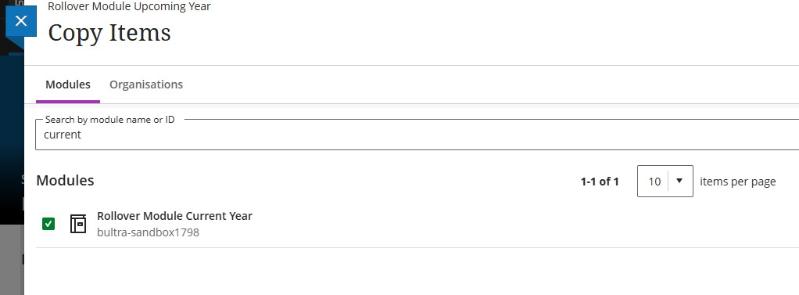
- Click the checkbox beside your chosen module name to select all the content within it. The checkbox should fill with a green tick. Then click "Start Copy".
This will immediately begin to copy the course material from your current academic year Blackboard module to your upcoming year Blackboard module.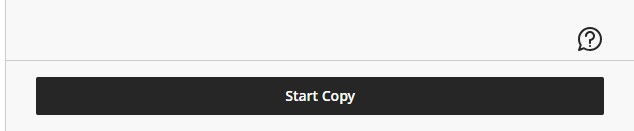
The copy should take no more than a few minutes (depending on the size of the module).
A "Copying content" spinner displays at the bottom of the Module Content page and updates to "Copy complete!" when the process has finished.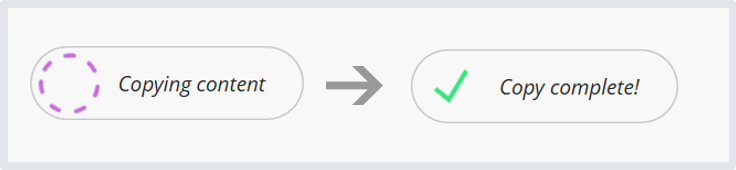
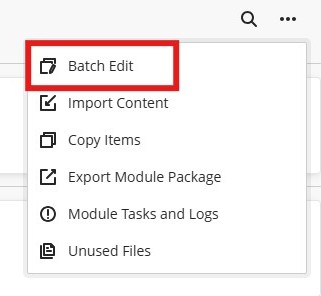
- Access your new Blackboard module to check that your content has copied over successfully. Check that your content is visible to students. You can make individual items "Visible to students" or use the "Batch Edit" feature (located in the ellipsis tool/three dots at the top right of the Module Content page) to make several items visible at once.
Copy or "rollover" the course material from an Original module to an Ultra module
When copying content from an "Original" module to a new one for the upcoming academic year, we recommend copying only the specific segments or individual elements you need. This approach makes the process more manageable and less overwhelming.
Both your current "Original" module and your new module space should appear in your Module List once you log in to Blackboard.
(If your new modules are not listed, please contact your School Office to ensure you are correctly timetabled for those modules in CMIS.)
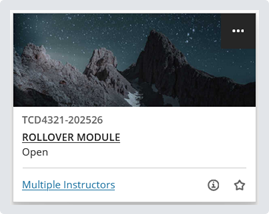
For this example, the copy process moves from the original module "TCD4321-202425" to the 2025/26 Ultra module "TCD4321-202526".
- Click on and open the upcoming module from your Module List on Blackboard
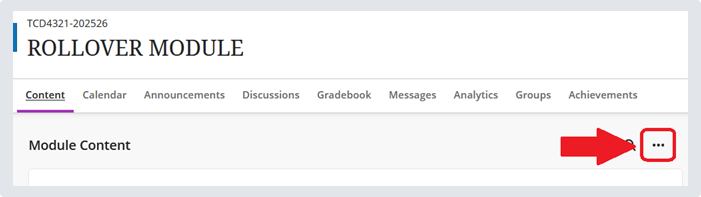
- Within the "Content" tab, select the ellipsis tool (three dots) in the top right of the page
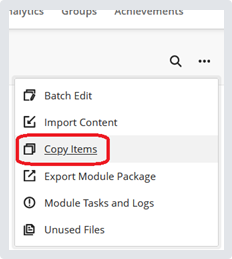
- Select "Copy Items" from the menu that appears
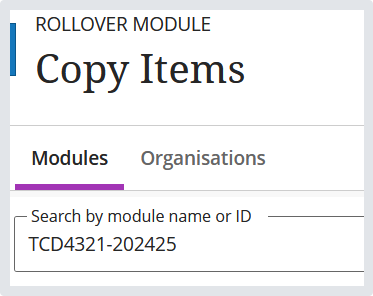
- Search for your Original module e.g. TCD4321-20245
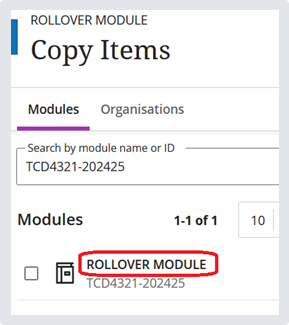
- Select the module title to view the sections/content areas contained within it that you wish to copy over.
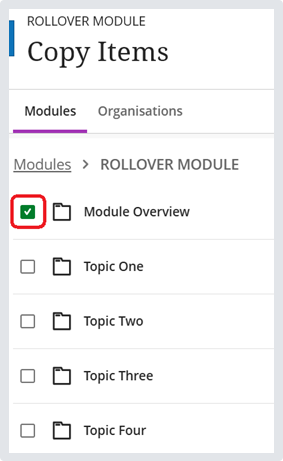
- Select the checkbox beside the segment/content area you wish to copy over and click "Start Copy".
The copy should take no more than a minute (depending on the size of the segment/content area).
A "Copying content" spinner displays at the bottom of the Module Content page and updates to "Copy complete!" when the process has finished. - Access your upcoming module to verify that your content copied over successfully, and rearrange or amend it as necessary.
Please note. Content that you copy is automatically set to "Hidden from students". You can make individual items "Visible to students" or use the "Batch Edit" feature (located in the ellipsis tool/three dots at the top right of the Module Content page) to make several items visible at once.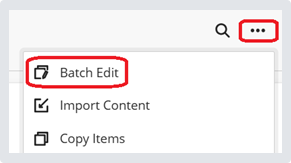
If the system encounters problems with a content copy, an error report appears at the top of the Module Content page. Select View Exceptions to learn more about why the content failed to copy.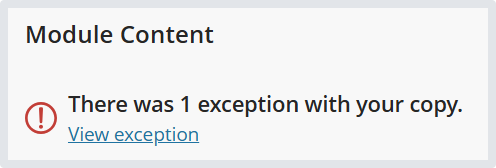
Most exceptions are not significant and won't require any adjustment from you. For some exceptions, you may need to manually create this item in your new module. - Repeat steps 6 and 7 above for any other remaining segments/content areas you wish to copy. However, you may not wish to copy old Announcements across, as these are typically time-specific.