
Overall Mark
If you haven't configured the overall grade yet, you'll see a banner in the Gradebook prompting you to do so. From the banner, select Set it up. The Overall Mark page appears.

Click on Gradebook in the top navigation of your module.
Under the List View (Markable Items), click on the Overall Mark Icon and select Set it up.

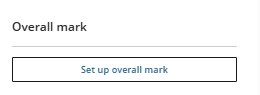
Alternatively, you can access the Overall Mark in the Gradebook Settings. Click on Set up overall mark.
Click to Learn more about Grade Columns and Setting up Overall Grade from Blackboard
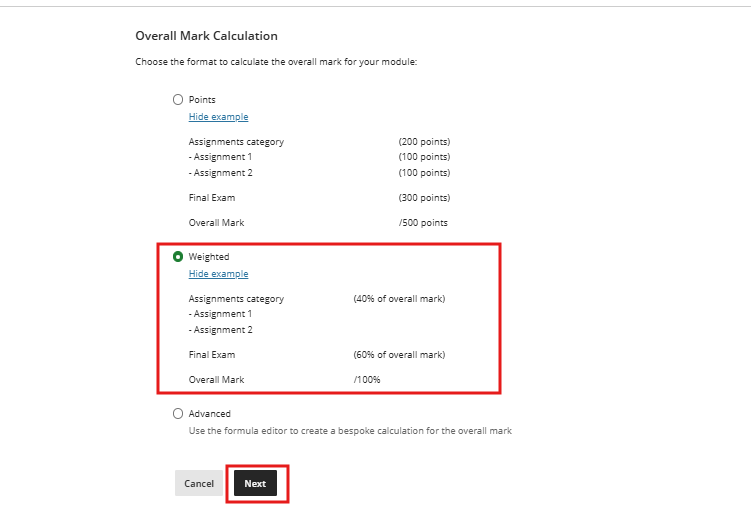
Select Overall Mark Calculations
Select Weighted as the calculation type.
-
- Weighted. The weighted calculation assigns categories and grade items as percentages of a final mark worth 100%. You can assign percentage values to any module item and category and choose whether to weight items in the same category proportionally or equally. For more information, see Create weighted calculations.
- Points. A points-based grade calculation may aid transparency by making clear to students what's worth more in a module and what’s worth less. You can select which categories and items you want to include in the calculation. The maximum total points available in the course will be decided by the items and categories you include in the calculation.
- Advanced. Use a custom formula to calculate the overall mark.
Overall Mark Settings
Once the weighted calculation type is selected, you can set the weighting to be distributed proportionally or equally.
-
- Proportionally takes the marks of the included assessment columns and categories and then divides the result by the total points possible to obtain a percentage for each item in the weighted column. The resulting percentages retain each item's proportional weight, so items with higher point values have a greater effect on the calculated grade.
- When the columns and categories you select for the weighted column have different point values, Equally converts them to percentages. These percentages are averaged to obtain an equal value for each of the items included in the weighted column.
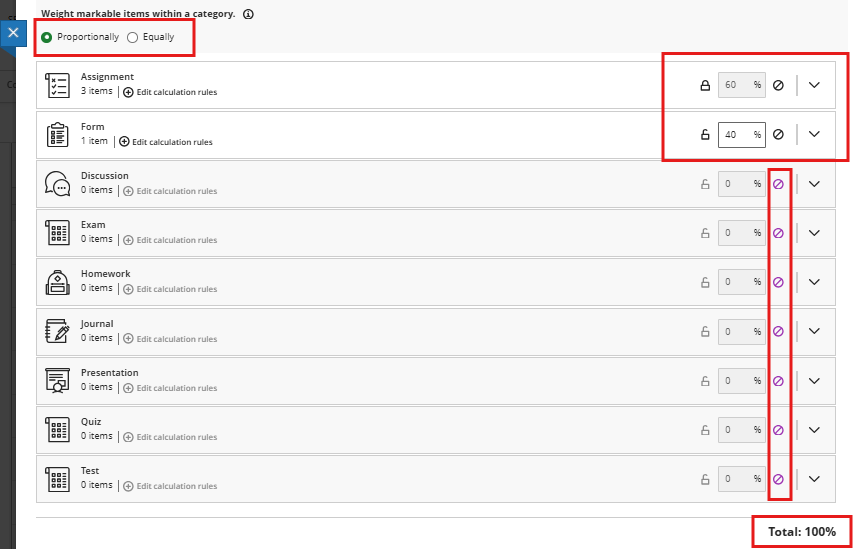
By default, the Overall Mark page categorises assessment items, such as Test, Assignment, Discussion, and Exam, and distributes marks proportionally across all categories. Decide which categories or items make up your weighted total (must = 100%). Note: Turnitin will not be automatically included in a category.
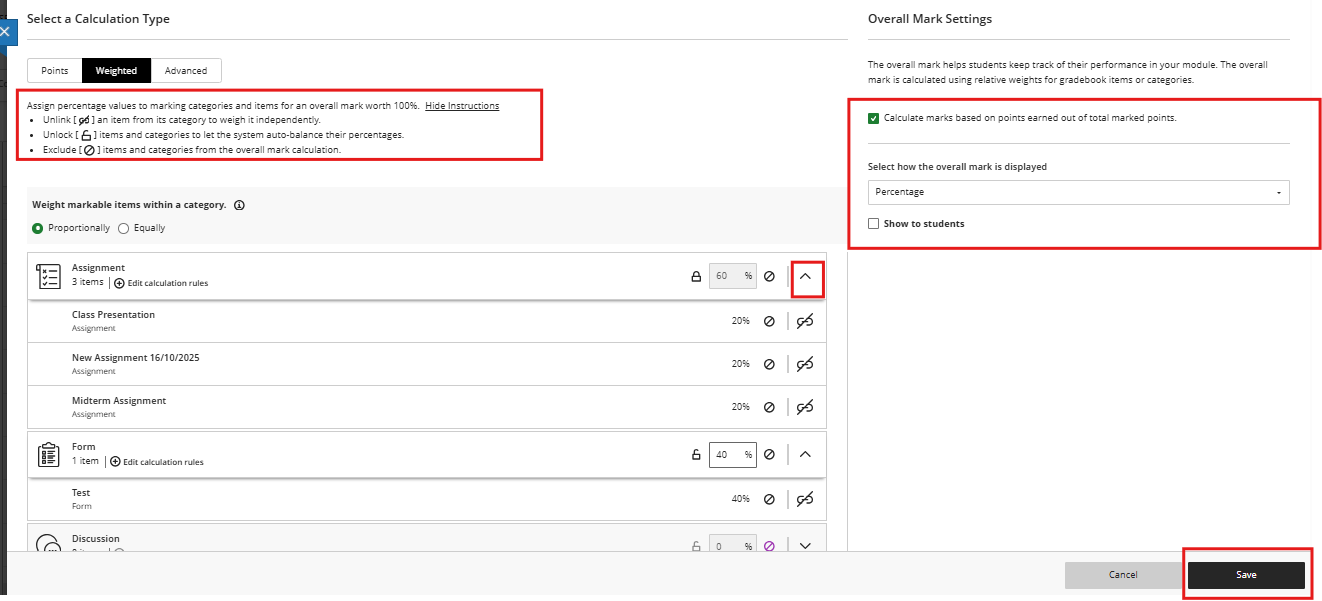
- As a first step, exclude the categories that you are not using. Press the Exclude Icon (a circle with a diagonal line). Excluded categories will be greyed out, and the exclude icon will appear purple.
- Click on the Locks to edit the percentages. Ensure that all grade items are categorised correctly. Note: Turnitin will not be automatically included in a category.
- Categories containing items are listed first and are ordered by the number of items they contain. Expand a category to see its items. From here you can:
- Unlink an item from its category to weigh it independently. This is useful if you want to include the item in the calculation but separately from the rest of the category.
- Unlock items and categories to edit the percentages. This lets the system auto-balance their percentages.
- Exclude items and categories from the overall mark calculation. Select the button again to include the item or category in the calculation.
- For each category, you can select Edit calculation rules to verify or update the current settings:
- Drop Scores removes the specified number of the highest or lowest grades for each category from the calculation.
- Use only removes all grades from the calculation except for the highest or lowest score.
- Under Overall Mark Settings, choose how to display the overall mark — as a Letter, Points, Percentage or Complete/Incomplete or any grading schema created in the module.
- Calculate marks based on points earned out of total marked points (also called a running total). This calculates a student's overall mark as the running total of the points they've earned, divided by the total points possible for the assignments in the weighted columns.
- Option Checked: This option is switched on by default. The overall grade is a running total calculated only using assignments that have been submitted and marked. Missing or ungraded assignments are ignored.
- Option Unchecked: The overall grade is calculated based on all assignments in the weighted column. Any assignment the student hasn't submitted yet (or you haven't marked) is treated as a zero.
- Until ready to release the marks to students, or to not display the calculated column on student mark pages, select Invisible to Students. When you are ready to release the mark to students, change this option to Visible to Students.
- Click Save.
Viewing your Overall Mark Column
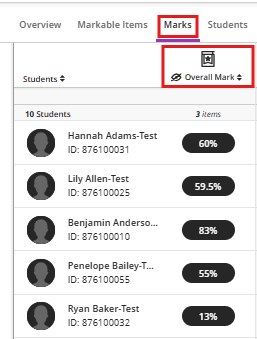
Click into the Gradebook and Mark to view the Overall Mark Column.
Click to Learn more about Grade Columns and Setting up Overall Grade from Blackboard