Conversations
Class conversations can be enabled for individual content items, allowing students to discuss the content with peers and instructors. This feature supports collaborative learning by facilitating discussions directly related to course materials.
Conversations can be enabled for the following: Documents, Assignments & Group assignments, Tests & Group tests & Offline submissions. Note: The menu and conversation only appear if your instructor has enabled class conversations for the item.
Additional Information & Guides
Enable conversations
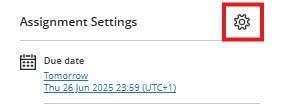
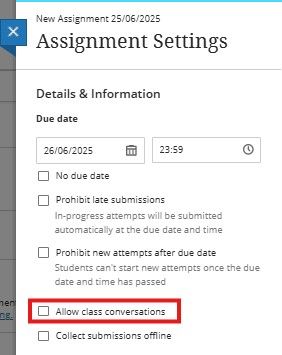
Select the item's Settings icon to open the panel with the item's details. Select Allow class conversations.
Access Conversations
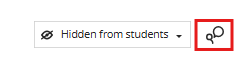
When someone contributes to a conversation, an icon appears next to the item's title on the Module Content page. Open the item's menu and select Conversation to view the conversation. The menu and Conversation option will only appear if your instructor has enabled class conversations for the item.

Or, select the Open class conversation icon in the upper-right corner of an item's panel or layer.
Conversations are set up the same as discussions. Two levels of replies are allowed for each first-level response.
- What do you want to say? Add a response or reply to a classmate or your instructor.
- Save a draft. You can start a response, save it as a draft, and finish it later by selecting Save Draft.
- What's new? New responses and replies appear with a New icon.
- Delete contributions. Select the trash can icon to delete your own responses, but you can't make edits. Replies to your deleted responses remain. If necessary, your instructor can remove anyone's responses.
- View activity and search for participants. View the list of participants and their activity, and search for a specific participant, in the Participants panel.
- Refresh your view. Check for new activity since you opened the conversation by selecting Refresh in the top-right corner.
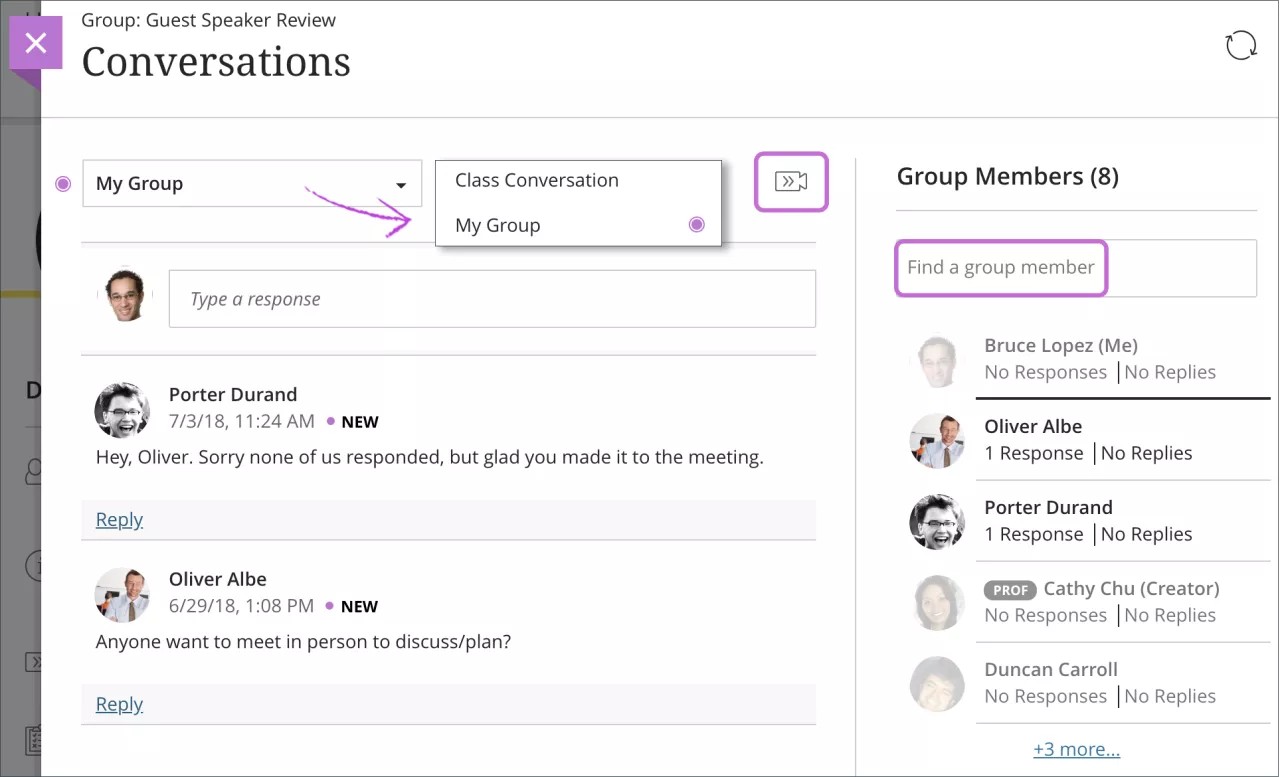
Group Conversations
You can view and participate in the conversations for your group or the class. Select the group title to access the menu and make a selection. A purple circle indicates new activity.
You can search for a specific group or module member by selecting your choice in the menu.