
Transfer marks from Blackboard to SITS
Important: Only Grades Journey Approvers in Blackboard can extract marks to SITS. Only transfer columns that contain marks.
Navigate to the Blackboard module you wish to extract grades from.
Click on Add Third Party Tools under the Details & Actions header on the right-hand side.
From the list of tools, click on Grade Approval and Transfer V2. This will launch the Grade Export Mark Approval Tool LTI, which sends the marks from Blackboard to SITS. Please note that it may take a few moments to load. 
Selecting Specific Grades Journey Columns to Approve and Transfer
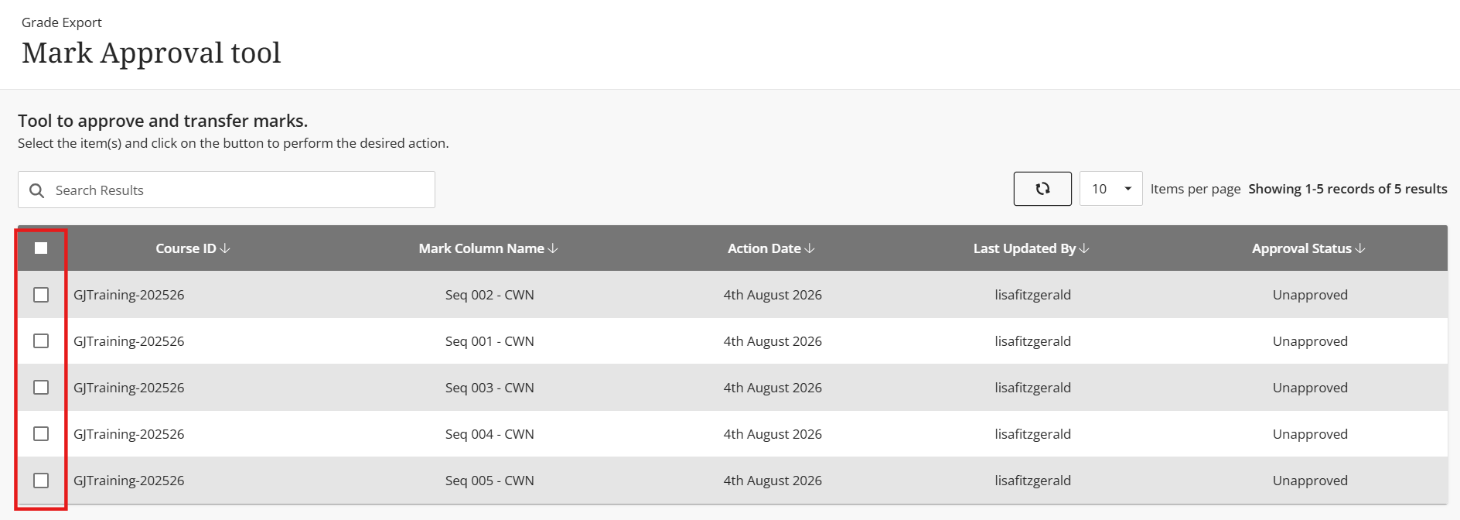
Select the column name you wish to extract, again clicking on the box to the left of the name.
-
- Select a specific column to transfer. The box will turn green, and a tick will appear.
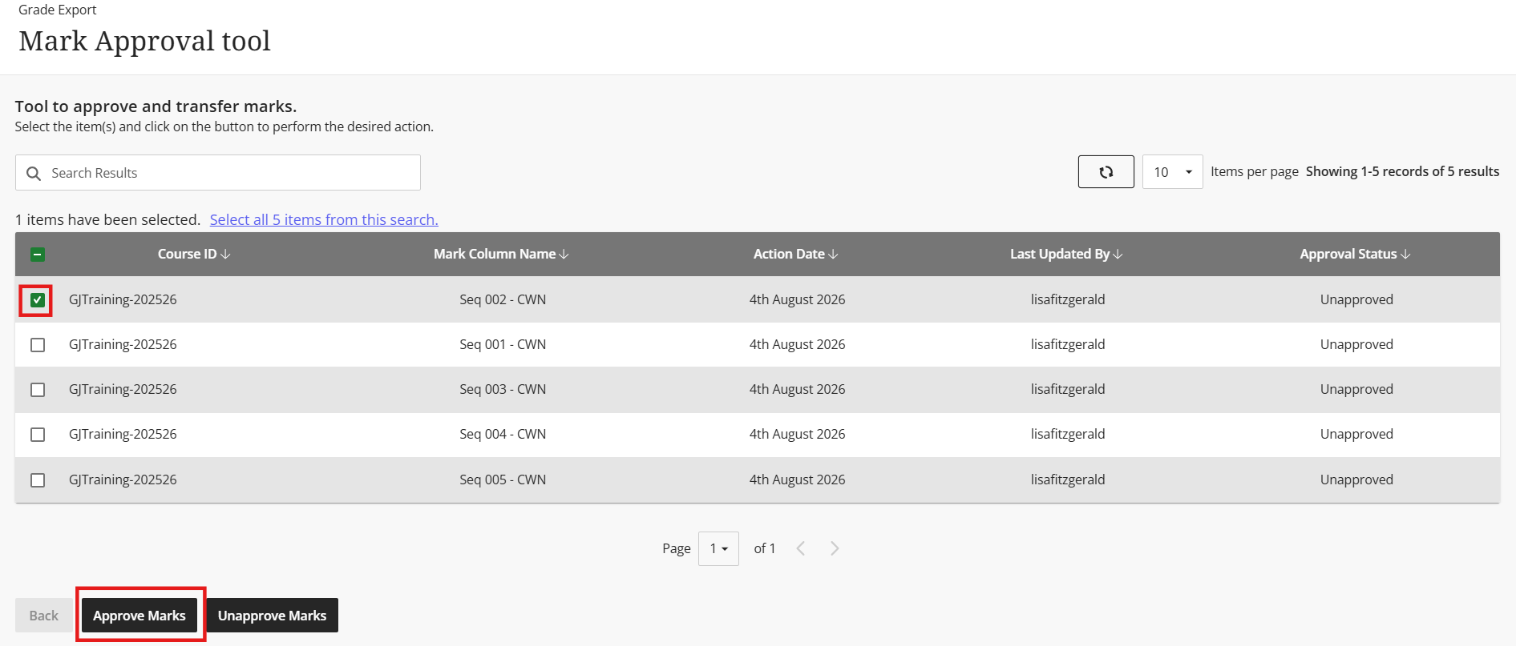
Click Approve Marks.
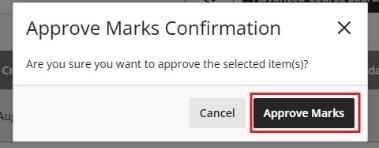
Once the marks have been approved, they will be extracted and sent to SITS at the next scheduled run time, which is Monday through Friday, every hour from 08:00 to 18:00.
A 10-minute cut-off applies before each transfer time.
For example, if you approve marks at 10:55, they will not be transferred until 12:00.