
Viewing your Marks & Feedback
Activity Stream
When marks are posted (released), you may receive a notification in your Activity Stream. Remember to check your notification settings to ensure you don't miss your marks.
- Select Activity from the left-hand menu.
- Select Marks and Feedback to view the mark.
- Select the Assessment Name to view your submission, mark, and feedback in your module.
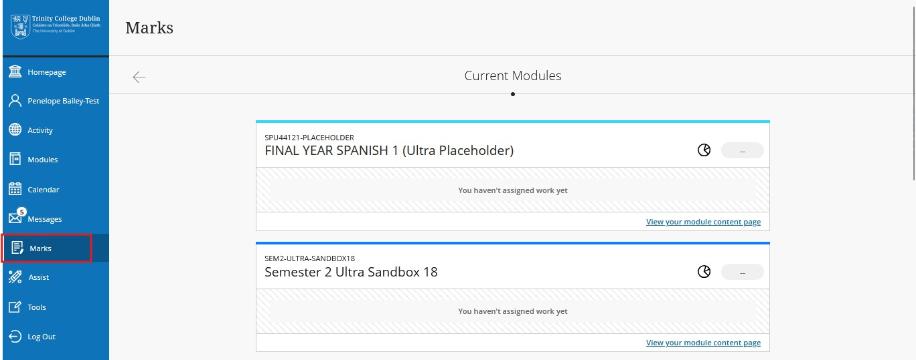
Marks
- Select Marks from the left-hand navigation menu.
- Select the assessment name to view your submission, mark, and feedback.
- A maximum of five items will be displayed per module.
- Select View all work to view other assessed work within your course.
Gradebook
Each Blackboard Ultra module has a page called Gradebook. You can view your marks and feedback from this page. An icon shows the number of new assessed items you have to review.

Turnitin
If your assignment was submitted via Turnitin, click the assessment name to open the Turnitin viewer:
-
Your Grade: Your mark is displayed in the top-right corner.
-
Your Feedback: Text and voice comments from your Instructor are located on the right-hand side under Instructor Feedback. If you don't see the feedback panel, click the blue speech bubble icon to open it.
| Resource | Description | Link |
|---|---|---|
|
Understanding the similarity score for students |
A guide to help students understand the percentage (similarity score) | Click to access |
| Reviewing your Grade & Feedback | A guide to help you review your Grade & Feedback | Click to access |