
Paperless Court of Examiners via Microsoft Teams
Microsoft Teams is sometimes used for conducting online paperless Court of Examiners.
If you are an external examiner and require access to Microsoft Teams in Trinity College, the following items must be completed first:
- Trinity computer account
- The nominating Trinity School or Department must request a Trinity computer account on your behalf from the Trinity Human Resources department. If this hasn't occurred, please contact your nominating School or Department
- After your account application is processed, you will receive an email, from hr@tcd.ie, with a password-protected PDF. This PDF will contain your Trinity account username and a password. If you do not receive your new account details, please contact the Human Resources department
Once the above items are in place, you will be able to sign in to Microsoft Teams, via office.tcd.ie, using your Trinity computer account.
Multi-Factor Authentication (MFA) on computer accounts
Upon logging into your Trinity computer account for the very first time, you will be asked to set up Multi-Factor Authentication (MFA).
For more details about this process, please see our Multi-Factor Authentication (MFA) information for external examiners.
Creating and setting up the Team
- Teams names will be created with the prefix 'TCDGroup-'
- Teams should always be created as 'Private'
- Each Team should have two owners so that more than one individual can manage the Team, e.g. adding members
- The college reserves the right to remove any Team with an inappropriate or misleading name
- An expiry of one year will be set on all Teams. Owners (or administrators) will have the option to renew the Team to retain it after 1 year and will be emailed with a renewal option 30, 15, and 1 day(s) before expiry
- Schools and departments should coordinate locally to ensure that multiple team sites are not setup for the same purpose.
Accessing Teams from a web browser
- Log into office.tcd.ie using your Trinity email address (in the form username@tcd.ie) and password
- Click on the 'Apps' menu item on the bottom left-hand side

- Click the 'All apps' link in the middle-right of the screen.
- Select 'Teams' from the list of all apps
Access Teams from the desktop app
The Teams desktop client app can be downloaded directly from Microsoft via their "Download Microsoft Teams for Windows" webpage.
Access Teams from the mobile app
Install the Teams app to your phone or tablet via Google PlayStore or Apple AppStore.
Create a team in Microsoft Teams
Useful link: Create a team from scratch in Microsoft Teams
Managing your Team and Team membership
Useful link: Add members to a team in Microsoft Teams
Useful link: Add a guest to your team
Useful link: Make someone a team owner in Microsoft Teams
This will allow Team members and guests to open and view the documents in the folder, but they won’t be able to download or edit the documents. This applies to Office (Word, Excel and PowerPoint) and PDF documents.
- Click on the 'Shared' tab in your Team
- Click on the 'Open in SharePoint' link
- Click on the '+Create or upload' button and select the 'Folder' option
- Give the folder a name (something like 'Documents - view only') and click create
- Click on the three dots and select 'Details'
- Click on 'Manage access'
- Click on the dropdown arrow to change the permissions from 'Can edit' to 'Can't download
Useful links:
Now that the Team folders are protected, only Team owners will have permissions to add to them.
Owners can either create a document (such as a Word document or Excel file) directly within a protected folder within the Team or the owner can upload a file which will be marked as 'protected' as soon as it is added to the protected folder (created in the steps above: "Creating 'view only' folders for the members in your Team"
Creating a protected document from within Teams:
- Click on the 'Files' tab from within Teams and select the folder which is protected
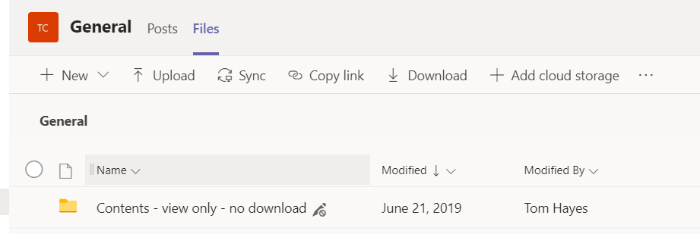
- Click on 'New' and select what type of document you wish to create
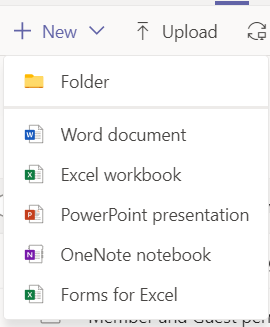
Please note: the same process can be repeated for uploading documents, except instead of clicking on 'New' you now select 'Upload'.
Teams can be used to facilitate remote video conferencing meetings with colleagues or collaborators who are working in different physical locations using any laptop or mobile device which is equipped with a camera and microphone. For more details, view our Microsoft Teams webpage.
This feature can be used to schedule an online Court of Examiners meeting.