
Setting up your staff Trinity computer account
To complete the setup of your computer account, you will need your Trinity email address and initial password that you received from HR. During the setup, you will enable multi-factor authentication (MFA) for your account and change your initial password.
Set up your Trinity computer account
Enable Multi-Factor Authentication (MFA) with Microsoft 365
When you log in for the first time, to a Microsoft 365 authenticated service (such a office.tcd.ie), using your username and password, you will be requested to set up your Multi-Factor Authentication (MFA).
Failure to set up MFA within the first 30 days of the account creation will result in the account automatically disabling.
The MFA setup process begins when you sign into Microsoft 365 for the first time.
- Sign in to office.tcd.ie (Microsoft 365), using your Trinity email address (in the form username@tcd.ie) and password
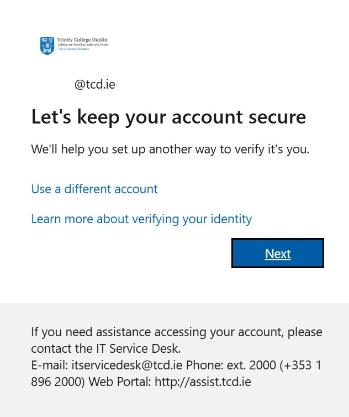
- You will see a prompt asking you to keep you account secure. Click on Next
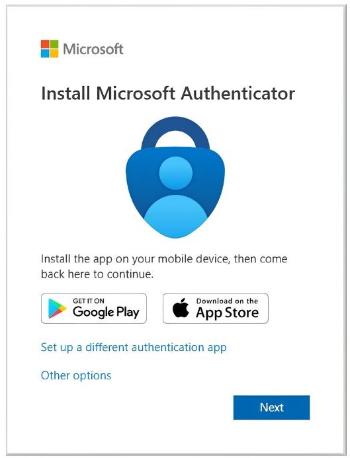
- You will then be presented with the Install Microsoft Authenticator screen. To verify your account, you must install the Microsoft Authenticator app on your phone
After installing the Microsoft Authenticator app, your options are to verify your account as follows:
- Using only a phone: If you are using only a phone to complete the setup, you can complete the verification process by using the "Microsoft Authenticator App (Pairing)" option shown below.
- Using a computer and a phone: If you are completing the setup on a computer and also have a phone with you, you can complete the verification process by using the "Microsoft Authenticator App (QR Code)" option shown below.
Select the appropriate tab below for the next steps.
MFA authentication options
- After you install the Microsoft Authenticator app on your phone, switch back to your phone browser and click Next
- Click Pair your account to the app by clicking this link
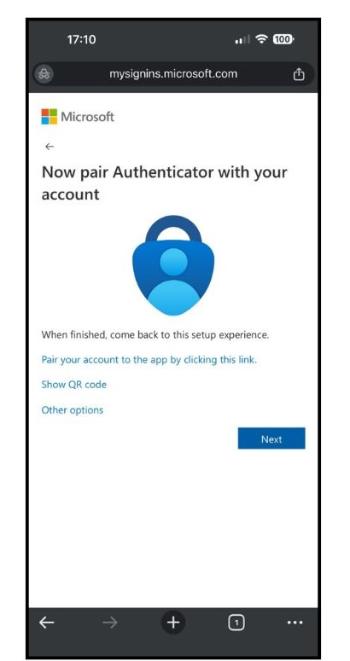
- After clicking the 'Pair your account' link, your Microsoft Authenticator app should automatically open
- At this point, you may be asked for your phone pin code or fingerprint. You may also be asked to allow notifications.
- The 'Account added successfully' message will be displayed and your email account name will show in your Microsoft Authenticator App. Click Ok. Return to your browser window and click Next.
- Microsoft will then display a message saying Let’s try it out, a number will also show on the browser screen.
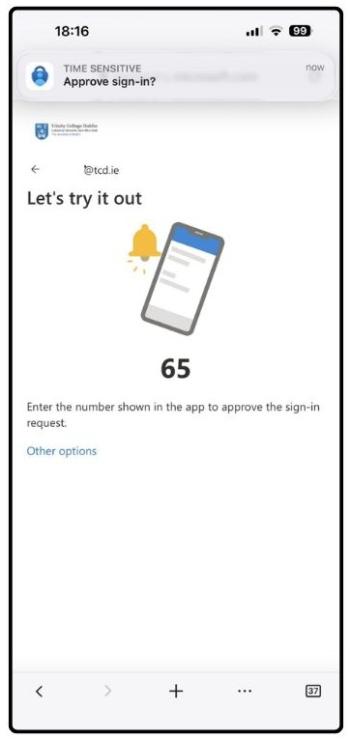
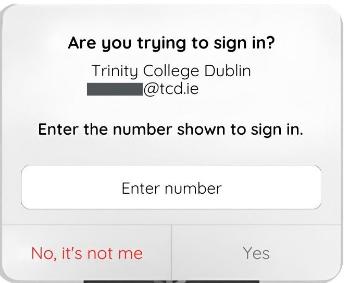
- You should get an automatic prompt from the Microsoft Authenticator asking to Approve sign-in? Click on Approve sign-in and enter the number followed by Yes. Alternatively, you can open the Microsoft Authenticator app and at the Are you trying to sign in? window enter the number followed by Yes.
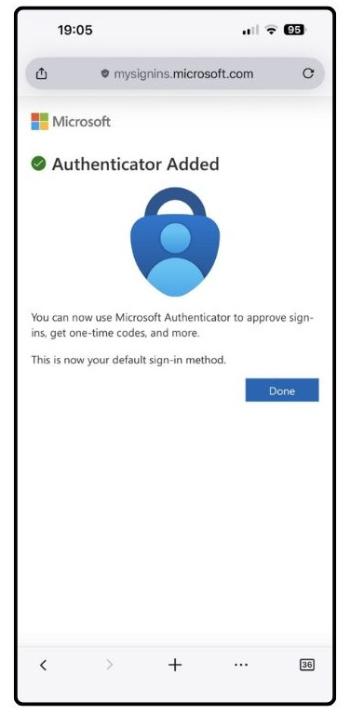
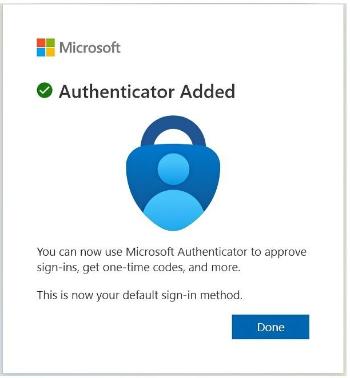
- Now go back to the browser and you should see a message saying Authenticator Added appear in the browser, click Done.
- At the Stay signed in? window you can choose to stay signed in if you want to use your Microsoft 365 apps online.
- After you install the Microsoft Authenticator app on your phone, on your computer choose Next
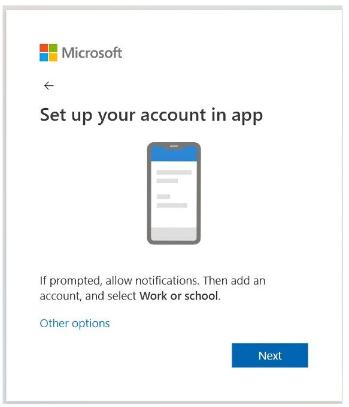
- Click Next again at the Set up your account in app.
- Once the Scan the QR code screen appears on the computer, open the Microsoft Authenticator app on the phone and follow the steps below:
- Open the Microsoft Authenticator app, tap the + in the top right corner and choose Work or school account
- Select Scan a QR code and point the phone camera at the QR code on the computer screen
- You will then see a notification to say the account is added to the app
- iOS users may have to enable the camera in Settings to scan the code
- If you can't use the phone camera, you can manually enter a code and URL on the app by clicking on the Enter code manually button. The code and URL needed can be found by clicking on the Can’t Scan the QR code? option below the QR code on the computer. Then click Finish.
- Switch back to the computer and click Next.
- Microsoft will then display a message saying Let’s try it out and show you a number on the browser screen.
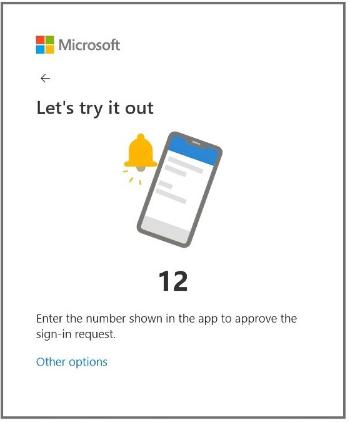
- You should also get an automatic prompt from the Microsoft Authenticator asking Are you trying to sign in? or Approve sign-in. Enter the number shown in the browser screen, into the prompt and then click Yes.
- You may have to enter your phone pin code or fingerprint multiple times as part of this process.
- A message saying "Approved" will quickly appear in the Microsoft Authenticator app.
- Go back to the browser and you should see a message saying Authenticator Added appear in the browser. Click Done.
- At the Stay signed in? window you can choose to stay signed in if you want to use your Microsoft 365 apps online.
Changing your initial password
IT Services recommend changing your initial password as soon as you have MFA set up.
Your password can be changed via your Microsoft 365 account. See "Change your work or school account password using security info" for more details.
If you fail to change your password within 30 days of receiving the new account, then you will be forced to change it.
After you change your initial password, you will be required to change it every 180 days after that point.
Please note, your password can only be changed once in any 24-hour period.