
TCDpolls Third Party Tool in Blackboard
The new TCDpolls (Vevox) Blackboard Third Party Tool allows staff to create, launch and manage interactive polling activities from within a Blackboard module. While existing guidance on using TCDpolls remains applicable, the Blackboard Third Party Tool provides additional functionality that enhances the student experience and introduces new options for recording participation and performance in the Blackboard Gradebook.
Using TCDpolls (Vevox) in Blackboard
TCDpolls can be added to any Blackboard course as a third party tool, enabling students to access polls, quizzes, surveys and Q&A activities without leaving the Blackboard environment. This creates a more seamless learning experience and makes it easier to integrate interactive activities alongside lecture materials, assessments and other course content.
Staff can add a TCDpolls activity using the Add Third Party Tool feature within a Blackboard module. Once added, students access the activity directly through Blackboard, reducing the need to join sessions separately or navigate to external systems.
Adding the TCDpolls Third party Tool to your Blackboard Module
This guide walks staff through adding a TCDpolls LTI link directly into a Blackboard Ultra module content area.
Step 1: Access the Content Menu
-
Open your Blackboard Ultra module.
-
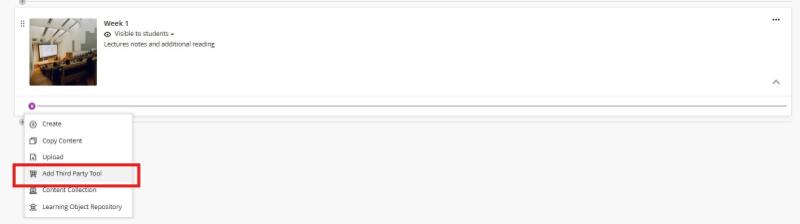
Hover your mouse over the line where you want to place the tool and click the plus (+) icon.
-
Select Add Third Party Tool from the drop-down menu.
Step 2: Select TCDpolls Tool
-
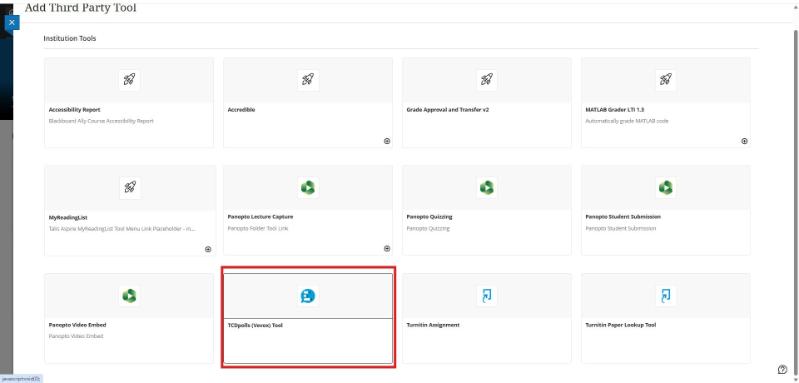
In the Add Third Party Tool / Institution Tools panel, locate and click TCDpolls (Vevox) Tool.
Step 3: Select or Create a Vevox Session
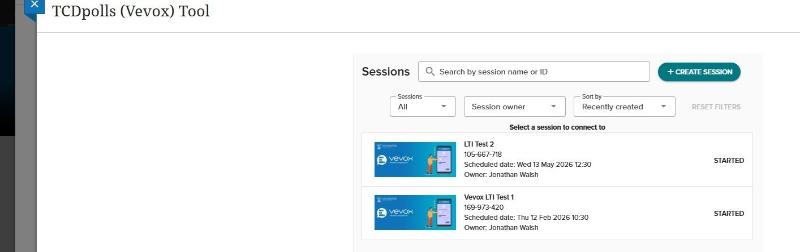
The TCDpolls LTI launch window will open showing your existing TCDpolls sessions.
-
To connect an existing session: Find your session from the list.
-
To create a new session:
-
Click the + CREATE SESSION button in the top-right corner.
-
Enter your session name in the pop-up and click CREATE.
-
Step 4: Choose the Activity Type
-
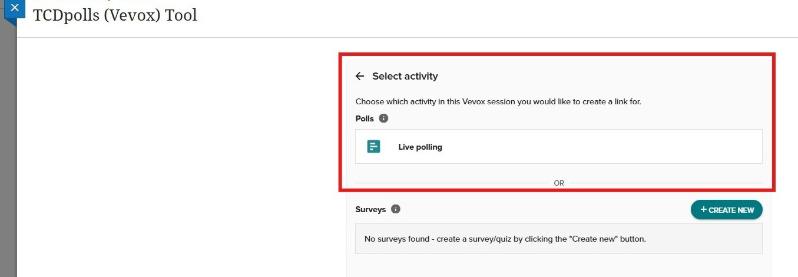
Select the specific activity in your TCDpolls session that you want to link (e.g., Live polling or a designated Survey).
Step 5: Configure Participant Identification & Scoring
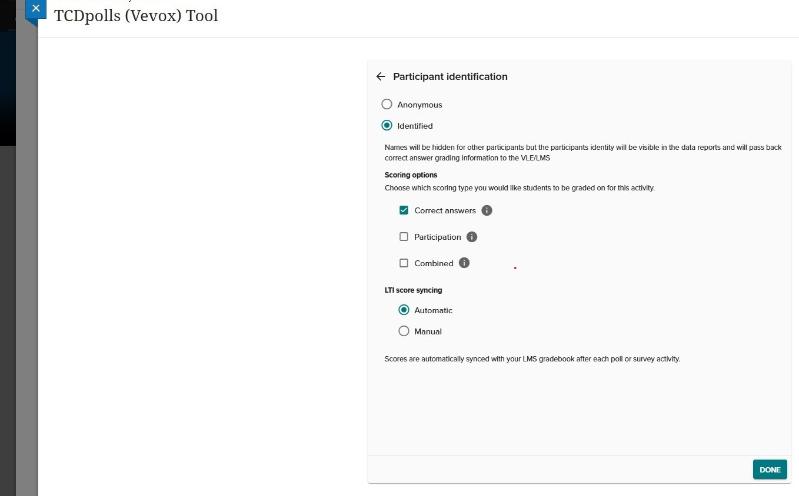
Set up how student data and identity should be managed for this session:
-
Participant identification:
-
Choose Identified (default) to capture student credentials via Trinity Single Sign-On (SSO) and enable gradebook sync.
-
Choose Anonymous if you do not want to capture all student identity data.
-
-
Scoring options (for Identified sessions):
-
Select how students should be evaluated: Correct answers, Participation, or Combined.
-
If using Combined, adjust the slider ratio between correct answers and participation.
-
-
LTI score syncing: Select Automatic or Manual.
Automatic Sync: Marks update in the LMS gradebook instantly as each poll or survey closes.
Manual Sync: Marks are held until you trigger the transfer at the end of a session. -
Click DONE.
Step 6: Verify and Launch
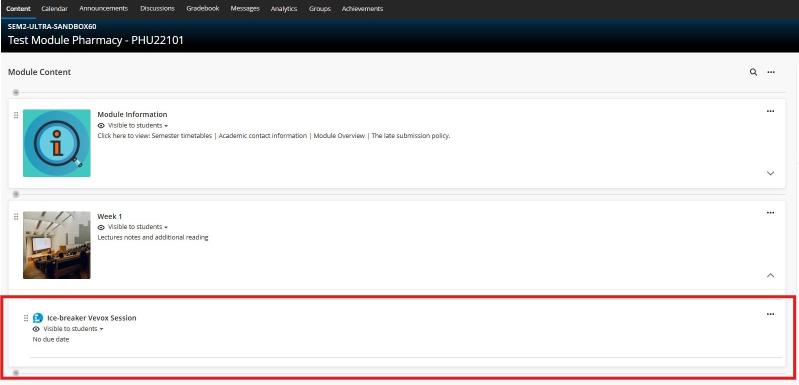
-
The session link will now appear in your Module Content.
-
Ensure the item visibility is set to Visible to students when you are ready for them to access it.
-
Clicking the link will prompt you or your students to launch the dashboard via the OPEN IN NEW TAB button.