
Turnitin
Turnitin is integrated into the College's VLE, Blackboard, and is designed to streamline the online assignment process. It offers instructors robust functionality for providing detailed student feedback—including annotations, rubrics, voice recordings, and text comments—and is widely recognised for its ability to generate Originality Reports to detect potential plagiarism.
General Advice
Notice regarding the Turnitin Similarity Score
To get a similarity report for every submission, you must enable the Turnitin similarity check when you create the assignment, not later. Submissions uploaded before the feature is enabled will not be reviewed.
The similarity score in the Turnitin report is not a measure of plagiarism within a piece of work. It represents where there are similarities to other sources (journals, essays, books, etc.). A submission with a high similarity score might be satisfactory once the bibliography, cover sheet, etc., are accounted for. In contrast, a submission could have a low score but could be heavily paraphrased from other sources without citation.
Lecturers should advise their students not to focus solely on achieving a similarity score below a certain percentage, as there are many other dimensions to consider when correctly citing sources. For more information on interpreting the Similarity Score, please visit the Turnitin website. Additionally, instructors may find this blog post by Turnitin on the similarity report informative.
If a paper submitted to your class assignment shows a high similarity match to another paper or if you are contacted by another academic, either within the college or from another college, please see the Turnitin website for advice.
Please note, most importantly, that if you plan to run your students' papers through Turnitin, you must inform the student in advance about the product and its intended use.
Benefits of using Turnitin assignments.
| • Create, manage, and circulate assignments within Blackboard for formative and summative learning |
| • Check for potential originality issues using a Similarity Report |
| • Grade using rubrics |
| • Manage how and when grades and feedback are released to students |
| • Provide audio feedback to students |
Handling Submission Issues
If a student has issues submitting, we advise them to contact the module instructor so that there is a record of this and because the instructor needs to decide whether to reset the attempt based on the different circumstances. Clearing/resetting attempts needs to be done by the instructor of a particular module in the first instance. We also strongly recommend that if there are submission issues due to account/access problems, etc., with an individual student, please accept the submission via email as proof of submission until the issue is resolved. If an instructor cannot resolve the issue themselves, the instructor can contact us for advice via itservicedesk@tcd.ie
Clearing an Attempt & Remove From Inbox
Most submission problems are due to browser issues or trying to submit past the due date.
- Browser Issues: Advise the student to try submitting using a different device or browser (like Chrome or Firefox).
- Past Due Date: If the due date has passed, the student cannot resubmit the assignment. To allow a new attempt, you must either modify the due date or clear the existing attempt.
How to Clear a Submission:
-
Open the Turnitin Submission Inbox.
-
Locate the student's name in the list.
-
Click the three dots (...) under the "Options" column.
-
Select "Remove From Inbox".
Important: First, click on the ‘Download’ icon to create a backup of the existing file and record the submission ID, in case of any issues, before deleting it. Then, you can click on the 'Remove from Inbox' option to remove the submission for the individual student.

Turnitin Paper Deletion Requests: For submissions that have been added to the 'Standard Paper Repository', you can also "Request permanent deletion" under the 'Options' column for the relevant student.
Please note: Turnitin has advised that approved paper deletion requests will be immediately and permanently deleted. Once approved for deletion, papers will no longer be recoverable.
Submit on behalf of a Student
You can upload a file directly through the Submission Inbox using the following steps:
-
At the top of the inbox, find the search field labelled "Submit on behalf of a student."
-
Enter the student's name and follow the on-screen prompts to upload the file.
Note on Late Submissions
If the assignment's due date has already passed, you must ensure that Late Submissions are allowed in the assignment settings before you upload. While the assignment may appear in red and be marked as late, this will not automatically deduct marks or otherwise affect the integrity of the submission.
Turnitin Paper Lookup Tool
The Turnitin Paper Lookup tool will allow instructors to retrieve submissions from past assignments, including 'old' Turnitin assignments.
It allows instructors who have previously interacted with the submission point to:
- Retrieve reports generated for those submissions, including the Similarity Report, Grading Report and a combination Similarity Report & Grading Report, all within their Blackboard Learn environment.
- Access past submissions and associated reports from students who may have left the module.
From the right-hand menu, click on View Third-Party Tools under the Details & Actions.
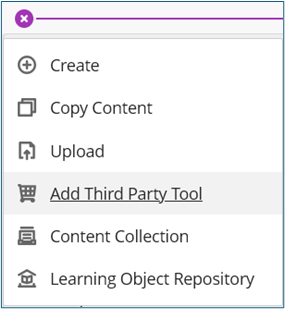
From the list of Available Third Party Tools, locate and click on the Turnitin Paper Lookup Tool.
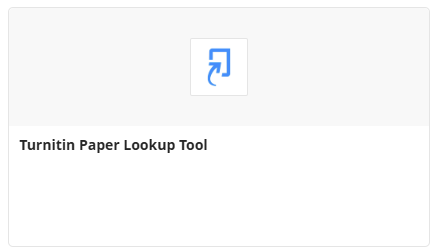
Using the Paper Look Up Tool – Retrieving submissions
- When the tool opens, you can search for the module name in the search bar.
- Select the module name to find all the Turnitin assignments in that module.
- Click on an assignment to view the submitted file.
- From here, you can download the Similarity Report, the Original File, the Grading Report and a combination of the Grading & Similarity Report. There is currently no option to bulk download submissions.
To recover a Turnitin submission from a module where you have not previously interacted with the assignment, locate the Turnitin assignment and wait for the Assignment Inbox to load. You should then be able to find any files submitted to that submission point.
Turnitin Assignments that were set up using the old Turnitin Building Block (ie assignments with a View/Complete link), you will need to identify the assignment owner or instructor who marked or moderated the submissions and ask them to retrieve the files for you. If the original assignment owner/instructor is no longer active in your school, please email itservicesdesk@tcd.ie with the instructor's details, the name of the module, the name of the assignment you are trying to access and the name of the student whose submission you are trying to retrieve.
Please visit the paper lookup tool for the Feedback Studio guide on the Turnitin website for more information.
Turnitin Self-Service Check
This self-check service will allow staff to submit a Turnitin assignment within a module on Blackboard. This self-check service is designed for staff to verify their papers against the Turnitin database (for example, before submitting them to a journal). It is not intended for staff to review student papers or submissions by other authors, nor to hold any student data.
To avail of this service, please complete the Request Form within the IT Service Desk Web Portal.
Click here to access Web Portal: assist.tcd.ie