
Turnitin Multipart Assignments
Multipart assignments allow instructors to connect two or more (max. eight) assignment parts into one assignment experience.
How do they work?
When an instructor creates a Multipart assignment, each part displays as a separate submission link in their Blackboard module and has its own column in the gradebook.
Multipart assignments are built just like a Standard Turnitin assignment. Still, you can configure each part separately, with its own instructions, start date, due date, feedback release date, and settings.
Once setup, students see each part of a Multipart assignment as a separate assignment link in their module and can submit their work for that part. In their Multipart Overview, they can see which parts are available, completed or upcoming.
Students complete each part as they progress through the assignment, and instructors can grade each submission part separately and provide feedback on it. Only one file can be submitted to each part.
Use Cases
- Break a large assignment into smaller deliverables.
- Give feedback before students submit a final draft.
- Review how students' work changes between drafts.
- Support scaffolded writing, research or project work.
- Help students understand each step of a larger task.
For example, a research paper could be setup as a Multipart assignment with separate parts and submission points for
- Outline
- Annotated bibliography
- First draft
- Final draft
Please visit the Turnitin website for more information on Multipart Assignments on their guide pages here.
Additional Information
Creating a Multipart Assignment
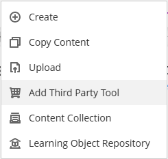
Select the + icon, choose Add Third Party Tool, and select Turnitin Assignment from the Third Party Tools that are displayed.

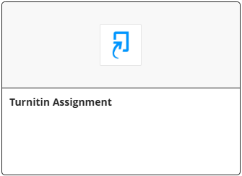
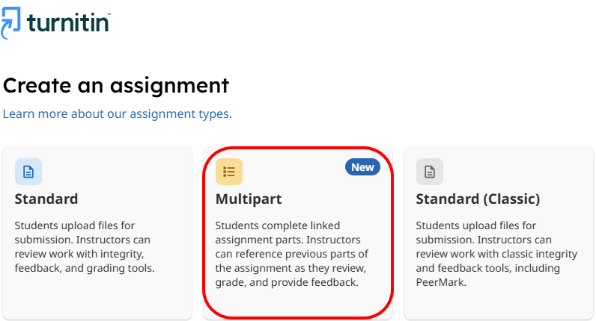
Choose Multipart from the screen that appears.
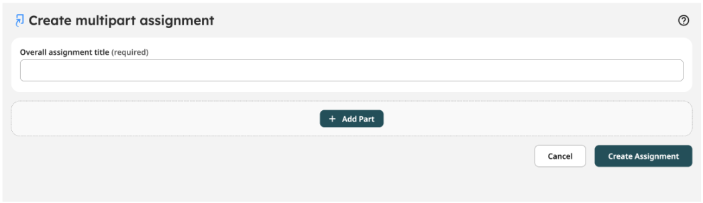
Enter the Overall assignment title and select + Add Part.
Complete the settings for the assignment part. Give the Part a meaningful title, as this will be the submission link that is displayed to students. Include the Start date, Due date and Feedback release date. We recommend keeping the Max points at 100. Choose your Grading/Feedback settings, Submission settings and Report settings. These are the same settings you fill in when completing a New Standard Assignment. See our guides here.
Select + Add Part, then repeat these steps for each Part you want to include. You can add up to eight parts.
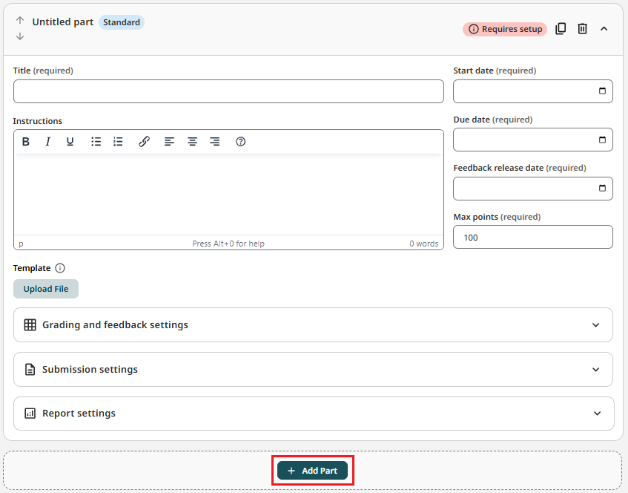
You can duplicate a part when you want to reuse the same structure, instructions and settings for another part of the assignment. Make sure to update the duplicated Part's title and dates.

You can reorder assignment parts before you create the Multipart assignment. Select the up or down arrow next to the part name to move it to a different position. Reordering the parts changes the order in which they appear to students in the Multipart Overview and to instructors in the parts navigation. Reordering parts does not require students to complete them in that order. Use availability dates to control when each Part is open.

You can delete a part when you want to remove it from the assignment. Find the assignment part you want to delete and select the delete part/bin icon.

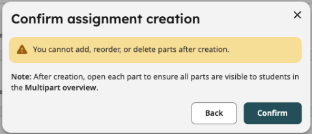
Review each Part before creating the Multipart assignment. Please note: Once you have created the Multipart assignment, you cannot add, reorder, or delete parts. Check that each Part has the correct title, instructions, dates, and settings and confirm that no parts show the 'Requires setup' badge.
Once you have finished creating all your parts, select Create Assignment. Select Confirm to confirm assignment creation.
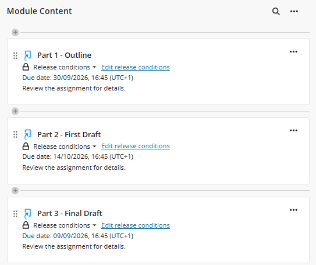
You will be returned to the Module Content page, and each Part should display for you. Important: Open each part/submission link in your module, as students only see a part in the Multipart Overview after you open it in Blackboard.
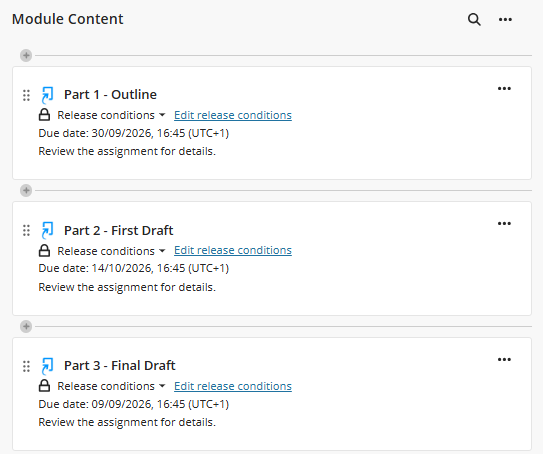
For more information on creating a Multipart Assignment, please visit the Turnitin Guides pages here.
Opening and reviewing a Multipart assignment after submissions
Important: Open by selecting each part/submission link of your Multipart assignment in your Blackboard module to ensure your students see all parts in their Multipart Overview. A banner appears if you have not opened every part of the Multipart assignment in your LMS.
Open a Multipart assignment
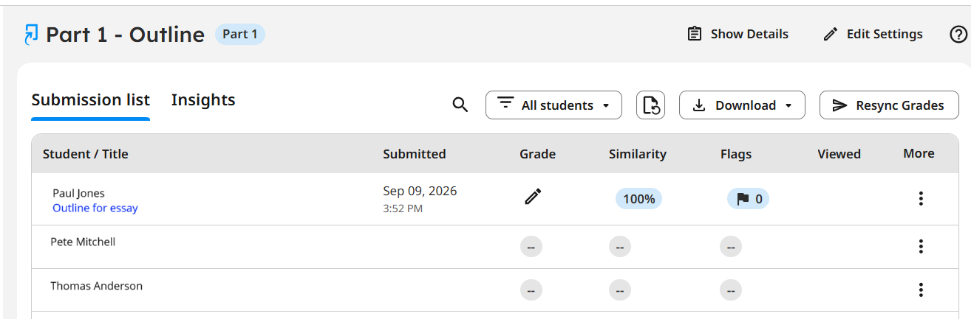
Multipart assignments appear in your Blackboard module content page as separate submission points/parts. Open the part you want to review by clicking on it.
The assignment opens to the submission list for the selected part. The submission list shows student submissions and available report indicators for that part. You can view the assignment details for the current part, including the instructions, dates, rubric, template, and submission settings, by selecting Show Details.
Open the submission file to begin reviewing it.
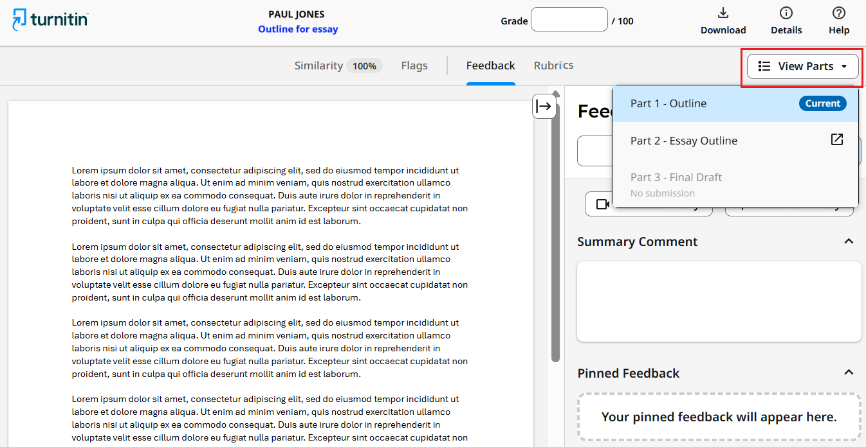
When reviewing a student submission that is part of a Multipart assignment, you can use the View Parts menu to move between that student's submissions for the Multipart assignment.
A part may show No submission if the student has not submitted to that part. The current part is marked with Current in the View Parts menu.
You can grade and add feedback to each part as you normally do with a Turnitin Assignment; see our guides here.
For more information on Opening and reviewing a Multipart assignment, please visit the Turnitin Guides pages here.
Frequently asked questions
Does a Multipart assignment only have one submission link?
When a Multipart assignment is created, each part displays as a separate submission link in the Blackboard module and has its own column in the gradebook. So if there are three parts, three submission links will be displayed.
How many files can you submit to a Multipart assignment
Only one file can be submitted to a Part in a multipart assignment. Turnitin File requirements apply and can be found on the Turnitin Guides pages here.
Can a multipart assignment be edited after it has been created?
You can edit the settings of a Multipart assignment; however, currently you cannot reorder or delete a part once it has been created.
Where can I see the student submissions for the different parts?
Open the submission link for the relevant part in your Blackboard module. You will see all the submissions listed there. When you open a student's submission, you can also view the status of the other parts for that student in the View Parts section.
What is the MultiPart Overview and where do students see it?
The Multipart Overview in Turnitin allows students to see all parts of a Multipart assignment, including the status of each part. They can view the Multipart overview when they open one part/submission link; it displays at the bottom of their submission page.
The instructor must access each part/submission link once it has been created for students to see it in the Multipart overview.