Grading and Providing Feedback in the New Standard Assignment
You can grade submissions and add feedback within the Turnitin Assignment. This interface is referred to as Turnitin Feedback Studio. Grades entered in the Turnitin Feedback Studio are automatically passed back to the Gradebook in your Blackboard module and are posted/released automatically to the students on the Feedback release date that is set in the Turnitin Assignment.
If the Feedback release date has passed, grades will be visible to students in Blackboard; this cannot be reversed, even if you edit the date. If this happens, the only option is to hide the Turnitin assignment in your Blackboard module.
If the instructor provides a grade in the Gradebook within their module, that grade will not be returned to the Feedback Studio viewer or the Turnitin Assignment inbox. Please ensure you enter all grades and feedback for a Turnitin assignment via the Feedback Studio interface.
Students can view their feedback in their submission by clicking on the Turnitin Assignment link in the Blackboard Ultra module.
Grading a submission
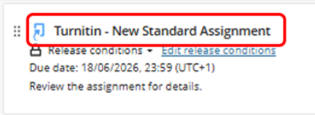
Go to the location of the Turnitin Assignment within your Blackboard module Content page and select the Turnitin assignment title to open the Turnitin assignment.
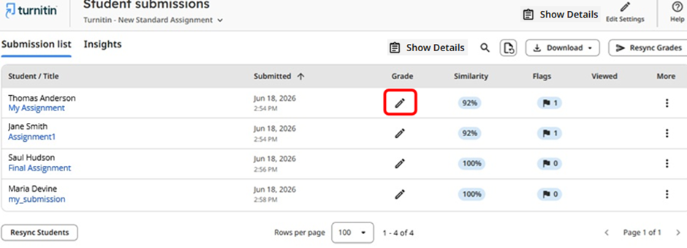
To begin to grade a submission, click on the Grade pencil icon to open the Turnitin Feedback Studio window.
A new window opens, allowing you to begin grading and adding feedback to the submission. Below are some key elements of the grading and feedback tabs.
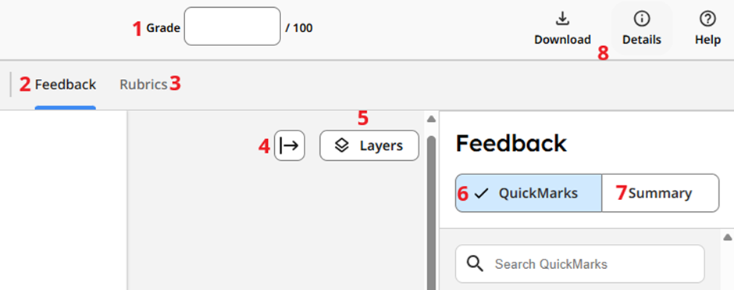
- Grade - Enter the overall grade out of 100.
- Feedback - Displays the Feedback side panel, which includes the QuickMarks and Summary areas for adding your feedback.
- Rubrics - Displays the Rubric grading side panel.
- Collapse side panel button - Collapses the side panel. Select this button again to expand it.
- Layers - Allows you to select an available integrity layer (Similarity, Flags or None) to display on-submission highlights associated with that layer while in the Feedback tab.
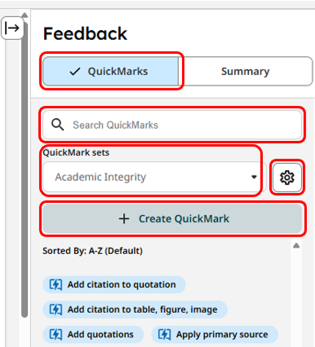
- QuickMarks - Open the QuickMarks interface to create or access feedback that is reusable across multiple students and assignments.
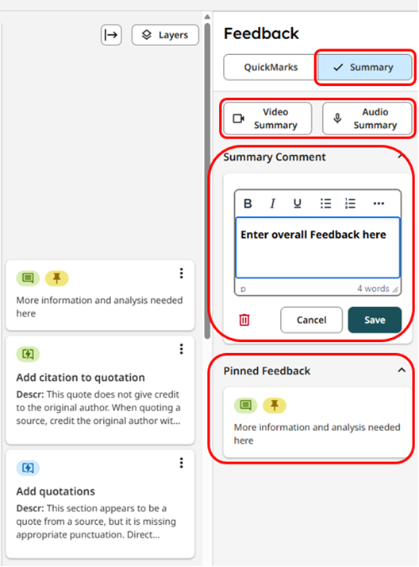
- Summary - Contains the Summary Comment interface and a list of pinned comments where you can enter your feedback.
- Assignment options - Range of options to download, view assignment details and access Turnitin help guides.
Enter the overall Grade in the grade area at the top of the Turnitin Feedback Studio window/viewer.
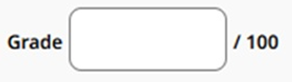
Feedback Studio saves your grades automatically. Once you enter the grade, click anywhere outside of the grade area and then close Feedback Studio’s browser tab to return to the submission list, and the page will refresh to show you the updated grade for that submission.
If you wish to grade the next submission without exiting Feedback Studio, you can use the Navigation area along the top to jump to the next or previous submission using the left and right arrows or select a submission from the down arrow.

Providing Feedback
You can enter summary/overall feedback, QuickMarks and annotated comments for a submission. These are viewable by the student on the Feedback Release Date when they open their submission. Feedback, QuickMarks, and comments made in Feedback Studio are not sent back to Blackboard; only the grade is sent back.
With a submission open in the Turnitin Feedback Studio window/viewer, you can use the options within the Feedback Panel to add specific types of Feedback.
Summary tab
The Summary tab is where you can provide your overall Feedback in the Summary Comment area. Enter your Feedback in the textbox, then select Save when you are finished. To edit any feedback, click into the textbox and make changes. To delete your Feedback, select the bin icon.
Pinned Feedback appears below the Summary Comment area. This is Feedback applied directly to the document and pinned to prioritise important comments or QuickMarks. A yellow pushpin icon at the top left of the QuickMark or comment card indicates pinned comments or QuickMarks. All pinned Feedback appears in the submission margin and is listed under the Summary tab.
You can also choose to record Video or Audio Feedback to the student.
QuickMarks tab
QuickMarks allow you to add feedback templates to the submission.
- QuickMark search box: Searches QuickMarks belonging to the currently selected set.
- QuickMark set menu: Switches to an existing QuickMark set.
- QuickMark Manager/Settings button: Opens the QuickMark Manager.
- + Create QuickMark button: Opens the QuickMark creation panel to create a new QuickMark.
To add a QuickMark, drag and drop it into the area you want in the submission.
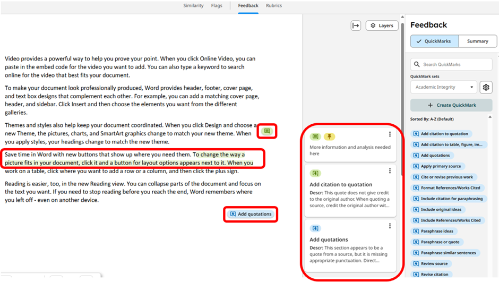
QuickMarks and comment cards appear in the document and in the submission margins, where you can view and edit them.
On-submission Feedback
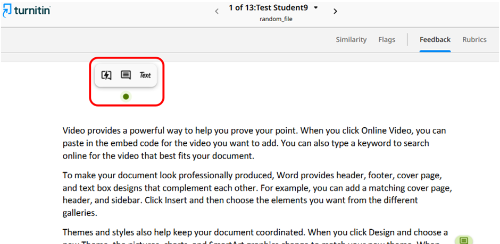
Add Feedback directly to a submission page. Use your cursor to add a QuickMark, Comment or Inline Text directly onto the page. Any QuickMark or Comments will also appear in the submission's margins.
Rubrics tab
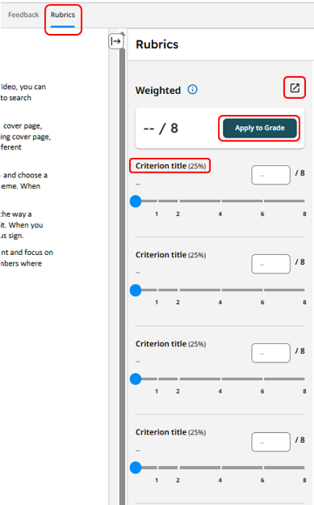
The Rubrics tab displays the rubric grading side panel if a Rubric has been attached to an assignment. This side panel allows you to:
- Opens a full-sized view of the currently attached rubric.
- Displays the rubric criteria for the currently attached rubric.
- Applies the rubric scoring to the submission as an overall grade.
IMAGE