
How to Restore an Archived Recording
There are two locations in which you may come across a recording that has been archived.
- From within the Trinity Panopto Lecture Capture website
- From within a module in the Blackboard Virtual Learning Environment (VLE)
The steps to restore an archived recording from each of these locations are outlined below.
From within the Trinity Panopto Lecture Capture website
For instructions on restoring a recording from within the Trinity Panopto Lecture Capture website, see the Panopto How to Restore Archived Content webpage.
From within a module in the Blackboard LMS
There are two options for restoring an archived recording from within Blackboard.
The archive and restore guidance and screenshots below apply only to Panopto video recordings in Blackboard Original modules. Panopto recordings in the newer Blackboard Ultra modules will not meet the archive criteria until 2030–31, so no archive or restore instructions are currently required for Blackboard Ultra.
- If you have an embedded Panopto video recording that has been archived within the content area of your module, it will display as follows:
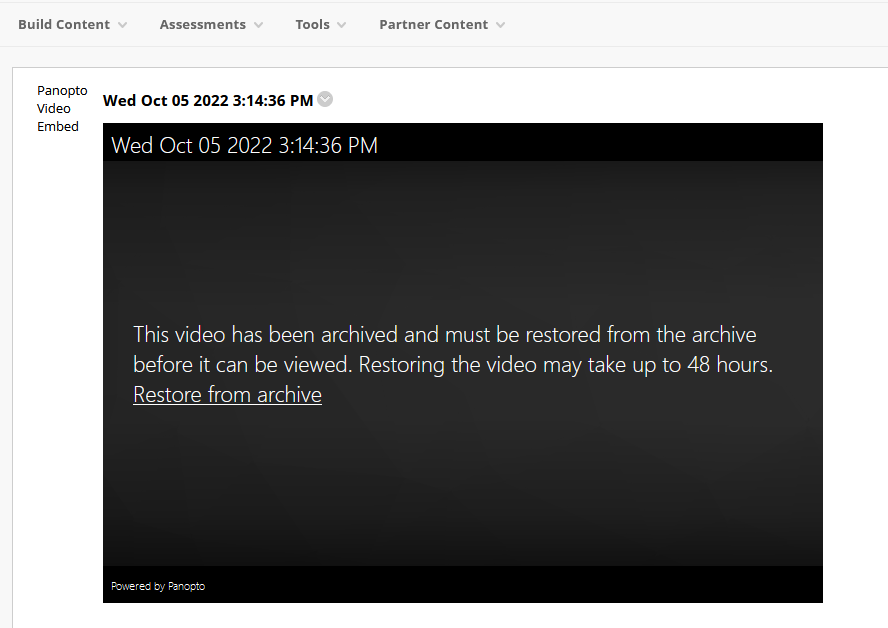
- To restore the video recording from the archive, click on the Restore from archive option.
- Both student viewers and staff creators have rights to request a restore from the archive if they are enrolled on the module
- You will see the following message that the restore from archive has been initiated. This may take up to 48 hours to complete
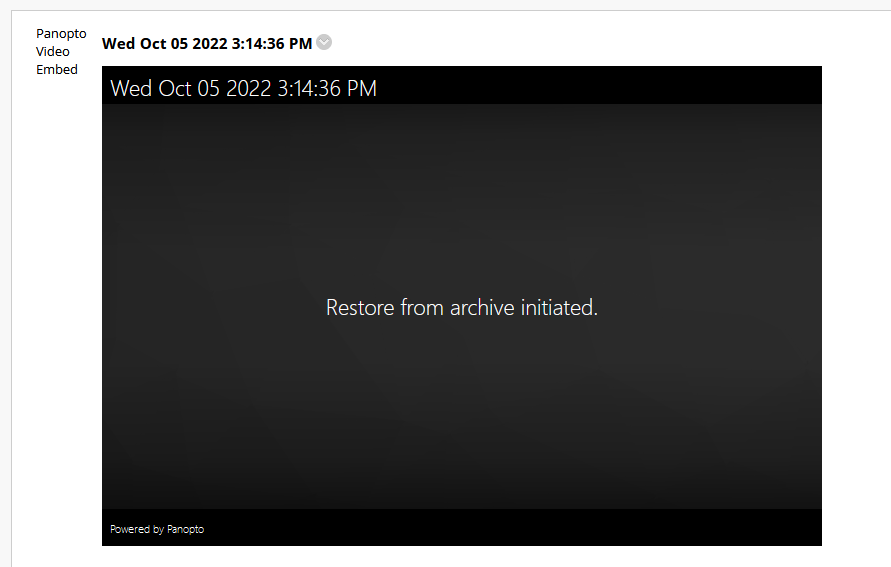
- Once the restore is complete, the embedded video recording will be accessible again

- An email confirmation will be sent by Panopto to the Creator of the recording and whoever requested the restore, stating that the restore is complete
- Open your module's Panopto folder by clicking on it in the left-hand table of contents menu in your module. The name of the folder will differ from person to person. In the screenshot below, it is named 'My Lecture Recordings'
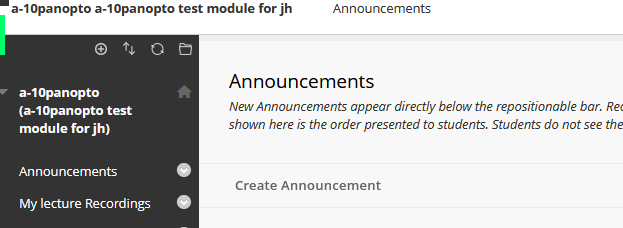
- Once the folder is opened, it will list all recordings for that module. If any recordings have been archived, a message will display at the bottom indicating how many videos have been archived. Click Show archived videos

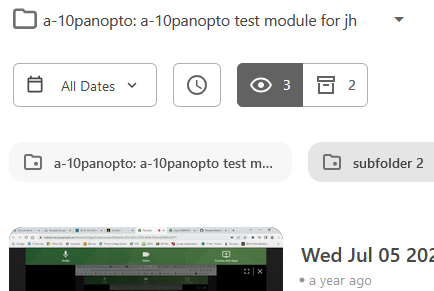
- The list of archived videos will now show. To restore a video, click on the square with the up arrow symbol (restore button) to initiate the restore. The restore may take up to 48 hours to complete
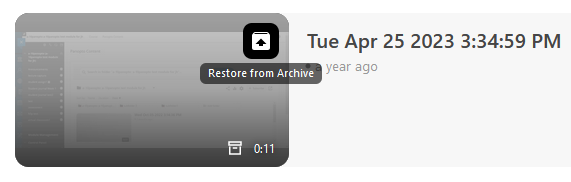
- A message will display under the video advising you when the video will be accessible again

- Once the video has been restored, it will be removed from the archive listing and displayed under the main listing (eye button view)
- An email confirmation will be sent by Panopto to the Creator of the recording and whoever requested the restore, stating that the restore is complete