As part of Microsoft 365, all staff and students have access to Microsoft’s artificial intelligence (AI) chat experience, Copilot Chat.
This service allows you to securely use the Copilot Chat for answering general web-based questions, drafting or rewriting text, or summarising content. Copilot chat only works with content you provide directly, for example by uploading a document, pasting in text to rewrite it, or by asking Copilot to summarise a specific email you have open in new Outlook.
Copilot Chat cannot automatically access your email, OneDrive files, or Teams chats, or automatically search internal Trinity data.
Trinity Enterprise Data Protection
If you are using Copilot Chat, while logged into your Trinity Microsoft 365 account, your data is safe as it stays within the Trinity Microsoft 365 environment and is processed within the EU data boundary.
Copilot Green Shield
The Green Shield
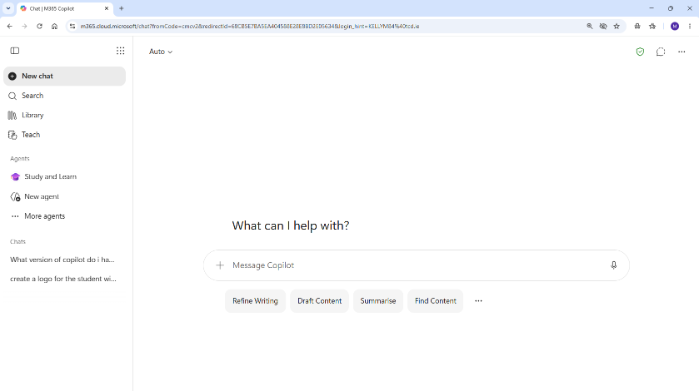
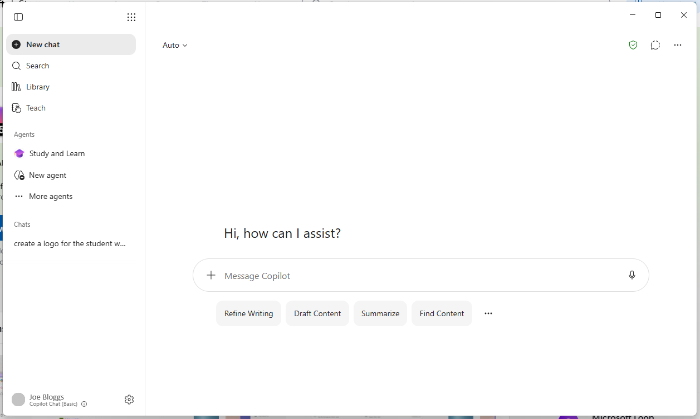
Copilot Chat in Trinity’s Microsoft 365 environment has Enterprise Data Protection (EDP) which is indicated by a Green Shield icon on the Copilot Chat screen.
The Non-Green Shield Version
Microsoft also has a free consumer version of Copilot Chat. This free version is not 'Enterprise Data Protected' and will not display the green shield icon. You may come across this version if accessing Copilot Chat from a personal, non-Trinity account.
It is important that you do not feed any internal Trinity data to this free consumer, non-green shield, version of Copilot Chat.
Ways in which you can access Copilot Chat
Log into office.tcd.ie using your Trinity email address (in the form username@tcd.ie) and password.
Type / paste in your request into the Copilot chat field.
To install the desktop version of Microsoft 365 Copilot Chat on your Windows or Mac computer:
Log into office.tcd.ie using your Trinity email address (in the form username@tcd.ie) and password
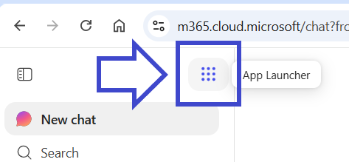
Click on the 'Apps Launcher' (or 'waffle') icon in the top-left of the screen.
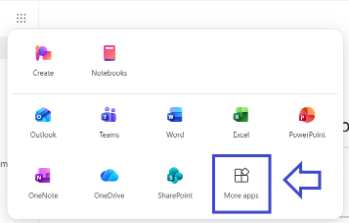
Then click on 'More apps'.
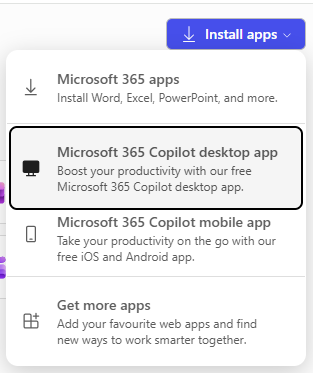
On the top-right of the screen, click the 'Install apps' dropdown.
From the dropdown menu, click the second option - 'Microsoft 365 Copilot desktop app'.
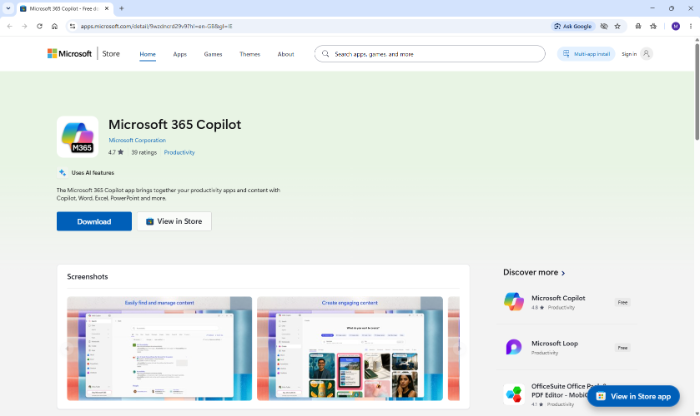
This will bring you to the Microsoft app store. Click on the 'Download' button to download the installation file.
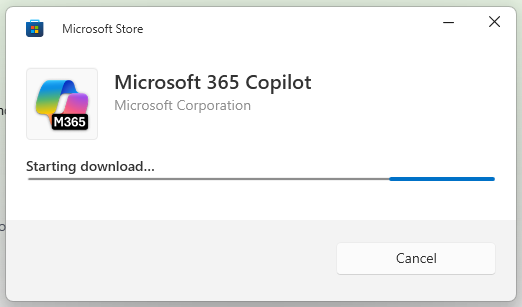
Double click on the download file to launch the app installer.
Once the app has installed, the Copilot Desktop app will launch. Type / paste in your request into the Copilot chat field.
Now that the desktop app is installed, you can relaunch it anytime by searching for and opening the 'Microsoft 365 Copilot' app.
Open the Microsoft Outlook desktop or browser app.
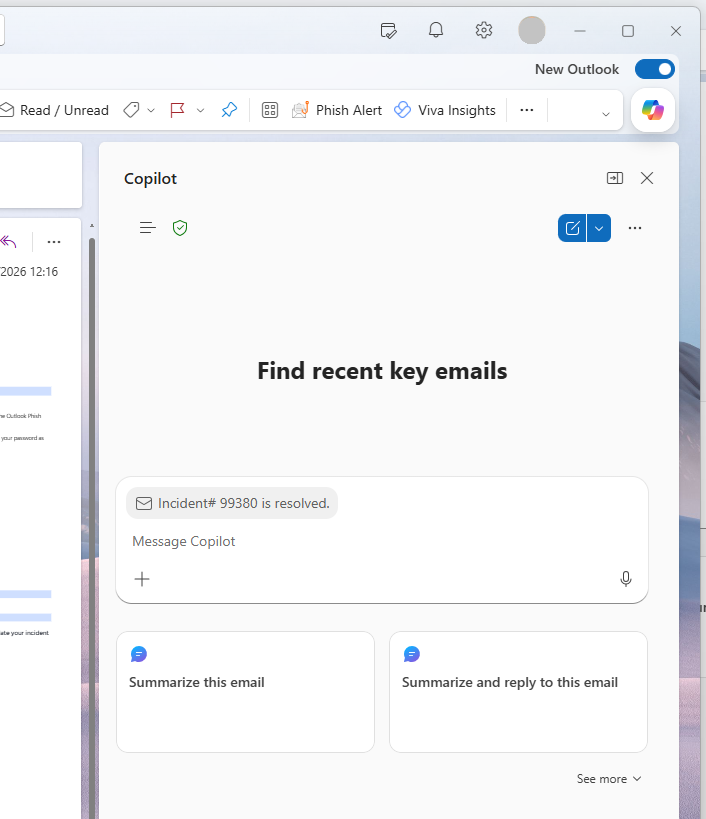
If you have previously enabled Copilot in Outlook, you will see the Copilot icon in the top-right of the screen. Clicking on this icon will open the Copilot Chat panel.
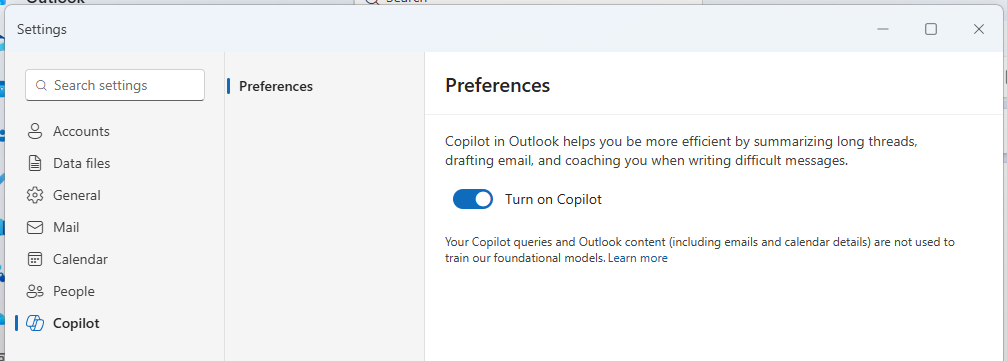
If the Copilot icon is not visible in the top-right of the screen, click on the cog icon (Settings) in the top-right of the screen. This will bring the 'Settings' popup window.
In the left-hand menu of the 'Settings' popup, click on 'Copilot'.
Toggle the 'Turn on Copilot' setting to the 'On' position and click 'Save'.
Copilot in Microsoft Outlook can be used to draft email content as well as summarize existing email threads.
Copilot can be used in the older version of Microsoft Outlook (Outlook Classic) in the same way as the new version of Outlook.
In order to use Copilot in Outlook Classic, you must first enable it in the new version of Outlook. See the steps in the previous section for information on how to do that.
Once Copilot is enabled in the newer version of Outlook, it will show in Outlook classic as well.
Open your Teams desktop or browser app.
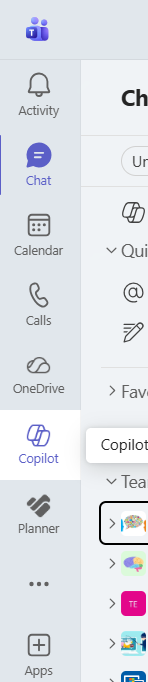
Click on the Copilot menu item on the left-hand side of the screen.
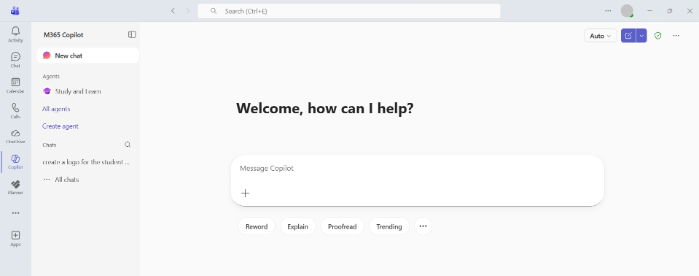
Type/paste in your prompt into the Copilot chat field.


/filters:format(webp)/filters:quality(100)/prod01/channel_3/media/tcd/itservices/images/m365/the-green-shield.png)