
Using Discussions
Using discussions can foster deeper learning by allowing students time to reflect and instructors to continuously monitor progress, and creating a sense of community among students is crucial for a successful online experience. With online discussions, module members can replicate the robust discussions that take place in the classroom, while you can share thoughts and ideas about class materials.
Watch a video about participating in discussions
The following narrated video provides a visual and auditory representation of some of the information included on this page. For a detailed description open the video on Vimeo.
Click to viewAdditional Guides & Information
The difference between Discussions and Journals
Discussions are open to all students or groups of students. Students can comment on others' posts. You can allow students to post anonymously in Discussions.
Journals are private between the student and the Instructor or Maker. Other students cannot view the content of another student's Journal.
Follow a discussion
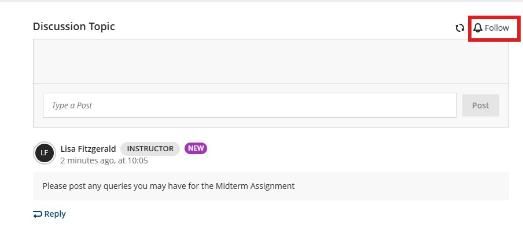
Follow or Unfollow a Discussion you are interested in:
- Select Follow to receive activity stream notifications for new student or instructor posts.
- Select Unfollow at any time to stop notifications.
- Select the Refresh icon next to the Follow button to check for any updates posted to the discussion.
How do I find a Discussion?
You can go to the Discussions page from the Module Content page via the top navigation to access all discussions at once.

You can find your journals on the Module Content page of your module. A small bubble icon appears next to the title to indicate new activity.

Add content to the Discussion
Check the discussion settings
Check the discussion settings in the Details & Information menu on the right-hand side to see which settings your instructor has enabled for that discussion.
-
Participation: Whether the discussion is for all students in the module or groups (called Group Discussions).
-
Permissions: If you can edit/delete your posts, or if you must reply before viewing others' responses.
-
Grading: If the discussion is marked and has a due date.
-
Anonymity: If enabled, you can check Post anonymously below the text editor to hide your name from classmates and instructors.
How to Reply to a Discussion
-
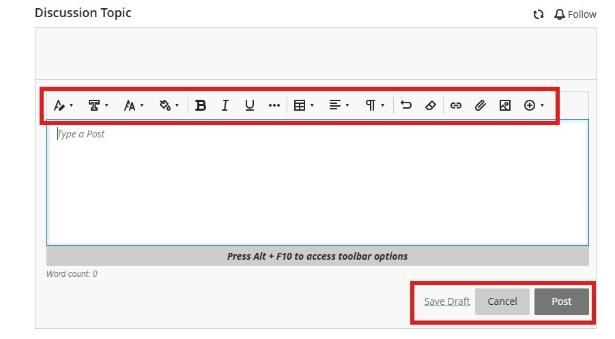
Start a new thread: Use the text editor box within the discussion. You can use the options in the editor to format text, attach files, and embed multimedia.
-
Reply to someone else: Select Reply under their post. These responses are nested and can be expanded or collapsed.
Marked Discussions
The Details & Information menu will indicate if the discussion is marked. There may be one or more due dates, participation requirements or a rubric.
Viewing your Marks and Feedback
Activity Stream
When marks are posted (released), you may receive a notification in your Activity Stream. Remember to check your notification settings to ensure you don't miss your marks.
- Select Activity from the left-hand menu.
- Select Marks and Feedback to view the mark.
- Select the Assessment Name to view your submission, mark, and feedback in your module.
Marks
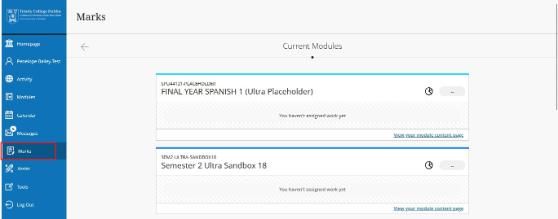
- Select Marks from the left-hand navigation menu.
- Select the assessment name to view your submission, mark, and feedback.
- A maximum of five items will be displayed per module.
- Select View all work to view other assessed work within your course.
Gradebook
Each Blackboard Ultra module has a page called Gradebook. You can view your marks and feedback from this page. An icon shows the number of new assessed items you have to review.

Further Help & Support
If you require support with Blackboard, module development, access, or integrations, please contact the Teaching & Learning IT team through the IT Service Desk:
When you log a ticket, please include the module ID, name, and your instructor's contact details. Often, for issues related to accessing content, assessments, etc., within a module, we need to contact the instructor to verify, as they manage the settings for all content in a module.
Service desk opening hours are: Monday - Friday: 09:00 - 17:00
The service desk is contactable by phone: +353 (01) 896 2000
You can email the service desk.
assist.tcd.ie
Using your Trinity computer account, log in to our IT Service Desk portal (assist.tcd.ie), and browse our knowledge base and service catalogue for solutions to common IT-related support questions. You can also log a ticket with the IT Support Desk, which will follow up with you to help resolve your query.
Alternatively, you can also email itservicedesk@tcd.ie, which will automatically create a ticket for you in the assist.tcd.ie portal.
In-person visit to the IT Service Desk
We operate a walk-in service on campus. For our current opening hours, see the link below.