
Downloading Submission
Note: You cannot download group submissions or discussions.
The file is created in the background and could take a few minutes, depending on the file size.
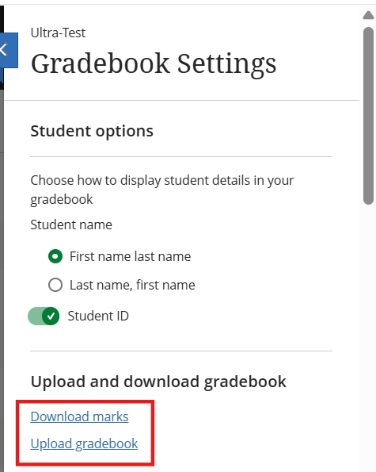
- From the gradebook, select the settings icon to open the Gradebook Settings panel.
- Under Upload and download gradebook, select Download grades. The Download Grades panel opens.
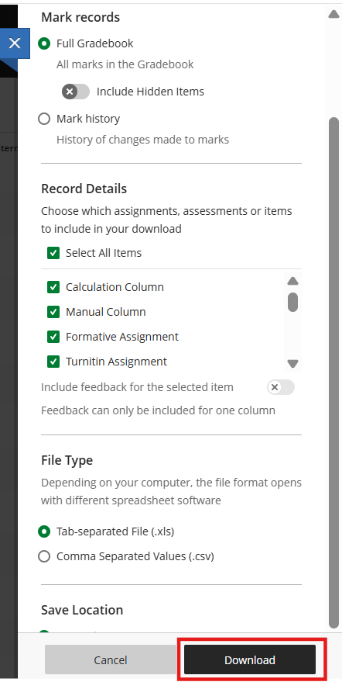
- Select Full Gradebook. Select the file type for the downloaded file. Data files are comma-delimited (CSV) or tab-delimited (XLS).
- Select the location for the download. You can save the file to your device or select a folder in the Content Collection.
- Select Download.
Exported grade file
These columns are included in an exported grade file:
- Last name, first name, and username
- Student ID, last access, and availability
- Grade columns
- Attendance
- Manually added items
- Calculations
- Overall mark
Grade information
When you download the full gradebook, the file includes the marks you posted or are ready to post. No feedback is included. Overall marks are included if you set that up in your gradebook.
Grades you assigned appear as points, letters, or percentages based on how you chose to display each marked item in the gradebook. The column header includes the mark display.
The file will be available in your Downloads folder on your PC. Fill in the relevant assignment column with the marks