
Staff - Frequently Asked Questions (FAQs)
Here you will find answers to the most common questions on Blackboard. If your query is not answered here, please contact the IT Service Desk for more information.
Staff Access FAQ's
As a new staff member, how do I access Blackboard?
To access Blackboard, you use your Trinity computer account username and password to log in at mymodule.tcd.ie.
Please note that it may take up to 48 hours after registering with HR for you to gain access to Blackboard.
Staff who are entitled to use the IT systems in Trinity will be provided with a Trinity computer account username and an initial password after HR has registered them. If HR and/or IT Services cannot provide you with a username and password, your School Office may need to contact HR to ensure you have been set up with the appropriate HR pay scale or visitor code, to confirm that you are entitled to a Trinity computer account.
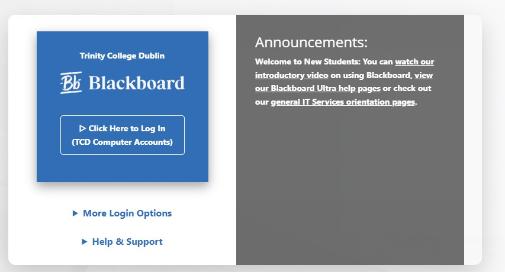
- Browse to mymodule.tcd.ie and click on the Click Here to Log In button.

- Enter your Trinity computer account username (in the form username@tcd.ie) and click Next. If you forget to type the '@tcd.ie' part of your username, you will get an error message

- Note: If you have signed into Microsoft 365 with a second account, then rather than seeing the above window, you will see a window called Pick an account. Choose the Trinity account, and you will be automatically signed into Blackboard.
- Enter your Trinity computer account password and click Sign in.
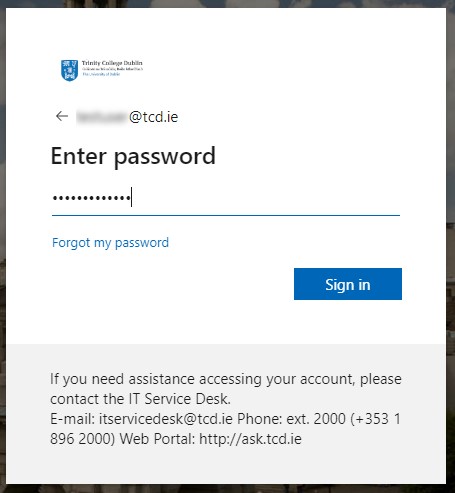
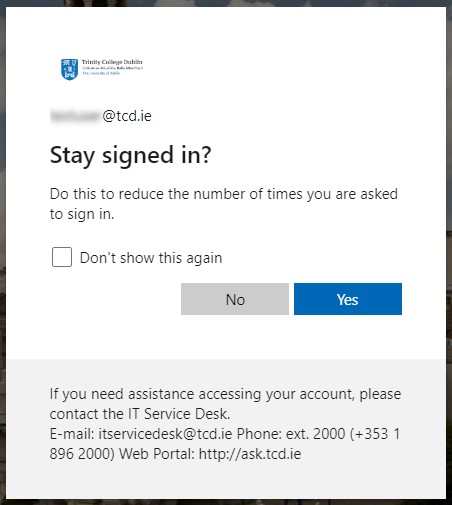
- If asked if you want to Stay signed in?, you can click No.
I can't log in to mymodule.tcd.ie – what should I do?
First, check if you can access other Trinity College websites, such as http://elib.tcd.ie, using the same Trinity username and password as you use to log in to mymodule.tcd.ie. If you are unable to access other Trinity services, you will need to reset your password.
When you go to mymodule.tcd.ie, click on the Log In button at the centre of the Blackboard login page and enter your username (with @tcd.ie) and password.
If you can log in to other Trinity services, but cannot access Blackboard, then please get in touch with the IT Service Desk, who will help determine the issue.
The service desk is contactable by phone: +353 (01) 896 2000
You can email the service desk.
assist.tcd.ie
Using your Trinity computer account, log in to our IT Service Desk portal (assist.tcd.ie), and browse our knowledge base and service catalogue for solutions to common IT-related support questions. You can also log a ticket with the IT Support Desk, which will follow up with you to help resolve your query.
Alternatively, you can also email itservicedesk@tcd.ie, which will automatically create a ticket for you in assist.tcd.ie portal.
Access, Enrolment & Module Creation
Blackboard requires an active TCD computer account for access. If you are not enrolled on a module, check with your school office to ensure you are timetabled for it in CMIS (the College timetable system). Students are automatically enrolled on your Blackboard modules as long as they are listed on my.tcd.ie (SITS). IT Services cannot manually enrol staff and students: the enrolments must come from CMIS or SITS.
Staff:
- Enrolment: Academics & teaching staff, please check with your school office to ensure you are timetabled to the modules in CMIS (the College timetable system). You will then be automatically enrolled in the corresponding Blackboard modules.
- Administrative staff: Complete the VLE Enrolment form (Excel) to request access.
Module Creation:
- Modules are automatically created in Blackboard based on SITS (my.tcd.ie) information.
Students:
- Enrolment: You'll be automatically enrolled in Blackboard modules you're registered for in SITS (my.tcd.ie).
- Missing a module? Do not manually enrol students who are taking your module for credit directly via Blackboard. Instead, if a student is not enrolled on your module, contact your school administrator to ensure your SITS record is accurate.
Enrolment changes & updates occur overnight.
Viewing your Modules
After logging into Blackboard, you should see Modules on the left-hand side in the blue menu.
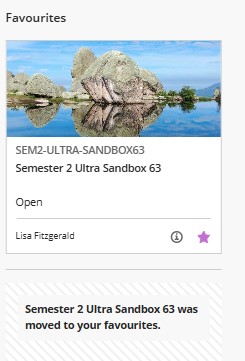
Select Modules to view a list of your modules. You can view your modules as a list or a grid. To swap between the two views, select the list/grid icon at the top left. In the image below, the grid view is selected.

You also have the option to search, filter or display selected courses.

Quick Tip: Select the star icon on a module that you access regularly. The module will be placed at the top of the list with a purple star on the bottom right. You can unfavourite a course by selecting the star icon again.
When I log into Blackboard, I'm unable to see a module. What can I do?
Your School Administrator needs to ensure that each lecturer is either associated with the relevant module in CMIS or else timetabled to a lectured event in CMIS for the required teaching module. The School Administrator needs to check for and remove any timetable clashes in CMIS for that lecturer and ensure that the lecturer is correctly associated with the module in CMIS.
If the issue persists, contact the IT Service Desk, as there may be a data flow issue between the relevant systems.
The service desk is contactable by phone: +353 (01) 896 2000
You can email the service desk.
assist.tcd.ie
Using your Trinity computer account, log in to our IT Service Desk portal (assist.tcd.ie), and browse our knowledge base and service catalogue for solutions to common IT-related support questions. You can also log a ticket with the IT Support Desk, which will follow up with you to help resolve your query.
Alternatively, you can also email itservicedesk@tcd.ie, which will automatically create a ticket for you in assist.tcd.ie portal.
Missing Modules in Blackboard
If you find you are not enrolled on your modules in Blackboard, please check with your school office to ensure you are timetabled for the relevant modules. Modules need to be listed on a student's record in my.tcd.ie for them to be available in Blackboard (enrolments update overnight). Lecturers need to be timetabled to modules in CMIS (the college timetable system). Administrative staff can enrol in modules by completing the VLE Enrolment Form.
All data in Blackboard is based on the college timetabling systems and information taken from student records on my.tcd.ie
Click to learn more about Managing VLE Access, Account & Enrolment Issues
My Trinity computer account is expiring. Will I lose access to Blackboard?
Human Resources sets your computer account expiry date. If you receive an email message notification that your Trinity computer account has an expiry date, then you will lose access to Trinity IT systems like the Library and Blackboard. Access to Blackboard is one of the first systems you will lose access to. Computer account expiry dates are managed centrally by HR based on contract end dates. When a staff contract is renewed, access to IT systems, including Blackboard, is automatically activated.
You will be notified of the forthcoming computer account expiry at least 2 weeks in advance. On the day of your account expiry, your computer account and all associated accounts will stop working. The two-week notice period gives you time to contact Human Resources. Human Resources will need to update your records if your contract is pending a renewal. Staff whose accounts are due to expire are advised to back up data held on Trinity servers.
For queries on contract expiry dates, contact Human Resources (HR).
Contact HR Service Centre.
By telephone: +353 1 8963333
By email: hr@tcd.ie
Address: HR, Trinity Central, 152-160 Pearse Street, Dublin 2.
General VLE FAQ's

Blackboard Ally is an additional service that automatically runs all your course files through an accessibility checklist to identify common issues. Each file is compared against the Web Content Accessibility Guidelines 2.0. Ally integrates with all Ultra Learn Modules.
Blackboard Ally is a tool that will allow you to read material in a way that matches your life and how you like to learn, for all students.
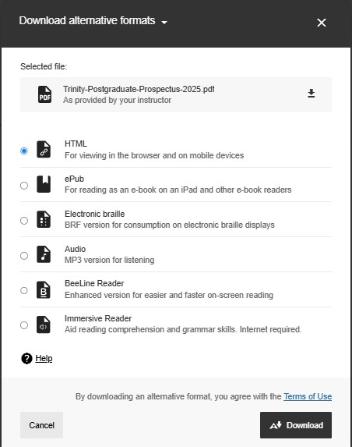
Alternative formats you can download using Ally include:
- Audio versions of reading materials
- HTML format for easy reading on your mobile phone
- Tagged PDF for use with assistive technology
Click to access Blackboard Ally File Transformer
To download an alternative file format, select the capital A icon with a downward arrow. Select your preferred format and press download.

You can download an alternative format for individual files (e.g. a converted PowerPoint file) or an entire page of content from Blackboard.
Learn more about Ally Alternatives for Students.
Downloading original documents
You can also download the original document by selecting the ellipses (three dots).
For further information on Blackboard Ally for students, check out Trinity Disability Services
or visit Blackboard Help pages
Blackboard App (for Phones & Tablets)
The Blackboard App allows students to use their mobile device to view:
- Module content
- Announcements
- Grades
- Forum posts
- Collaborate Ultra sessions
Important Notice Regarding the Blackboard App
The Blackboard App is primarily designed for viewing content, not for tasks such as submitting assignments. To access the majority of Blackboard features, you will need to log in using a web browser. The app can be used to complete tests and submit assignments from a mobile device, but we strongly recommend against using it for these purposes. When uploading content or completing assessments, students should use a web browser on a computer to ensure the process works as intended and minimise the risk of data loss.
Getting the Blackboard App
The app is free to use but requires an active TCD account and a compatible mobile device. Students should uninstall any other Blackboard apps on their devices as they are no longer updated or supported by Blackboard.
Further Information & Support
If you are looking for more information can check Blackboard's support pages for the app.
Linking Modules Together to Share Content (Parent/Child Modules)
All module codes in Blackboard are created automatically based on information from SITS. In SITS, some students (for example, Erasmus students) are assigned to different codes than their classmates. This means that they cannot see the same content when logging in to Blackboard. In this scenario, it is necessary to link the modules together so that students can see the correct content.
These linkings are not rolled over from year to year, so they need to be requested each year.
At the bottom of this section is an example to clarify where this linking might be necessary. If you have any modules which need to be linked as ‘parent & child’ modules, please check with your school office and ask them to email itservicedesk@tcd.ie with the following details, separating each set of modules to be linked (or via an Excel file if there are a large number); for example:
Set 1:
Parent module code & name: e.g. BUS1234-202526 (Introduction to Business)
Child module code & name: e.g. BUS1234C-2022526 (Introduction to Business (Visiting)
Please include both the ID and name of each module being requested to ensure the correct modules are linked. Once the modules are linked, the lecturer will only need to upload content to the ‘parent’ module, and any students enrolled in the ‘child’ module will be able to view the materials, submit assignments, access activities, etc., directly in the ‘parent’ module.
Please note:
- If a module is not appearing for 2025/26, please ensure it is set up fully in SITS in addition to CMIS (log in to my.tcd.ie and search for the code to make sure it is there for 2025/26)
- Linking should not be requested for modules that contain the same cohorts of students in each module, as students can only be enrolled on any one module in a parent/child setup
In terms of module enrolment, Academic staff and students must first be enrolled on their 2025/26 modules in CMIS/SITS in the Schools to be enrolled on their modules in Blackboard.
Lecturers, please double-check with your school office that modules are suitable to link, and the school office can email the Blackboard team with the codes to be linked.
Example:
ARTS123 (Introduction to Art) is a 10-credit module taken by 50 students. 5 of the students are either Erasmus students or students taking the module as an elective; these students are only taking the ‘Introduction to Art’ module for 5 credits. In my.tcd.ie the school cannot assign these students to ARTS123 as it is a 10-credit code. To work around this, the school then creates a new 5-credit module code in SITS called ARTS123b and assigns the 5 students to this.
However, when these 5 students log in to Blackboard, they will only see an empty ARTS123b module as the lecturer uploads the content to ARTS123, which has the majority of students.
In this scenario, it is necessary to link the modules together in Blackboard so that anyone enrolled on ARTS123b can view the content in ARTS123. Once ARTS123b is linked as a child of ARTS123, the 5 students will be able to participate in all exams/quizzes/discussion boards, etc. in ARTS123.
Getting Started with MyReadingList, Panopto & Turnitin
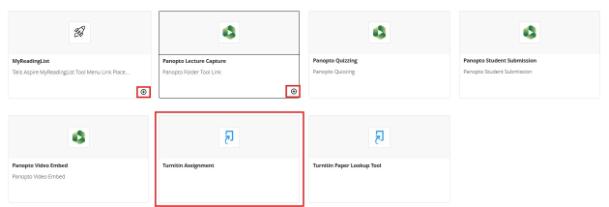
Go to Third Party Tools on the right-hand menu in your Blackboard Ultra Module.
If you want to add MyReadList, Panopto or Turnitin, click on the + icon anywhere in your main course content, select Add Third Party Tool.
When you see MyReadingList or Panopto, please click on the + icon to add it to your content area.
When you see Turnitin, please click on the Turnitin Assignment box to add it to your content area.
Click to learn more about MyReading List
Grades Journey
Grades Journey allows staff to transfer assessment marks and grades directly from Blackboard into SITS.
Marks and grades from Blackboard assignments can be mapped in a one-to-one method (one assignment to one column) or a many-to-one method (more than one assignment to one column). Once the marks have been finalised, they can be transferred to SITS.
Information for getting started with Grades Journey is detailed below.
Please note: All Grades Journey participants are required to attend training.
Further Help & Support
If you require support with Blackboard, module development, access, or integrations, please contact the Teaching & Learning IT team through the IT Service Desk:
Service desk opening hours are: Monday - Friday: 09:00 - 17:00
The service desk is contactable by phone: +353 (01) 896 2000
You can email the service desk.
assist.tcd.ie
Using your Trinity computer account, log in to our IT Service Desk portal (assist.tcd.ie), and browse our knowledge base and service catalogue for solutions to common IT-related support questions. You can also log a ticket with the IT Support Desk, which will follow up with you to help resolve your query.
Alternatively, you can also email itservicedesk@tcd.ie, which will automatically create a ticket for you in the assist.tcd.ie portal.
In-person visit to the IT Service Desk
We operate a walk-in service on campus. For our current opening hours, see the link below.