
Panopto Video Captioning
Panopto video captioning is a service that adds artificial, machine-generated English captions to all new Panopto lecture videos, except for a selection of videos in specific Panopto module folders, as pre-agreed with schools. This service is being introduced in collaboration with the Trinity Disability Service to support Trinity's mission to make online content as accessible as possible and to meet legislative requirements at both EU and national levels. For information on making content accessible online, please contact the Trinity Disability Service.
Additional Information & Guides
How Captioning works
The Panopto machine-generated captions achieve approximately 85-95% accuracy, which may vary depending on the audio quality of your recording and the topics being presented. Some medical or scientific terms may not transcribe as well as general English language commentary. In instances where you are giving important instructions or guidance (especially when the student's safety is concerned), please check the captions to ensure accuracy, so that no words transcribed in error lead to misinterpretation or misguidance for students.
After the recording finishes and is uploaded to the Trinity Panopto website, Panopto will begin adding machine-generated captions, which can take 8-24 hours. You can continue to edit your recording during this process.
Once the process is complete, a CC (Closed Captions) icon will appear beside the lecture recording icon. In the video playback window, closed captions are off by default, but the viewer can turn them on by clicking the CC button to display captions at the bottom of the main presentation window. Please note that Panopto does not provide real-time captioning for live Panopto webcasts. Captioning is only applied after the recording is uploaded to the Trinity Panopto website.
How to Add ASR (Automatic Speech Recognition) Captions into a Video
You can add Automatic Speech Recognition (ASR) generated captions to your Panopto videos. Note: Machine-generated captions are not the same as human transcriptions; as such, reviewing and editing ASR captions for accuracy is recommended.
How to Manually Add Captions
Open the recording in the editor.
On the left-hand side of the screen, click on the Captions or Audio Descriptions tab.
Using the Language drop-down menu, choose the language your captions or audio descriptions are in.
Click inside the box labelled "Enter a caption," then type your desired text. The video will update to show a preview of when the captions will appear. To submit the text, press Enter. A new text box will automatically be created for the next caption or audio description. To learn more about editing or deleting captions, please see How to Edit or Delete Captions.
Once you have added all the captions needed, click the Apply button in the top right-hand corner to finalise all edits you have made during this session.
You can review your captions by opening the viewer and toggling the appropriate file.
How to Edit or Delete Captions
The Panopto video captioning service is machine-generated, and while the accuracy level is quite high, there may be some caption errors which can be manually edited. In the Panopto editor, Captions and Audio Descriptions are located on the left-hand side of the screen. Within these tabs, you will find individual caption and audio description sections representing each instance of text shown in the player.
Editing captions
- Highlight your recording to open the video in the Panopto editor and select the Caption tab on the left-hand side of the Editor Window.
- Highlight the caption sentence you want to amend, then click the vertical three dots icon.
- Click the Edit option in the pop-down list, then amend the caption sentence as required, and click the Save button.
- Repeat this step for any caption sentence that has an error.
- Once all changes have been made, click Apply on the top right-hand corner of the Panopto Editor window.
Find and Replace a Word for Captions
This is only available for captions.
If a certain word has been incorrectly spelt, you can change all instances of that word using the Find & Replace feature. On the upper-right of the Captions window, select the Find & Replace icon (rotating magnifying glass). In the new search bar, type in the incorrect word, and then type the replacement in the replace with bar. Words matching your entry will appear highlighted in yellow in the editor. You can navigate through the located words by pressing Enter or by using the arrows beneath the search.
As you navigate through the located words, you can manually replace them by clicking on Replace. Alternatively, you can click on Replace All to correct all instances of this word instantly.
Delete a Caption
- To delete a caption or audio description section, follow the steps from above, but click Delete instead of Edit.
Click here to learn more about how to Edit or Delete Captions
How to attach automated captions to Panopto recordings via the Editor
- Log into Blackboard and go to the module where you have your Panopto lecture recordings stored. The Panopto recordings link will be situated in the content area in your module.
- Choose the lecture recording you want to add automated captions to and click on the Edit button. This will open the Panopto Editor for that recording in a new web browser tab.
- Click on Captions on the left-hand side. From the Import Captions drop-down menu, choose Import automatic captions. There may be a delay of 1-8 hours before the captions appear on the recording, but please proceed with the steps below.
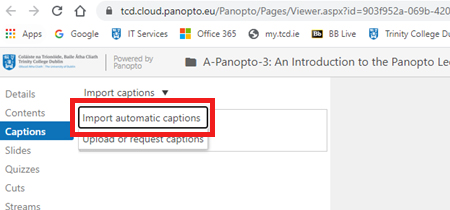
-
Click the Apply button on the right to allow Panopto to process your request. If your recording is new, it may take a few hours for the captions to appear. If your recording has existed for more than 24 hours, the captions will appear almost instantly.
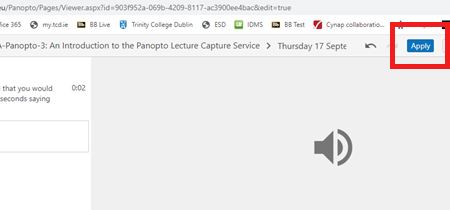
-
After clicking Apply, let Panopto finish uploading the new version of the recording with the captions. Review your captions for accuracy in the Panopto editor.
Please note
- Panopto automated captions have an 85-95% accuracy level. In some instances, you may need to edit the captions. Inaccuracies may be caused by a variety of factors, such as poor microphone quality, background noise and complex terminology that Panopto may not recognise.
- If your recording includes step-by-step instructions for the students, please check that the captions reflect the steps in the audio to ensure the health and safety of the students.
Editing/Deleting Captions
To edit your captions, hover over a caption sentence in the Panopto editor and use the three vertical dots beside the sentence to click on the Edit or Delete button to make changes. We recommend that you make most of the changes in one go and then click the Apply button to the right to upload your changes.
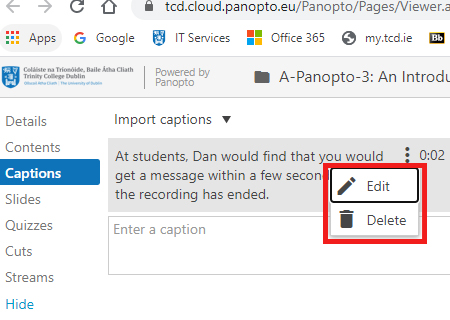
Please note: The captions will appear on a black background with white text below the main Panopto video/presentation screen. This is the default best practice setting.
Frequently Asked Questions
Is the captioning applied only to lectures captured in Panopto, or also to lecture videos produced in other formats that have been uploaded to Blackboard via Panopto?
Machine-generated captions will be applied to all content that has been processed and is stored within the TCD Panopto Cloud. This means that even if a recording was created using any other recording software, such as Camtasia, once the file has been uploaded within Blackboard using the Panopto link (Upload media option under the Panopto create button), Panopto stores it within the TCD Panopto cloud site (even though you can see a link to the recording in Blackboard). Thus, these recordings will also have Panopto captions.
Please note that if you upload a recording (.mp4, .ma4 or other media format) as a piece of content within the Blackboard content area of a module (with no interaction with the Panopto link create/upload media options), the recording is stored in the Blackboard LMS cloud site as opposed to the TCD Panopto cloud site. In this instance, the recording is not captioned as it only exists within Blackboard.
Can lectures delivered via Class Collaborate be captioned?
The TCD Class Collaborate feature currently does not have an integrated machine-generated captioning service for livestreaming, which is the default function of Class Collaborate sessions. Any recordings within Class Collaborate would require a staff member to add captions manually after the recording is complete.
For instructions on how to do this, visit the Class website.