
Download/Upload Marks
Download Marks
If you want offline records of student answers for certain types of markable items, you can download and re-upload results as an Excel (XLS) file or a comma-separated values (CSV) file.
- Select the Gradebook settings icon in the top-right corner.
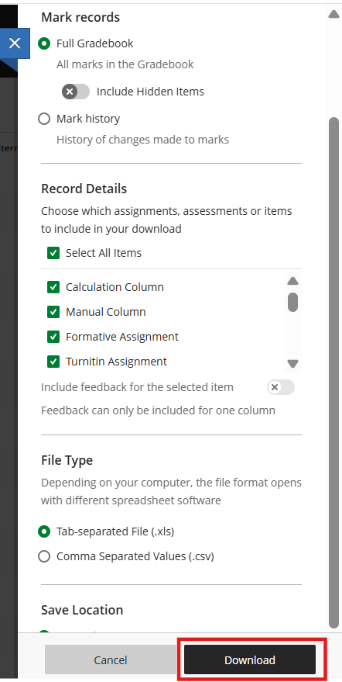
Select the assessment(s) you wish to download under Record details. Toggle Include feedback for selected item to ensure feedback details are included in the download.
Select the File type and save location. Click Download.
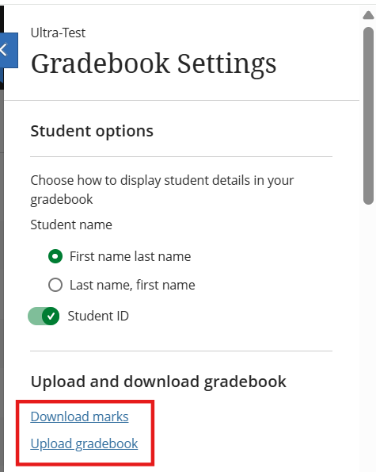
- From the gradebook, select the settings icon to open the Gradebook Settings panel.
- Under Upload and download gradebook, select Download grades. The Download Grades panel opens.
- Select Full Gradebook. Select the file type for the downloaded file. Data files are comma-delimited (CSV) or tab-delimited (XLS).
- Select the location for the download. You can save the file to your device or select a folder in the Content Collection.
- Select Download.
Exported grade file
These columns are included in an exported grade file:
- Last name, first name, and username
- Student ID, last access, and availability
- Grade columns
- Attendance
- Manually added items
- Calculations
- Overall mark
Grade information
When you download the full gradebook, the file includes the marks you posted or are ready to post. No feedback is included. Overall marks are included if you set that up in your gradebook.
Grades you assigned appear as points, letters, or percentages based on how you chose to display each marked item in the gradebook. The column header includes the mark display. The file will be available in your Downloads folder on your PC. Fill in the relevant assignment column with the marks
Upload Marks
If you wish to mark offline, download the Gradebook for the assessment item using the steps above, enter the grades and feedback in the spreadsheet, and re-upload it to the Ultra Gradebook.
- Enter the grades under the Assessment title column, and the feedback under the Feedback to Learner column
- You can format your feedback text using HTML tags if required.
- Save the file.
- To upload, select the Gradebook settings icon in the top-right corner.
- Drag and drop the file into the designated area, or browse to select it.
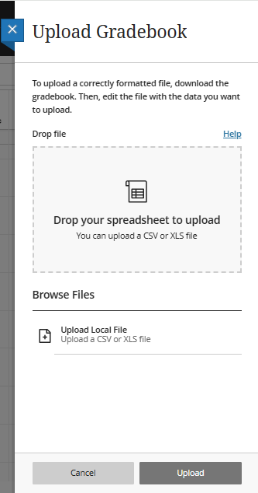
- Press Upload. Refresh the Gradebook page to view the changes. The assessment should now include updated grades and feedback.