Creating a new Standard Turnitin Assignment
Overview
This guide helps instructors access and create a new Standard Assignment with the Enhanced Similarity Report in Turnitin for your Blackboard module. Use it to choose the correct assignment type, add required assignment details, review optional settings, and copy an existing assignment when available.
Adding a New Standard Turnitin Assignment to your Blackboard module
- From the Modules page in Blackboard, select the module to which the Turnitin assignment needs to be added.
- Within the Module Content section of the module, navigate to the area you wish to add your Turnitin assignment to (eg, your dedicated Assessments area).
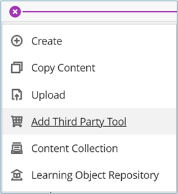
- Select the purple plus sign (+) that appears when you hover your cursor between the content items. From the dropdown menu, select Add Third Party Tool.
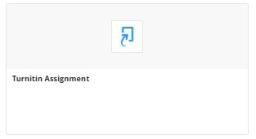
Select Turnitin Assignment from the list of Institution Tools that appear. A new window will open to allow you to enter the assignment details.
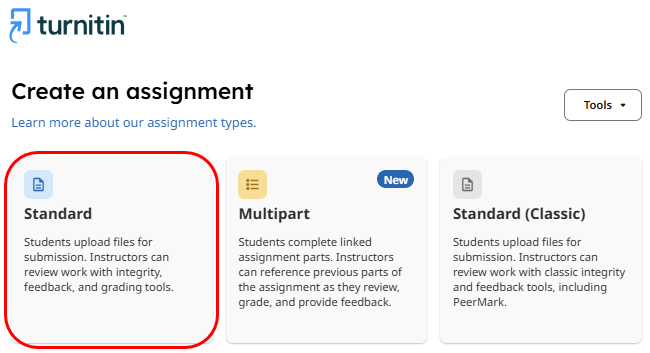
A new window will open that will allow you to select the type of assignment you want to create.
Select Standard from the options displayed.
The New Standard Assignment settings are categorised into four sections.
- Assignment Details
- Grading and Feedback settings
- Submission settings
- Report Settings
Some assignment details are required for creating your assignment, and others are optional. We recommend reviewing these to ensure your assignment is set up to meet your requirements.
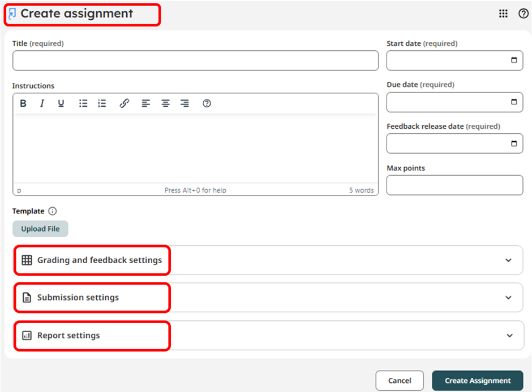
Enter the Assignment Details
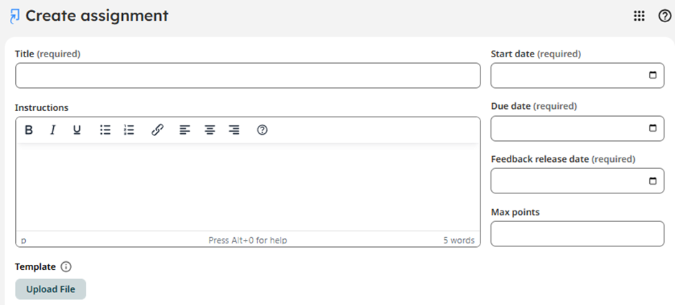
- Title - Add a title for the assignment.
- Dates - Set the dates for the assignment:
- Start date - The date and time students will be able to start submitting to the assignment
- Due date - The date and time by which students will no longer be able to submit to the assignment
- Feedback release date - The date and time when grading and feedback become visible to students. This does not affect when students can view similarity scores.
- Instructions - Add instructions for the assignment. Instructions are visible to students before they begin the assignment. Any formatting applied in the instructions box will also be visible to your students. Formatting includes bold, italics, underline, bulleted lists, numbered lists, hyperlinks and indentations.
- Max points - Set this to 100.
- Template - Upload an assignment template your students can download. Text within the template will be automatically excluded from Similarity Reports.
- Template file requirements: Must be less than 100MB. Supported file types include .docx, .xlsx, .pptx, .pdf, .ps, .html, .txt, .rft, .odt, .hwp.
- Review the other available settings, categorised in the dropdowns, to customise the assignment to your requirements. You can customise Grading and feedback settings, Submission settings and Report settings.
Optional Settings - You can further customise your assignment using the Optional Settings, including options for Submission Settings and the Repository.
Choose Submission and Report Settings
You can further customise your assignment with the Optional Settings. These settings allow you to adjust submission, similarity, and other settings to better suit your assignment's needs.
Submission settings
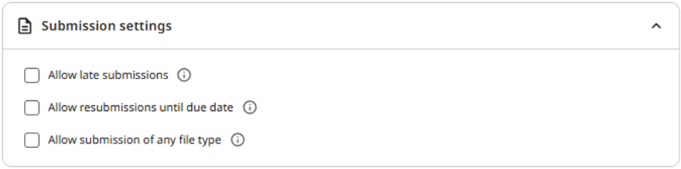
- Allow late submissions - When selected, students without a submission can submit once after the due date.
- Allow resubmissions until due date - Allow students to resubmit until the due date. Students will be limited to 3 submissions every 24 hours. If a student resubmits, their previous submission is overwritten.
- Allow submission of any file type - When selected, students may submit any file type. However, some file types do not generate Similarity Reports or other reports. More information on file requirements is available on the Turnitin guides pages here.
Report settings
Student access to report - Allow students to view Similarity Reports. Choose if students can view and access a copy of their Similarity Report. This will not affect their access to any grading or feedback.
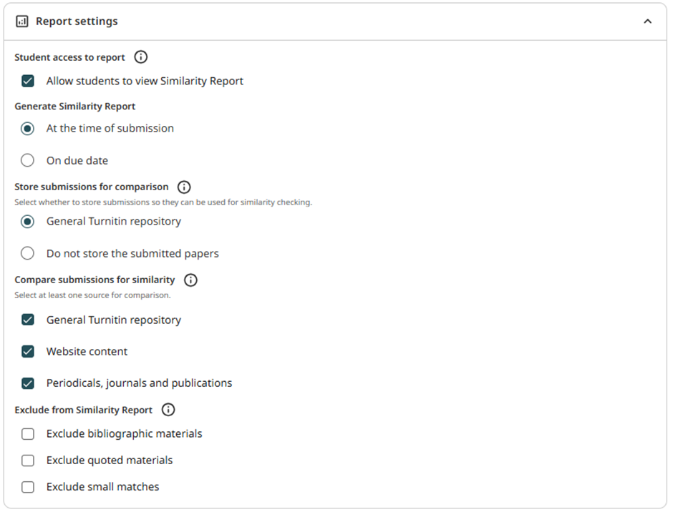
Generate Similarity Report - Decide whether Similarity Reports are generated at the time of submission or on the due date:
- At the of submission - Similarity Reports will be generated immediately after the assignment is uploaded.
- On due date - All submissions' Similarity Reports are generated at the same time on the due date.
Please note that the time of report generation may affect the similarity score, depending on whether the assignment is also set to store submissions in a repository. More information on this is available on the Turnitin guides pages here.
Store submissions for comparison - Select whether to store submissions in a repository for similarity comparison.
- General Turnitin repository - Submissions are stored in the Turnitin repository and can be used to compare with other submissions from your institution and others.
- Do not store the submitted papers - Submissions are not stored in the repository and will not be used for comparison to other submissions within this assignment or anywhere else in Turnitin
Compare submissions for similarity - Select the repositories against which submissions will be compared when generating their Similarity Reports. At least one option must be selected to create an assignment.
- General Turnitin repository - Compares a submission to previous submissions in Turnitin assignments across institutions.
- Website content - Compares a submission against archived and live publicly available internet pages. Tens of thousands of new pages are added daily.
- Periodicals, journals and publications - Compares submissions to third-party publications, including many major professional journals, periodicals and business publications.
Exclude from Similarity Report - Exclude common attributes of a submission that are likely to be highlighted in the Similarity Report. Exclusions can also be set individually within the Similarity Report itself.
- Exclude bibliographic materials
- Exclude quoted materials
- Exclude small matches
More information about exclusions and their parameters is available on the Turnitin guides pages here.
Grading and Feedback settings

Within the Grading and Feedback settings, you can attach and manage rubrics for grading your assignment. You can locate and select an existing rubric from three categories:
- My Rubrics - Rubrics you have created.
- Institutional Rubrics - Rubrics shared across your institutional account.
- Turnitin Rubrics - Rubrics provided by Turnitin.
When you select the Attach Rubric option, you can also create a new rubric by selecting Create Rubric, import a rubric from another assignment or edit existing rubrics by selecting Launch Rubric Manager. More information on rubrics is available on the Turnitin guides pages here.
Hide student details for anonymous Grading – Hide all the student names within the assignment when anonymised Grading is required. Once the feedback release date has passed, all student names will be automatically revealed. More information on anonymous Grading is available here.
Create (Save) your Assignment
Once you have selected and reviewed your assignment details and settings, select Create Assignment in the bottom right of the page to save your assignment and return to your module.

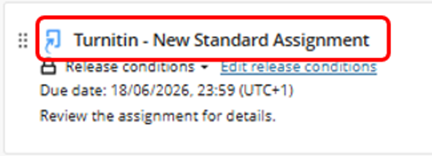
Your new assignment appears in your content area within your Blackboard module.
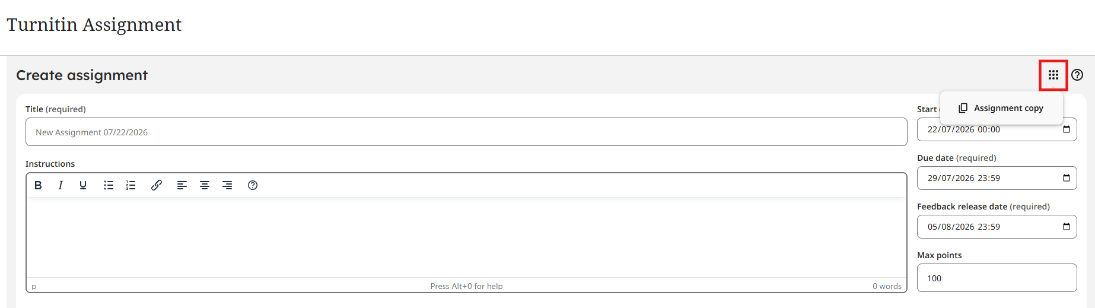
Assignment Copy
Instructors can also use the Assignment Copy tool to copy existing assignments from previous modules instead of creating new ones.
This feature is not limited to the instructor who created the original assignment. Any instructor associated with the assignment can find and copy it, provided they have previously interacted with it.
This tool makes it easy for instructors to:
- Copy assignment setups from previous academic years for the upcoming academic year with updated dates.
- Create a new set of assignments, then copy those assignment setups into multiple modules using the same assignment dates.
- Create one assignment setup as a template, then copy it multiple times within a module.