
Discussions
Online discussions foster deeper learning by allowing students time to reflect and instructors to continuously monitor progress. A sense of community among students is crucial for a successful online experience. With online discussions, module members can replicate the robust discussions that take place in the classroom.
Discussions
The following narrated video provides a visual and auditory representation of some of the information included on this page.
Click to viewAdditional Information & Guides
Create Discussions
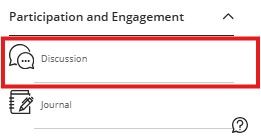
You can create discussions in two locations within your module. You can create them on the Module Content area by clicking on the purple line. The option to create a discussion is in the Participation and Engagement section. You may have to scroll down to view the option.
You can also create them directly on the Discussions page in the top navigation by selecting the New Discussion button.
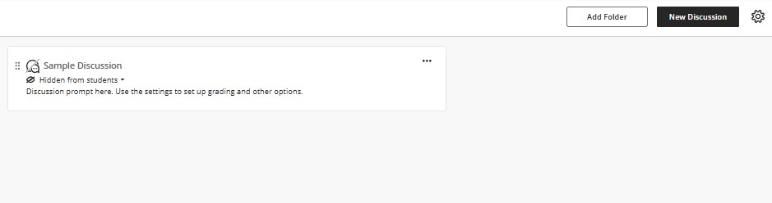
Add content to the Discussion
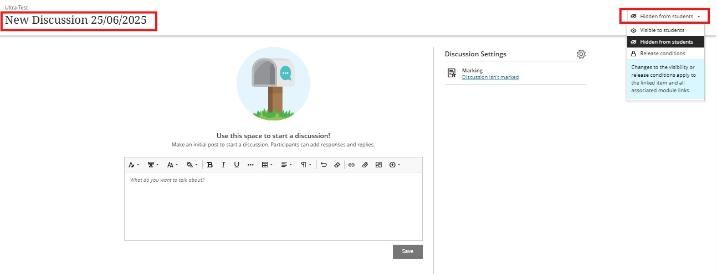
- Enter a meaningful title to help students find the right discussion. If you don't add a title, New Discussion will be the title. Include guidelines and instructions using the text editor.
- Show or hide the discussion. New discussions are hidden from students by default. You can create all your content in advance and choose what you want students to see based on your schedule. You can also set availability conditions based on date, time, and performance.
Discussion Settings
To edit the Discussion Settings, click the cog on the right of the screen. If the users are to be allowed to edit and delete entries and comments, then ensure the relevant boxes are ticked under the Details and Information section. If the discussion is to be included in the summative assessment and is to be marked, tick the Mark Discussion tick box. Note that if the discussion is to be marked, anonymous posting cannot be switched on.
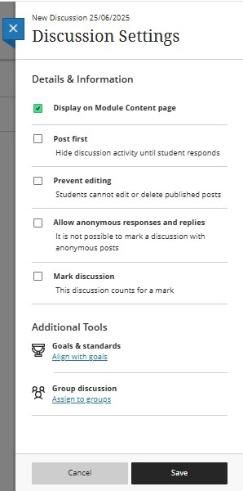
By default, all discussions appear to students on the Module Content page. You can deselect the option if you want students to view only the discussion on the Discussions page.
- Post First: Requires that the student post a response to the discussion prompt before they can view others' posts, so their contribution is not influenced by their peers' opinions.
- Prevent editing: Students will not be able to edit or delete posts made in this discussion.
- Allow anonymous responses and replies: Students can make anonymous posts and replies to posts in this discussion. Any posts made while anonymous keep their anonymity if anonymous posts are later turned off. You can't grade anonymous discussions. Authorised users can reveal the author of an anonymous post in cases of misuse.
- Mark discussion: Adds the discussion as a gradable item in the gradebook.
- Add groups. You can assign students to discussion groups so that fewer people are involved. You can also assign a specific topic to each group.
Discussions area
All discussions created in the Module Content area will also be added to the Discussions area.
Selecting the discussion setting Display on Module Content page will show that discussion in both places.
You can manage discussions by creating folders. You can add Release conditions to the folders in your Discussions area.
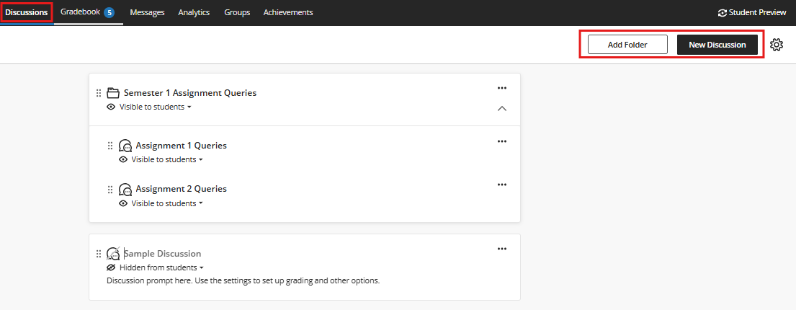
How to allow students to create their own Discussions
- Select Discussions from the top module menu.
- Select the cog in the top-right corner to view Discussion Settings/Permissions.
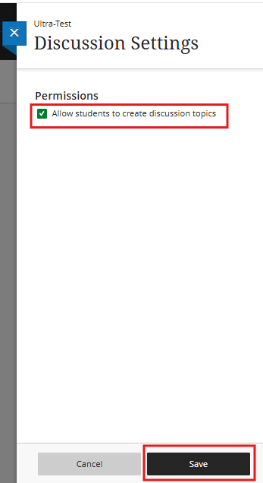
- Select Allow students to create discussion topics.
- Click Save.

Marking a Discussion
- Marked Discussions will have a Marks & Participation tab.
- Select the student to view their entries and discussion analytics if available.
- Students with accommodations will show the accommodations flag.
- Navigate to the next student or use the drop-down menu to select a different group.
- Add replies/comments to leave feedback throughout the student work, or add overall feedback using the feedback icon.
- Add marks to the pill button. Postmarks individually to make the marks and feedback visible to students. You can also mark all submissions, and then select Post all marks from the Gradebook to release all grades in one action.
The difference between Discussions and Journals
Discussions are open to all students or groups of students. Students can comment on others' posts. You can allow students to post anonymously in Discussions.
Journals are private between the student and the Instructor or Maker. Other students cannot view the content of another student's Journal.