Journals
Journals are personal spaces for students to communicate privately with you. Students can also use journals as a self-reflective tool. They can post their opinions, ideas, and concerns about the module, or discuss and analyse module-related materials.
- Journals provide personal spaces for students to communicate privately with instructors or reflect on module-related topics. They can be used for self-reflection, documenting learning progress, and personal communication.
- Journals can be graded and ungraded.
- Instructors can add comments to the student’s journal entries.
Watch a video about creating journals
The following narrated video provides a visual and auditory representation of some of the information included on this page. For a detailed description open the video on Vimeo.
Click to viewAdditional Guides & Information
The difference between Discussions and Journals
Discussions are open to all students or groups of students. Students can comment on others' posts. You can allow students to post anonymously in Discussions.
Journals are private between the student and the Instructor. Other students cannot view the content of another student's Journal.
Create a Journal
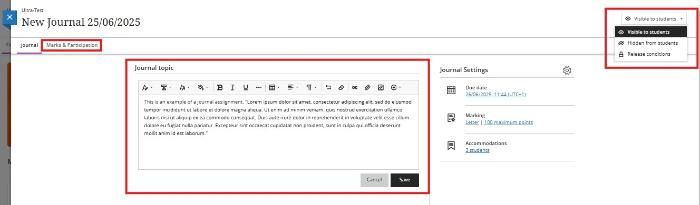
To create a journal assignment, click on the + sign where you want to insert the journal and then select Create, locate Journal in the window on the right under Participation and Engagement.
- Enter a meaningful title to help students find the right journal. If you don't add a title, New Journal, the date will be the title.
Include guidelines and instructions using the text editor. - Show or hide the Journal: New journals are hidden from students by default. You can create all your content in advance and choose what you want students to see based on your schedule. You can also set availability conditions based on date, time, and performance.
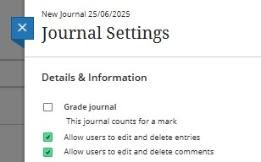
- Customise Journal settings: In the Journal Settings panel, you can choose whether or not to allow users to edit and delete entries or comments. You can make a journal count for a grade. Graded journals have more settings options available.
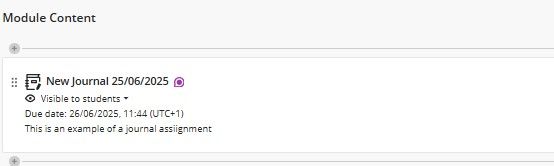
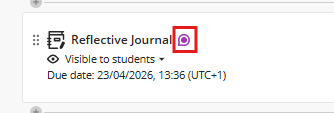
- When a student makes a new journal entry, a purple comment icon appears on the journal item.
How do I find a Journal?
Journals are indicated by the icon of a notebook and pen.
You can find your journals on the Module Content page of your module. A small bubble icon appears next to the title to indicate new activity.
Edit and delete entries and comments
You can edit or delete only your own entries and comments. If an entry is deleted, all comments about the entry are also deleted. If you delete a graded journal, the journal is removed from the Module Content page and the gradebook.
Select the three dots (..) to open an entry or comment's menu to access the Edit and Delete functions.
Enable Journal Marking
When you enable grading (marking) for a journal, a column is created automatically in the gradebook.
Select the gear button to open the Journal Settings panel. Select the option for Grade Journal. When you choose to mark a journal, more options appear, such as the due date and maximum points.
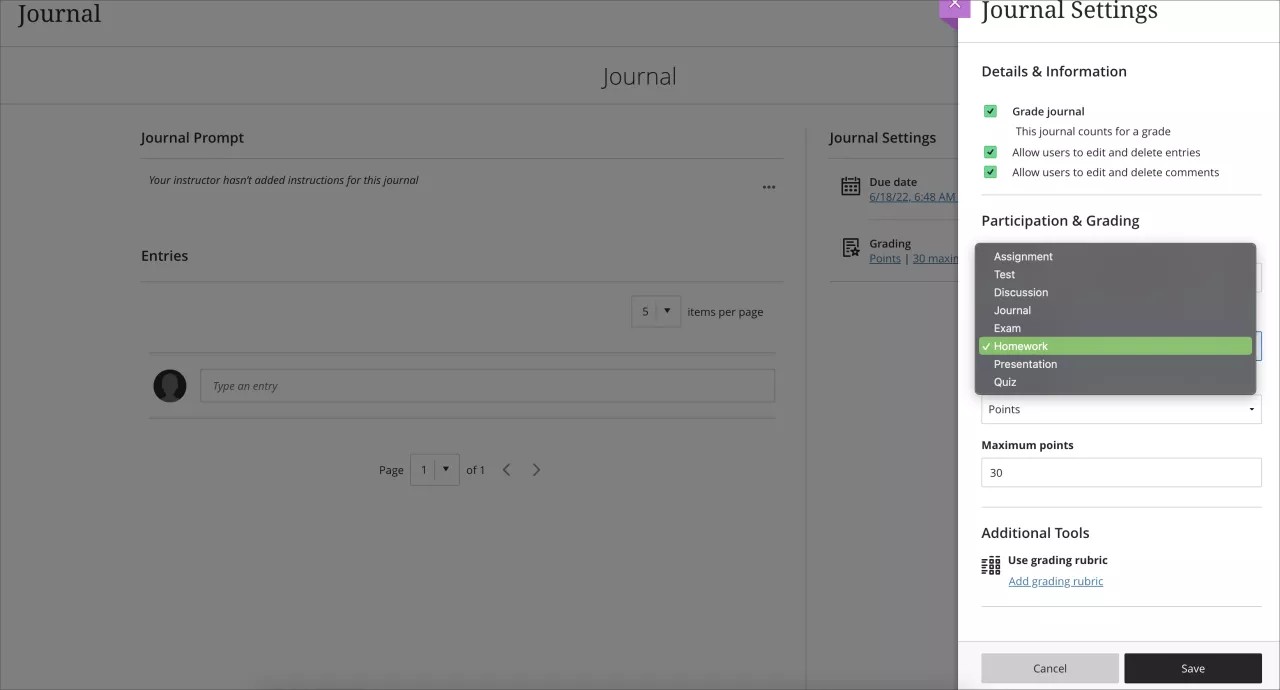
- Provide a due date: Due dates appear on the calendar and in the activity stream.
- Provide the maximum points: The points apply to one or more entries made by a student.
- Choose the grade category: A best practice in module design is to use a variety of assessments. Categorising assessments is important to instructors who assign weight to categories in the overall grade calculation.
- Select the grading schema: From the Grade using menu, select an existing grading schema such as Points. You can change the grading schema at any time, and the change will show to students and in your gradebook.
- Add a grading rubric: Rubrics can help you evaluate student submissions based on key criteria that you define. You can create a new rubric or add an existing one so students can view the requirements for the graded work.
How do I mark a Journal Entry?
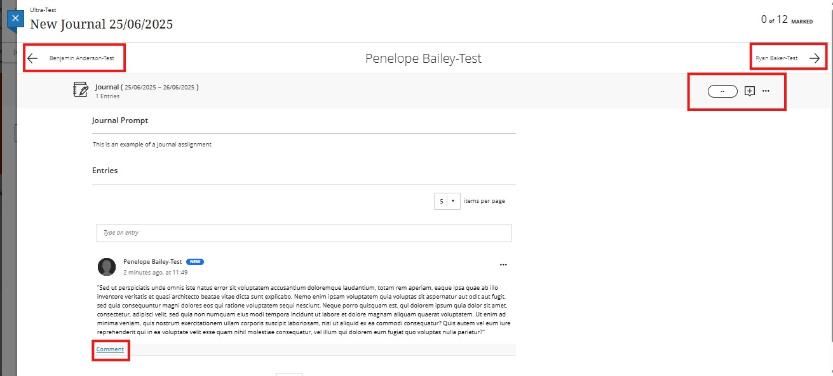
To mark a journal entry, click on Mark and Participation, then click the student's name; their responses will be listed.
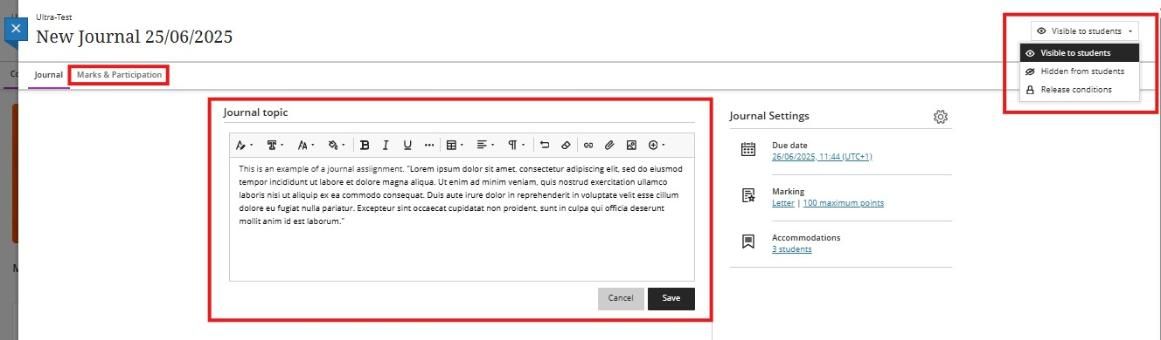
Both graded and ungraded journals display each of your students’ names in a list on the Participation tab, organised alphabetically by surname. You can select how many items you see per page, up to 100.
You can search by a student’s name in both ungraded and graded journals to view how many entries they’ve made in the journal.
Use the Student Status menu to see only students who have made no entries or students who have made an entry. By default, the menu is set to view all student statuses.

Graded journals allow you to sort by grading status through the Grading Status menu. Statuses available are:
- Needs Grading
- Needs Posting
- Completed
- Nothing to Grade
You can override or post grades from the Grades & Participation tab.
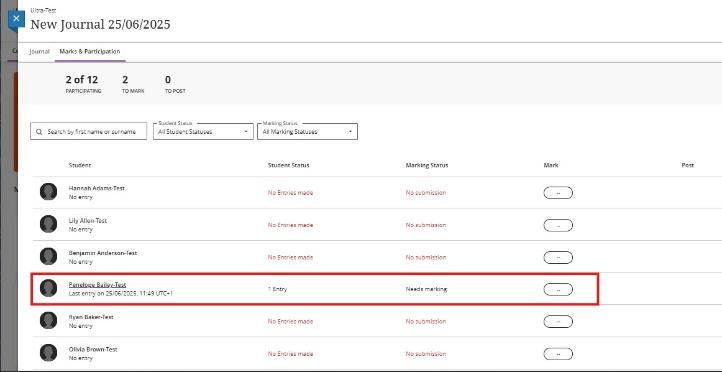
- Click the student's name to mark. You can navigate through students on the top right and left of the screen. You can add your comments & feedback by clicking on the comment field.
How will I be alerted to new comments on my Journal?
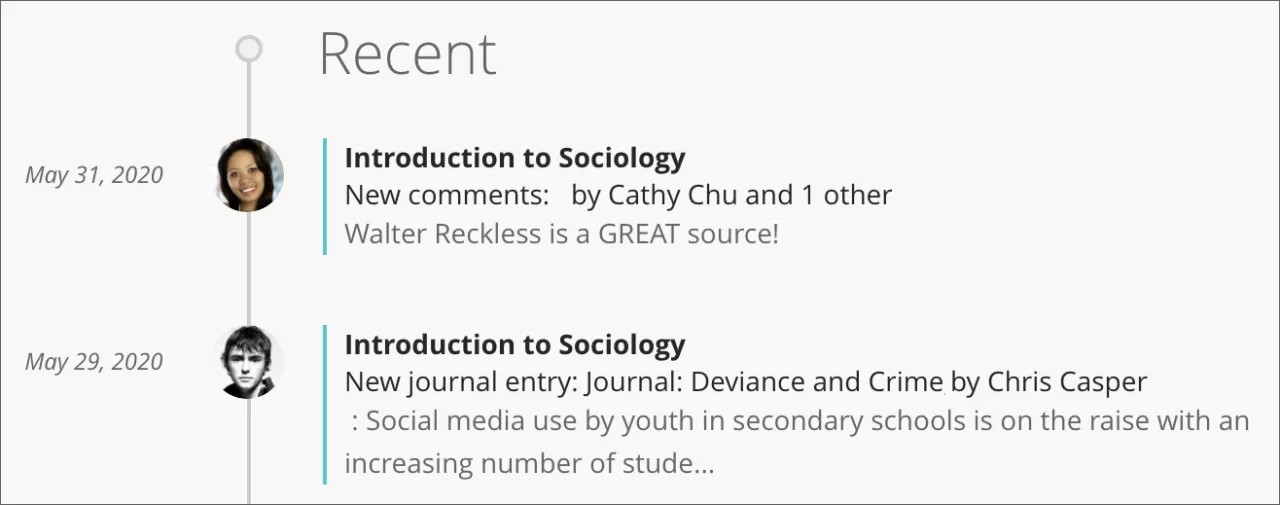
You're notified in the activity stream when new comments are made in your journal.
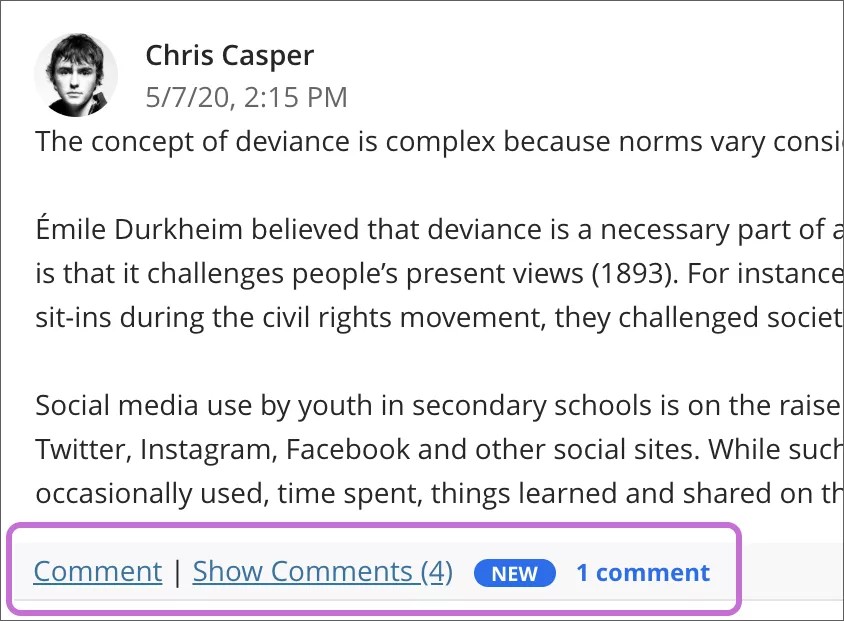
In your journal, the number of comments appears in a link below each entry. A New label appears with a count of new comments. Select the Show Comments link to open the comments section. Select the Hide Comments link to collapse the comments section.