
Notifications
On your Activity page’s Notification Settings panel, you can choose which notifications you receive about activity in your Modules.
- Stream: Choose which activities appear on your stream.
- Email: If you want to receive email notifications, add an email address to your profile page. Then, choose how often and which activities you want to receive notifications for.
- Push notifications: If you want to receive push notifications, choose how often you want to receive them and which activities you want to be notified about. Messages pop up on your mobile device if you have the mobile app installed.
Notifications
The following narrated video provides a visual and auditory representation of some of the information included on this page. For a detailed description open the video on Vimeo.
Click to viewAdditional Information & Guides
Choose how and when you get notifications
You can choose the types of notifications you receive and how they're delivered to you.
Click on Activity on the left navigation. On your Activity page, select the Settings icon to open the Notification Settings panel. You can also access these settings from your profile page.

Stream notifications
You control which activities appear in your stream. Select the Stream Notification Settings tab. Notifications for due dates and items ready to grade always appear in your stream. You can choose to receive all notifications or only notifications of a certain type. Clear all the boxes if you don't want to receive emails about the activities in the list.
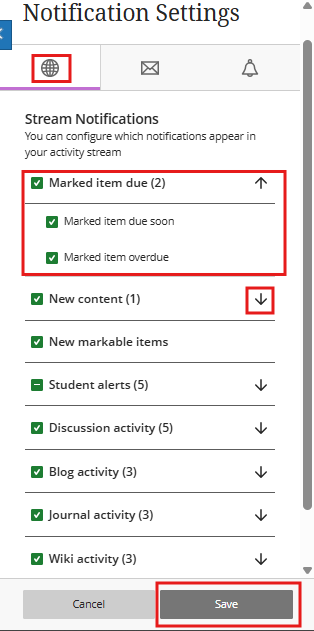
Choose which notifications you receive about activity in all your modules:
Marked item due
- Marked item due soon
- Marked item overdue
New content
- Assessment added
New markable items
Student alerts
- If activity data is available, identify those who are participating or may need help
- If grade data is available, compare grades with activity levels
Discussion activity
- Activity on my responses
- Activity on responses I have replied to
- Responses from instructors
- Responses for followed discussions
- Replies for followed discussions
Blog activity
- Blog entry posted
- Blog entry edited
- Blog comment posted
Journal activity
- Journal entry posted
- Journal entry edited
- Journal comment posted
Wiki activity
- Wiki page created
- Wiki page edited
- Wiki comment posted
Click Save.
Email notifications
Select the Email Notification Settings tab. If you haven't added an email address to your Profile page, you won't see any options in the Email Notification Settings tab.
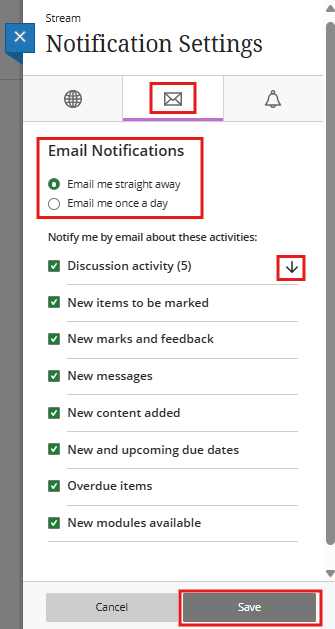
Choose how often you want to receive emails for activities in all your modules:
- Email me straight away
- Email me once a day
In the list for the Email me straight away options, choose which notifications you want to receive:
Discussion activity
- Activity on my responses
- Activity on responses I have replied to
- Responses from instructors
- Responses for followed discussions
- Replies for followed discussions
New markable items
New messages
New content added
New and upcoming due dates
Overdue items
New modules available
In the list for the Email me once a day options, choose which notifications you want to receive:
- New items to be marked
- New marks and feedback
- New messages
- New discussion messages
- New content added
- New and upcoming due dates
- Overdue items
- New courses available
Clear all the boxes if you don't want to receive emails about the activities in the list.
Push notifications
Push notifications are sent to a mobile device where you have the Blackboard mobile app installed. You can manage which push notifications are sent to your mobile device in these ways:
-
Blackboard on the web: Log in to Blackboard on a web browser and navigate to your Activity page. Select the Settings icon and select the Push Notification Settings tab.
-
Blackboard mobile app: In the app's main menu, select Settings. Manage your push notifications settings based on your device.
Choose which push notifications you want to receive for activity in your modules:
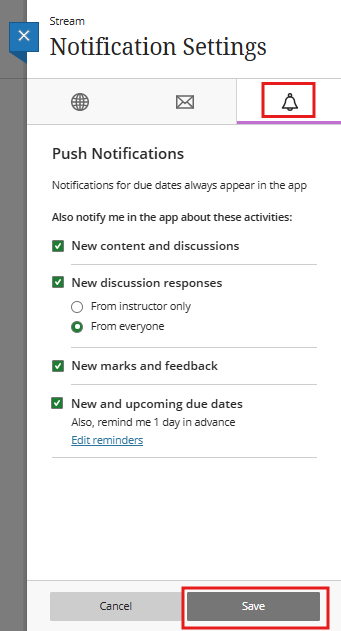
New content and discussions
New discussion responses
- From instructor only
- From everyone
New marks and feedback
New and upcoming due dates
Clear all the boxes if you don't want to receive push notifications about the activities in the list.