Messages
Messages can be much more targeted than Announcements and offer additional flexibility. You can send messages to individuals, groups, or the entire class, ensuring centralised and efficient communication without relying on external email systems. A check box exercise enables messages to be sent to email inboxes.
Additional Information & Guides
Creating a Message
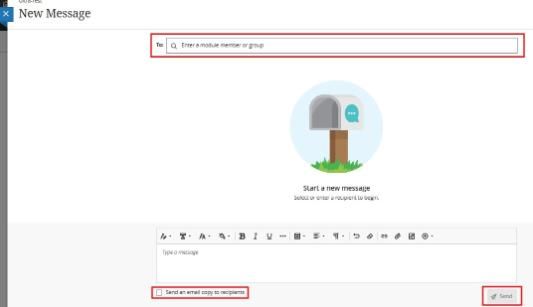
- Select Message from the top navigation of your Ultra Module.
- Click on New Message at the top right of the screen.
- Click into the Recipient box and select the recipient. You select all members, all instructors or all students. Alternatively, you can select individuals by typing their names or selecting them from the list.
- If you wish the recipient to also receive an email, then tick the box - Send an email copy to recipients
- Enter the message in the text editor. Add styles and include attachments. The text box lets you adjust the appearance of text in your messages. You can also choose to attach a file or embed a link to other media in your message. In the editor, select the plus icon to view the menu of options.
- Select Send.
How can I adjust message settings within my module?
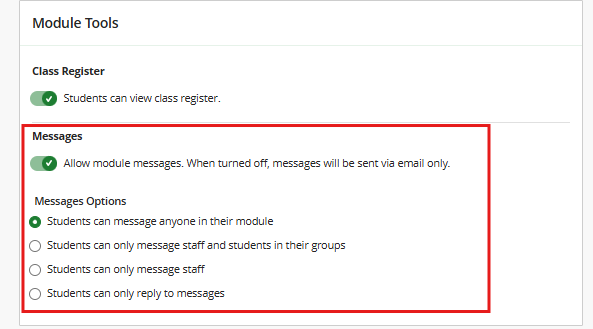
We allow messages to be controlled at the module level. You can adjust message settings in your Module Settings. You can set the following limits on messages within your Module:
- Students can message anyone in their module
- Students can only message staff and students in their groups
- Students can only message staff
- Students can only reply to messages
- Turn all messages off, which sends all messages by email only
Where can I access all my messages from outside my module?
Messages for all modules you are enrolled in are available when you click on Messages on the left navigation. As an instructor, you can quickly send messages to all students about important deadlines and schedule changes.
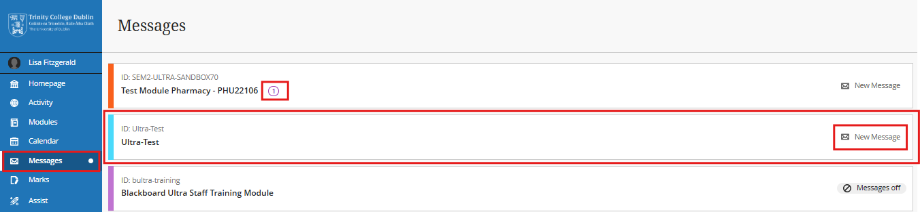
- Unread messages are indicated with a number within a red circle and appear first.
- Jump into your messages. Select a module card to view all new and existing messages in your module. You can delete messages inside your module.
- Select New Message beside your module ID to send a message to one or multiple people, a group, or a class. Begin typing, and recipient names pop up.
Messages in your Modules
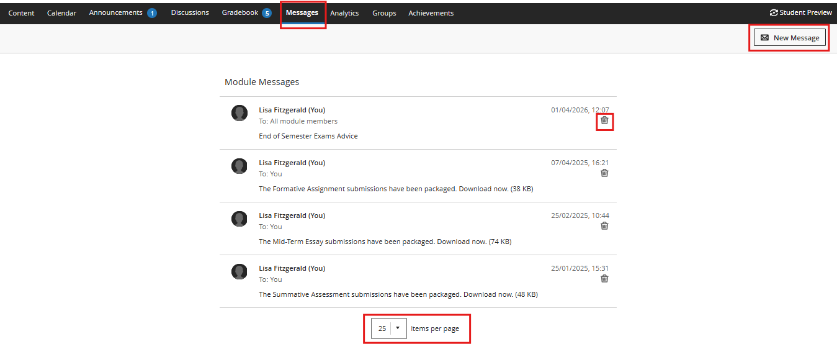
On the top navigation within your module, you can select the Messages page. The number of unread messages that you have is indicated within a red circle. All your course messages and responses are on the Messages page. You can easily review the entire list and open a message to read all the responses.
Your unread messages appear first in the list and have a red circle next to the sender's name. Each message displays the sender's profile picture. Under the sender's name, you can view how many participants are included or if the message is for the whole class.
-
Send a message. Select the New Message button to send a message. Send to one person, multiple people, a group, or the entire class.
-
Select how many messages per page. If you have many messages, you can increase the number displayed per page.
-
Delete a message. Use the Delete button to delete a message. If more responses come in, you'll get them. You can't edit or delete individual responses in a message.
-
Navigate to another message. Messages open in a panel that displays all responses. Use the View Previous Messages and Next Message buttons at the top to view the previous or next message in the list.
-
Add more people. When you create or respond to a message, select the Add Participants button to add additional people unless the message was sent to the entire class.
-
Follow a conversation. Messages are threaded. When you select anywhere within a message, the panel for that message displays every sent and received message within that conversation.