
Announcements
Announcements are an ideal way to post time-sensitive information. You can add, edit, and delete announcements from the Announcements page. You can also record video and audio files to include with your announcement.
Students see new announcements in a pop-up window when they log in. When you add an announcement, you can also send it to students in your course as an email. Students receive the announcement even if they don't log into your module.
Announcements
The following narrated video provides a visual and auditory representation of some of the information included on this page. For a detailed description open the video on Vimeo.
Click to viewAnnouncements page
From the Announcements page, you can create, organise, mark as read or unread, and search your announcements. From the Module Content page, when you first enter a module, select Announcements to go to the Announcements page.
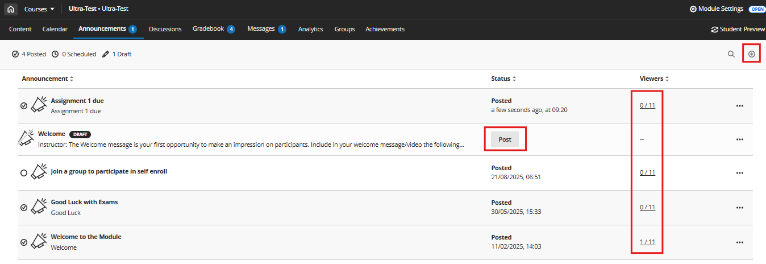
- View a summary of your announcements: View the number of course announcements by status at the top of the page. Announcements have three statuses: Posted, Scheduled, and Draft.
- Sort columns: Sort announcements by the title, status, or the number of viewers.
- Review access: Select the number of viewers to display on a page, listing those who have and those who haven't acknowledged the announcement as read.
- Search announcements: Select the search button that’s displayed as a magnifying glass and enter keywords to locate a specific announcement.
- Create a new announcement: Select the create announcement button that appears as a plus sign to open the New Announcement page.
- Manage announcements: Open an announcement's menu to edit, copy, or delete an announcement.
- Mark as read: Select an announcement to set as read or unread.
Additional Information & Guides
In what circumstances would I use announcements?
Here are some examples of adding announcements for these types of module activities:
- Due dates for assignments and projects
- Changes to your syllabus
- Corrections/clarifications of materials
- Exam schedules
Create an Announcement
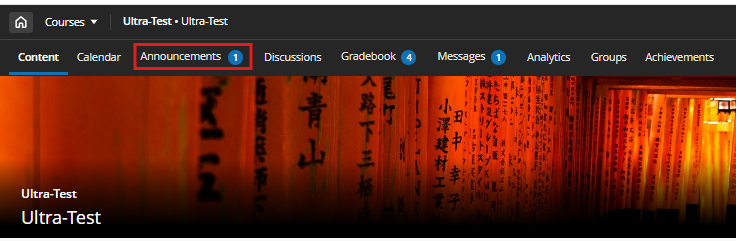
In your module, select Announcements from the top navigation.
- Click the + (plus sign) at the top right of the screen to create a new Announcement.
- Add an Announcement title.
- In the Recipients, you must choose All module members.
- Add your announcement using the text editor below the Message option.
- If you want to send an email copy of the Announcement to everyone enrolled on the module, tick the box Send an email copy to recipients.
- To schedule the Announcement for a specific date/time, tick the Schedule Announcement box.
- You can manage the visibility of an Announcement using the show time and date features. There is also an add a hide time and date feature.
- Select Save.
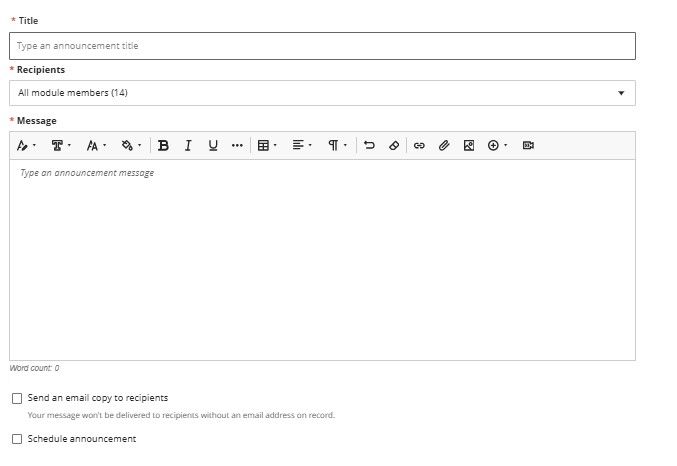
New Announcement view within a module
New module announcements reach students the next time students that they enter the module. Students need to acknowledge the new announcement before they can access module content. After students acknowledge the announcement, it won’t show again.
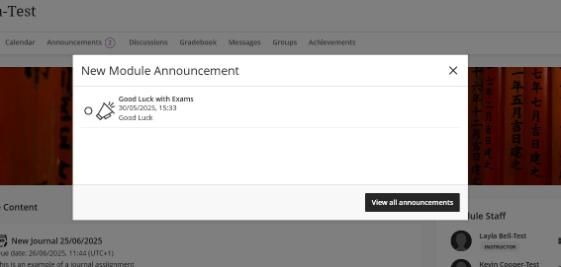
Announcements on the Activity page
Students also receive announcements on the Activity page. Announcements appear in the Today and Recent sections of the activity page.
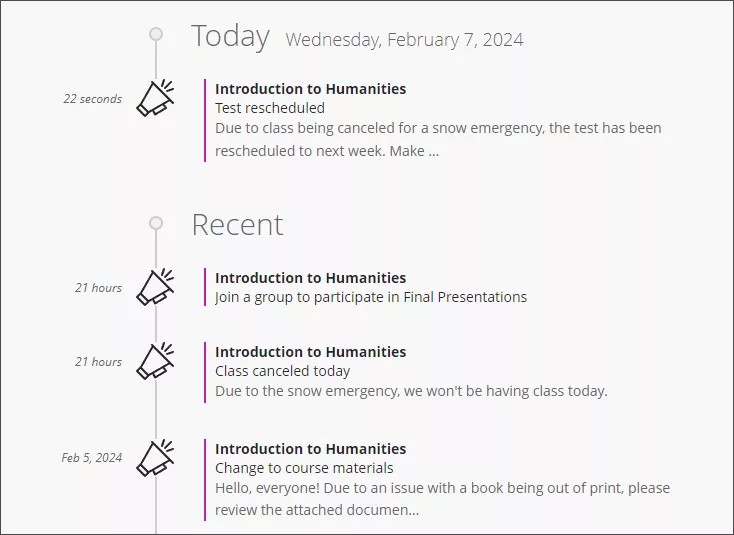
Most announcements disappear from the Activity page when students view them within their modules. If you schedule an announcement, it appears in the Activity page at the scheduled time.
Edit, copy, or delete an announcement
You can edit, copy, or delete any announcement in your module. On the Announcements page, open any announcement's options by clicking on the ellipsis to the right of the announcement.
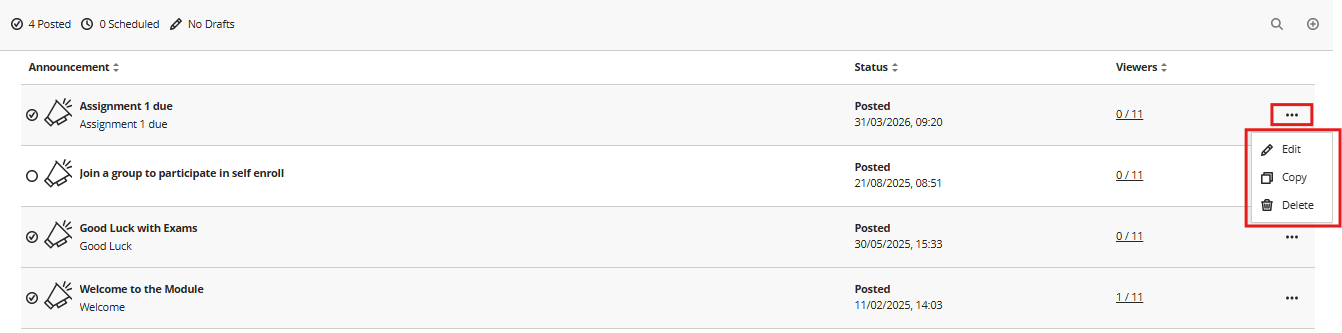
- Select Edit to change the title or message. You can also edit the scheduled post time and turn it on or off.
- Select Delete to permanently remove an announcement from your module.
- Select Copy to make an exact copy of an existing announcement and update as needed.
Important
If you edit or copy an existing announcement that has Send email copy to recipients selected, the announcement will revert to draft status, and you must resend it.
Schedule an Announcement
You can create an announcement for a future event, such as a reminder about a module event or due date.
- Schedule announcements to post automatically in your module on the date and time you choose.
- Hide announcements when they're no longer relevant.
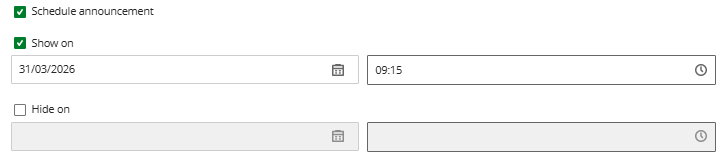
When you schedule an announcement, a Show on date and time is required. You can optionally select Hide on and select the date and time using the date picker to schedule announcements. If you no longer want to schedule the announcement, select Schedule announcement again. On the Announcements page, the scheduled announcement has a Scheduled label in the Status column. You have the option to send out an email copy to recipients with a scheduled announcement.