
Panopto rollover guide
Setting up your Panopto Folder
-
Configure your module: Set up the Panopto Folder Tool Area in your 202627 module. Watch the staff video guide here.
-
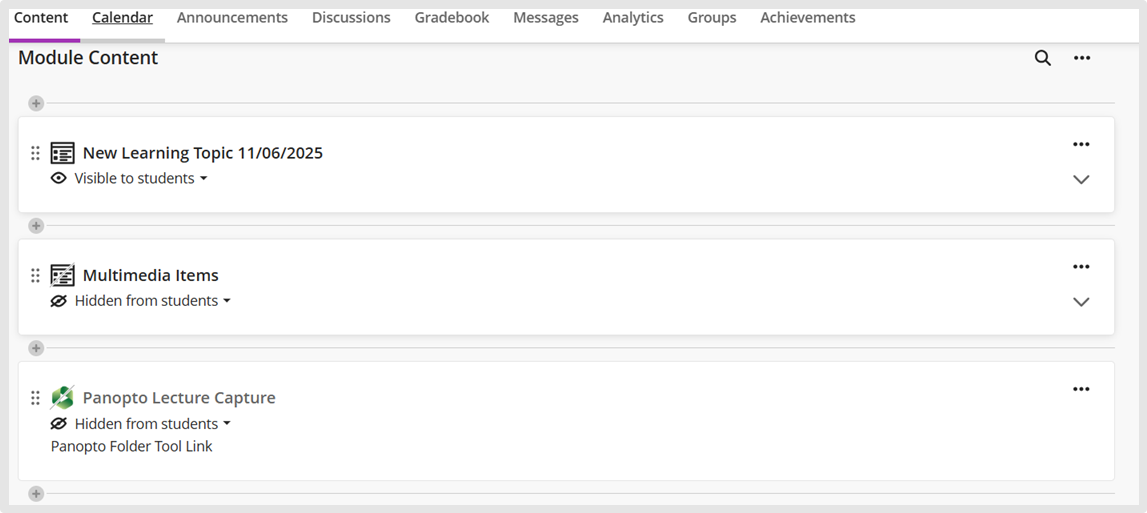
Set visibility: Once created, set the folder to "Hidden from students" in the visibility settings.
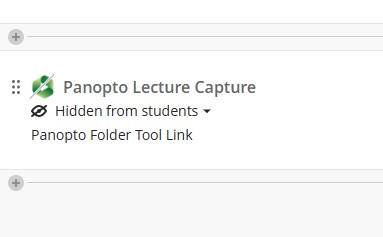
IT Services advises staff to upload lecture recordings into the Panopto Folder within your Blackboard Ultra module (where there is storage limit of 7GB) and avoid uploading lecture recordings to the Ultra module’s own library storage space itself.
A Panopto folder in your module allows you to embed these lecture recordings anywhere within your Ultra module’s content area without using the limited Blackboard module storage space.
This guide describes how to migrate (rollover) your Panopto lecture recordings from your 2025/26 Ultra modules to your 2026/27 Ultra modules.
Method A: Use the Blackboard Ultra "Copy Items" feature
If you are not planning any adjustments or edits to your lecture videos from the previous year, use this method to copy the Panopto lecture videos into your current 2026-27 Blackboard module.
Copied Panopto videos appear as an embedded video link, which is a reference link pointing back to a source module where the Panopto video is actually stored.
If you would like to edit or adjust the lecture videos in your current module now or later (as it is only an embedded link that plays back for students), you'll need to take a Panopto copy of the video(s) from its source module into your Ultra destination module so that you can edit it. See "Method B: Use the Panopto copy and embed videos feature" below to do that.
Method "A" step-by-step instructions
- Open your 202627 Ultra module to which you want to copy Panopto lecture video content.
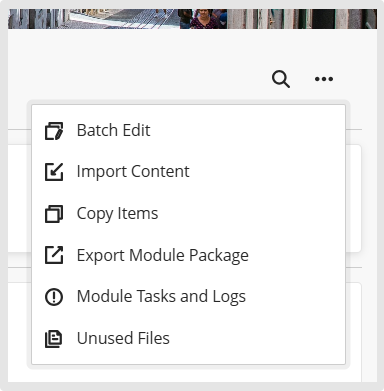
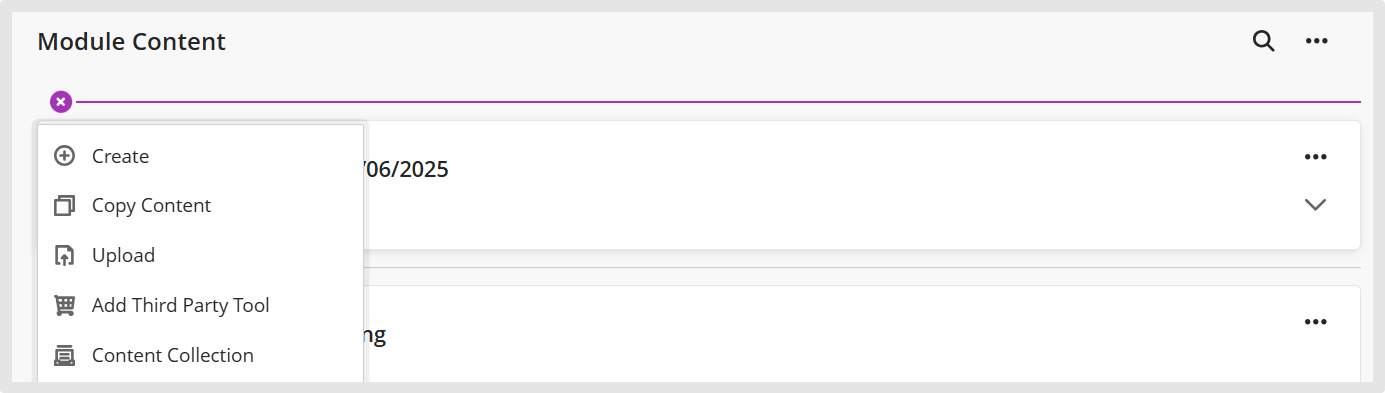
- At the top of the module content area, click the three-dot icon (ellipses), and select "Copy Items". Alternatively, click the purple + sign line where you want Panopto content added, then choose the "Copy Content" menu option.
- In the Copy items window, use the search field to search for the source module you want to copy Panopto embedded lecture videos from.
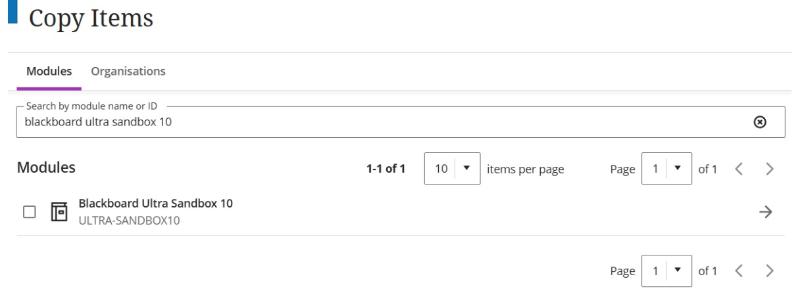
- Use the right arrow to find the Panopto Lecture videos you want to copy. You can select the entire folder of videos or choose specific embedded video(s) you want to copy.
To copy from an older Blackboard Original module, you may need to copy content at the folder level as while Panopto embedded videos will show in your copy list, the Panopto video links may not show from the source original module, thus by copying at the folder level you guarantee you will get all the embedded and linked videos across to your new module.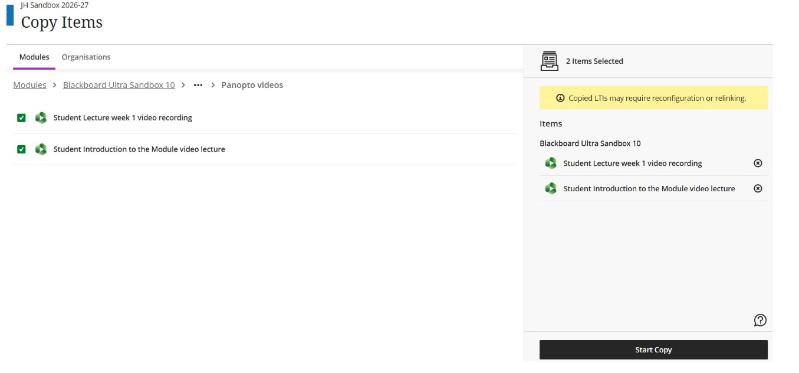
- Click on the Start Copy button.
- The Panopto Lecture videos will be added to your 202627 module content area. Don’t forget, any copied content is by default hidden from students so you’ll need to make the lecture videos you copied.
- To test, click on the video to ensure it plays back correctly. Also, use the "Student Preview" function to verify that the video plays back correctly for students.
Method B: Using the Panopto "Copy" and "embed" videos feature.
The Blackboard "Copy Items" feature only creates embedded links to your old videos; it does not transfer the files themselves. To edit or manage these videos in your new Ultra module:
- Prepare your module: Ensure your Panopto Lecture Capture folder is set up (see instructions above).
- Move the videos: Copy the videos from your old module's Panopto folder into your new module's Panopto folder.
- Edit: Once moved, the videos are stored locally in the new module, allowing you to edit them via the Panopto editor and link them into your content.
Method "B" step-by-step instructions
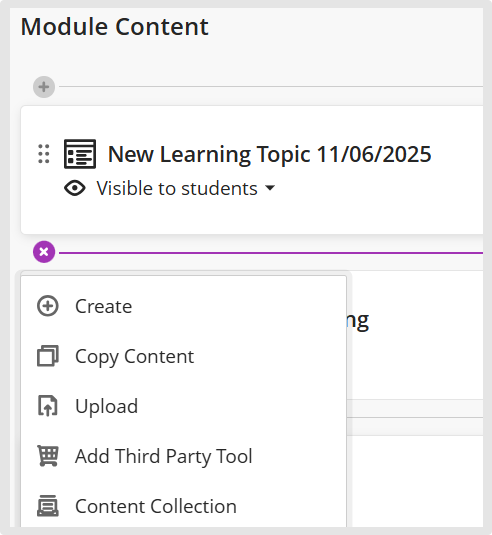
- In your Ultra module, select the purple Plus button. On the dropdown menu, select the Add Third Party Tool option.
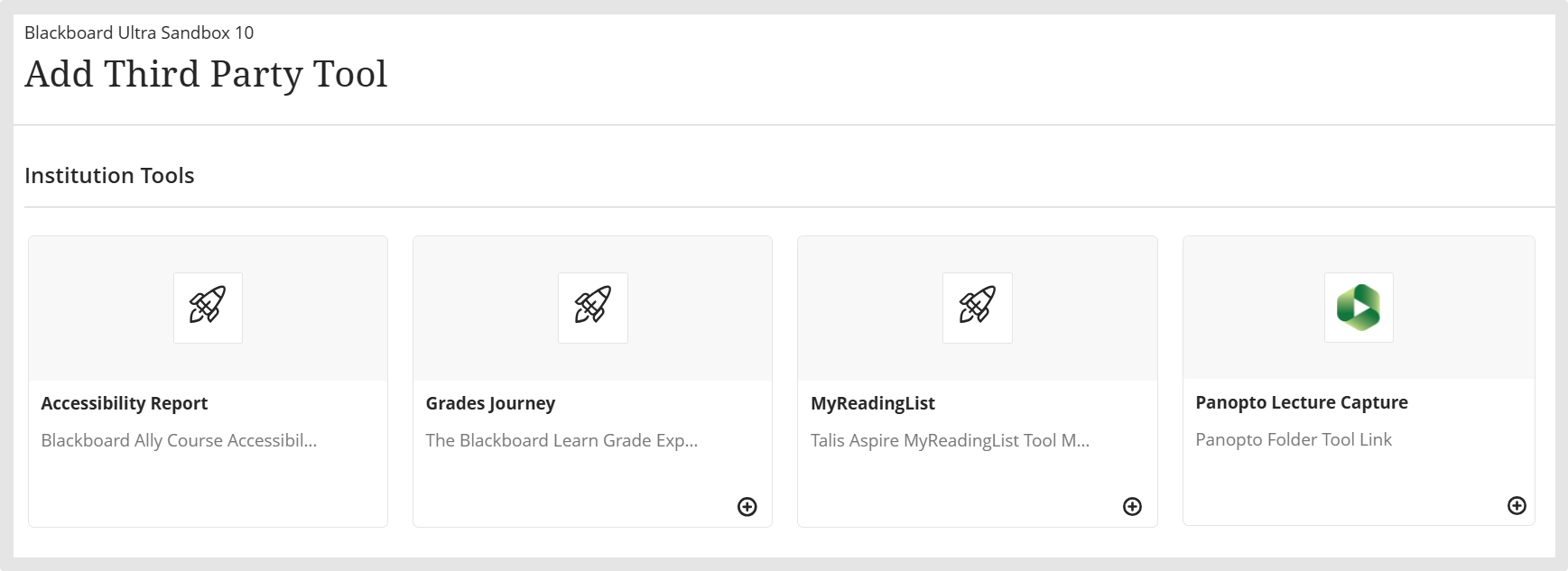
- Click on the + sign beside the Panopto Lecture Capture block.
- The Panopto Folder link will be added to your module content area.
- Locate your source videos by opening the module where they are stored: click the Panopto Lecture Capture link in the main content area (202526 modules) or in the left-hand menu (for Blackboard Original modules).
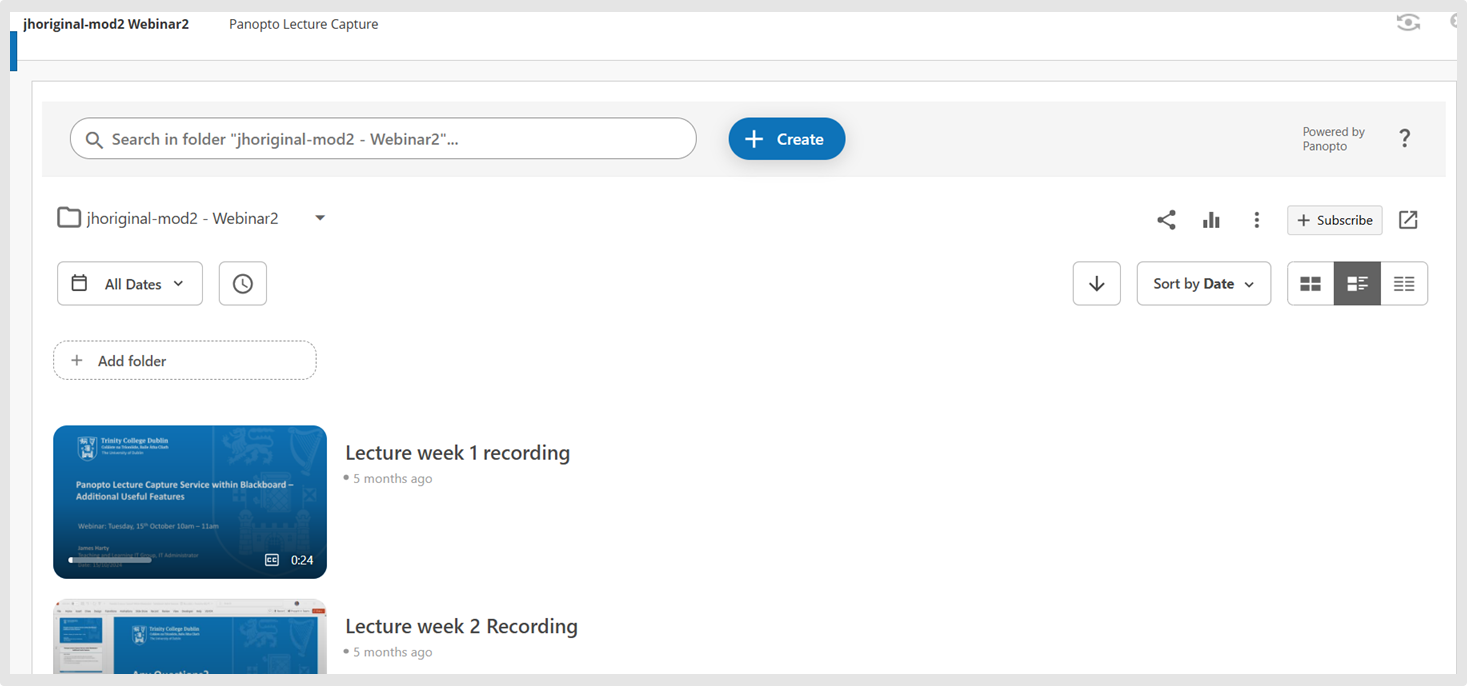
- Select the Panopto Lecture videos you want to copy.
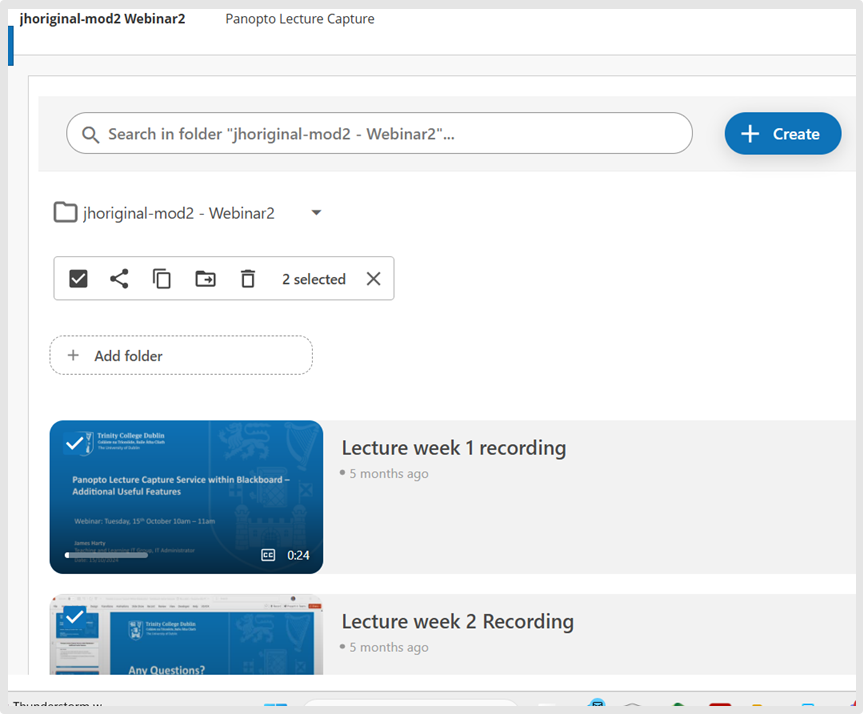
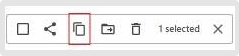
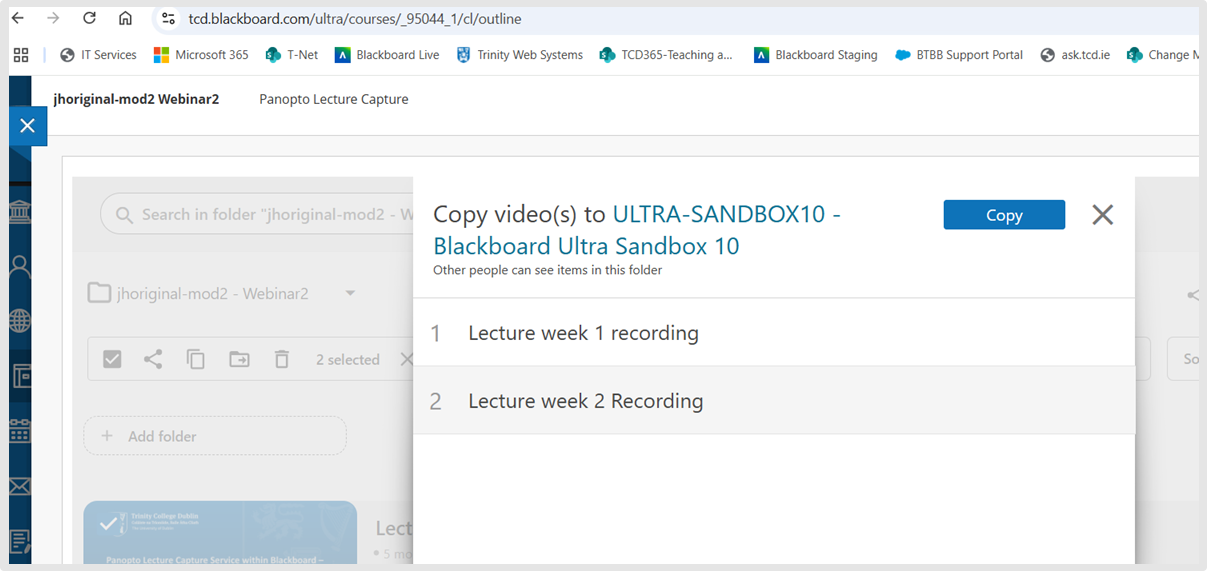
- Click on the copy icon in the floating taskbar and search for your destination 202627 module. Click Copy icon to transfer those Panopto lecture videos as reference copies to your destination module's Panopto folder.
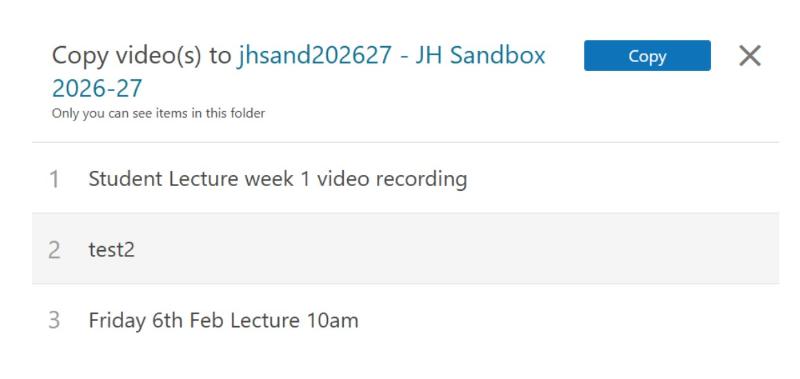
- Return to your destination Blackboard Ultra Module and, in the content area, click on the Panopto Lecture Capture folder link (you created earlier) to view the Panopto videos, which are referred to as "Reference Copies". You will see the linked chain symbol icon in the bottom right, indicating that they are still linked back to the source module.
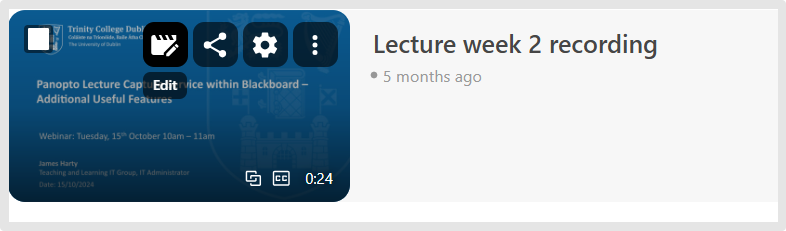
- To make adjustments to these videos, hover over the recording you want to edit and click the Edit button.
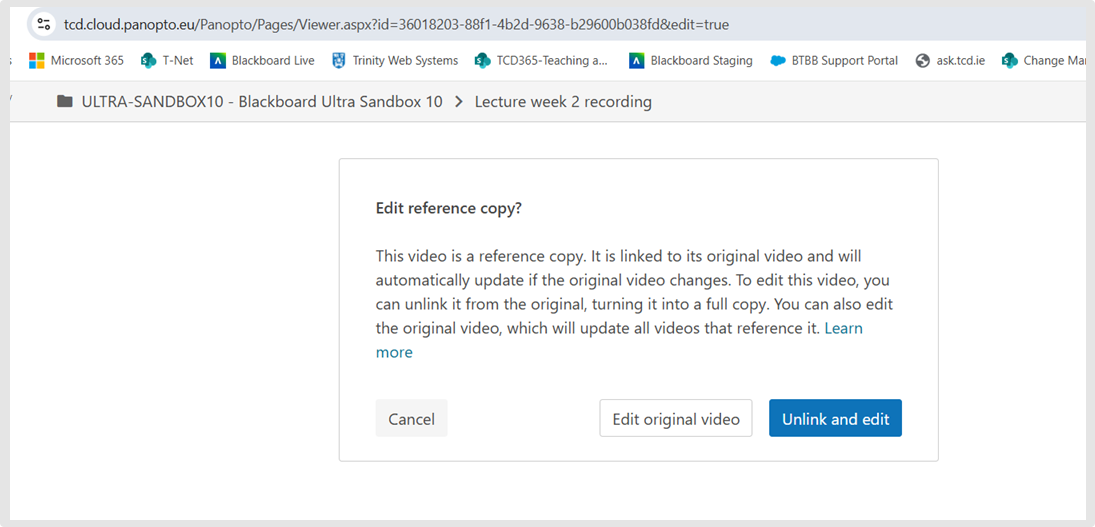
- Panopto will display the following window message, offering two options for you to choose from. Choose the "Unlink and Edit" option to create a master copy of this video in our Ultra module. You can make your adjustments and click Apply to save the changes to the video.
- In your Ultra module, select the Plus button. On the dropdown menu, select the Add Third Party Tool option.
- Scroll down to find the "Panopto Video Embed" option, click on it to open the Panopto video embed window. Click the Radio button to select the Panopto video(s) you want to embed into your Ultra module content area.
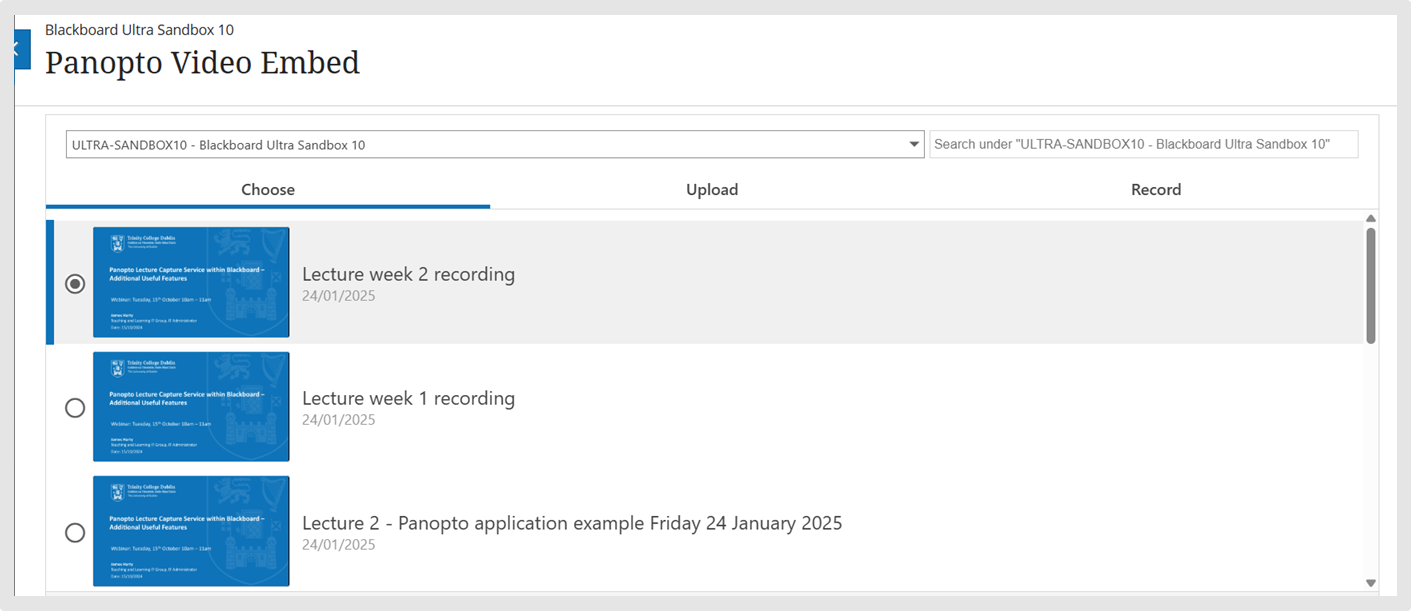
- Once content has been chosen, select the Insert button. Click on the video to ensure it plays back correctly. Also, use the "Student Preview" button to verify that the video plays back correctly for students.