Editing a New Standard Turnitin Assignment
Some assignment settings can only be edited within the Turnitin assignment, while other assignment settings can only be edited in the Blackboard module's assignment list.
Guides on Editing the Assignment settings
Edit Assignment settings within Turnitin
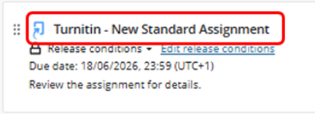
Go to the location of the Turnitin Assignment within your Blackboard Module Content page and select the assignment title to open the Turnitin assignment.
Select the Edit Settings option at the top right of the page.

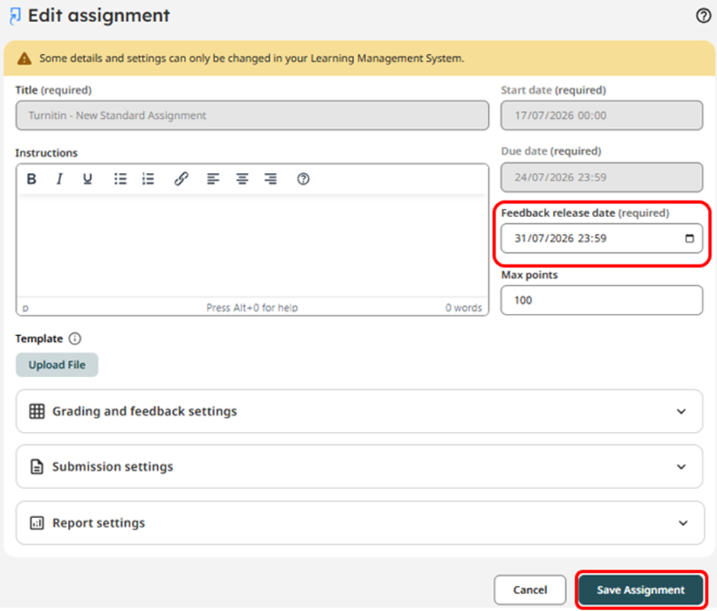
Edit the details/settings which are not greyed out, e.g., Feedback release date. You can navigate to each setting to edit its details.
Any details/settings which are greyed out can only be edited within your module on Blackboard.
Remember to select Save Assignment at the bottom right of the page to save any of your changes you have made.
Editing Assignment settings within Blackboard
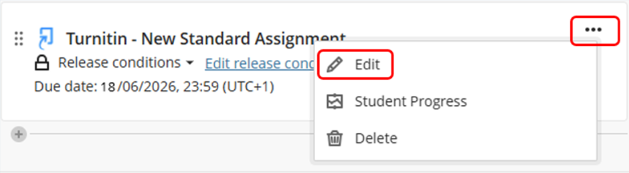
Go to the location of the Turnitin Assignment within your Blackboard Module Content page and select the ellipsis tool/three dots to the right of the assignment title, and select Edit from the menu that appears.
A window appears where you can edit items like the Title, Due date and the assignment Release Conditions.
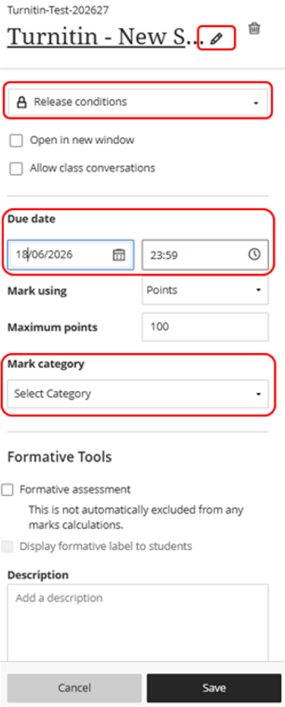
- To edit the Title, select the pencil icon next to it.
- To edit the assignment's Due date, select the date and time icons.
- In the Mark Category section, you can set this to Assignment, as this is not set during the initial setup of your Turnitin assignment.
- Click Save to save any of your changes.
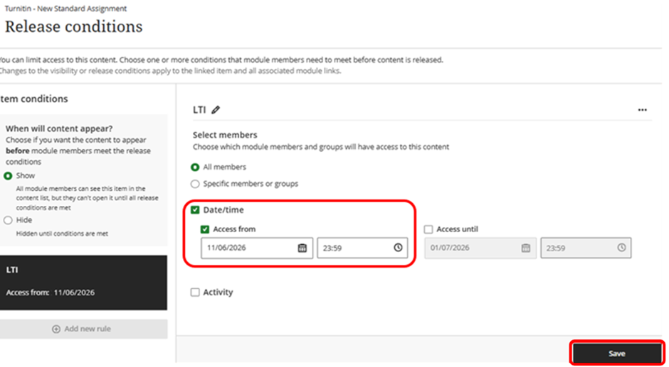
- Release Conditions is where you edit the Assignment's Access From/Start Date availability. See more information on Assignment availability on the Turnitin guides pages here.
- Click Save when you have made any changes.