
Installation & Setup for Webcasting/ Live Streaming
Webcast (Live Streaming) is a live-broadcast feature that streams your lecture over the internet in real-time while simultaneously recording it for on-demand viewing later. It's ideal for live remote lectures, synchronous virtual events, or distance learning modules where students need to watch or interact live from home.
Select your operating system below for instructions
How to install Panopto on Windows PCs if using Blackboard for Webcasting
- Log in to Blackboard.
- Select one of your modules in your Module List, which has been set up with Panopto.
- Click the Panopto Lecture Capture link in the content area.
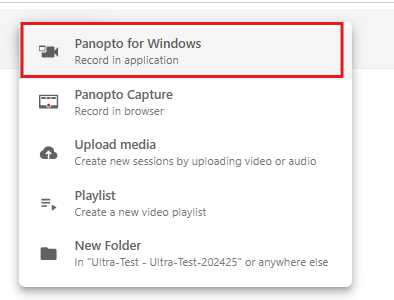
- Click the Create button and select Panopto for Windows.
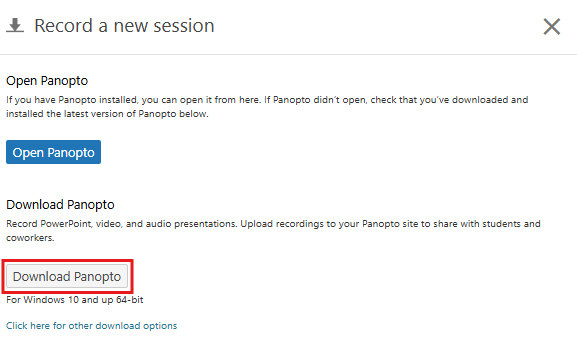
- Select Download Panopto in the pop-up window to begin downloading the application.
- Locate PanoptoRecorder.exe in your downloads and run the application. The installer will self-extract and begin the installation.
- In the Panopto Setup window, you should note or change the listed 'Storage location for recorded content on this computer'. This folder will be used to save recordings you choose to save 'locally' or when recording in offline mode.
- Click Next and then Install.
Click to Learn more bout how to Download and Install Panopto for Windows
How to install Panopto on Macs if using Blackboard
- Log in to Blackboard.
- Select one of your modules in your Module List, which has been set up with Panopto.
- Click the Panopto Lecture Capture link.
- Blackboard may show a message stating that cookies are disabled for this website. Click the Safari menu listing in the top left corner, choose Preferences from the drop-down menu, click on the Privacy tab and for Cookies and website data, turn on Always Allow. Click the Lecture Recordings link in the left panel in Blackboard once more.
- Click the Create button and select Record a new session. From the list of installer files on the right, select the listing titled "Download Installer."
- Click on the Panopto installer file to install using the installation wizard. Accept all the default options suggested. You will be prompted to supply your Mac computer's local password to allow the installation to proceed and complete.
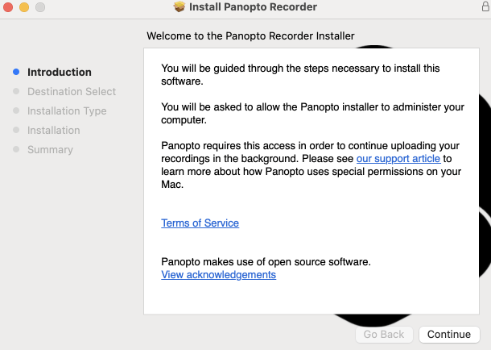
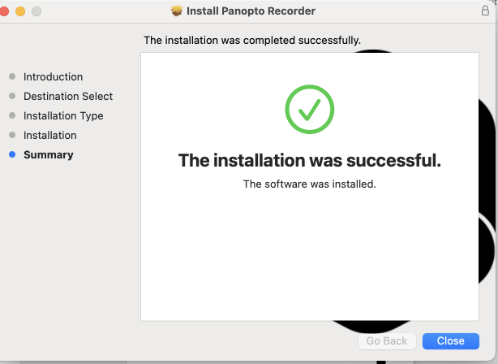
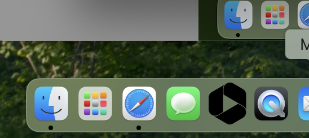
7. Now that you have installed the Panopto Recorder software on your Mac Computer, click on your Launchpad in the bottom left-hand corner of your taskbar and search for the Panopto Recorder application.
8. Drag the Panopto Recorder application icon to your taskbar for ease of access when you want to use it.
Once installation is complete, click Close.
Click to learn more bout how to download and Install Panopto for Mac