
Trinity Panopto Portal - Install on a non-University computer
The Trinity Panopto Portal is a video content management web portal at panopto.tcd. i.e., a staff member can sign in to create and record video content. It can be used to create and store staff training videos, it can record events such as professor inaugural talks, record live lecture streams, flipped classroom scenarios, record research fieldwork, audio only podcasts. It lets you share video content at the user level, the Trinity organisation level, or the public internet level. Note: For lecture video materials for your students, use the Panopto-integrated service within Blackboard. The Panopto portal is for non-Blackboard video material, for a wider audience.
The Trinity Panopto Web Portal Tour Guide
Staff Video Guide on the Trinity Panopto Web Portal. Containing a playlist of the four guides, which will run sequentially one after the other as well.
Click here to view in PanoptoSelect your operating system below for instructions
How to install Panopto on PC via the Trinity Panopto Portal
- Open your web browser, such as Google Chrome or Firefox, and navigate to http://panopto.tcd.ie
- Enter your Trinity computer account username (in the form username@tcd.ie) and click Next. If you forget to type the '@tcd.ie' part of your username, you will get an error message. Note: If you have signed in to Microsoft 365 with a second account, instead of seeing the above window, you will see a window titled "Pick an account." Choose the Trinity account, and you will be automatically signed into Blackboard.

- Once logged in, click on the Download Panopto link under your name in the top right-hand corner of your screen.
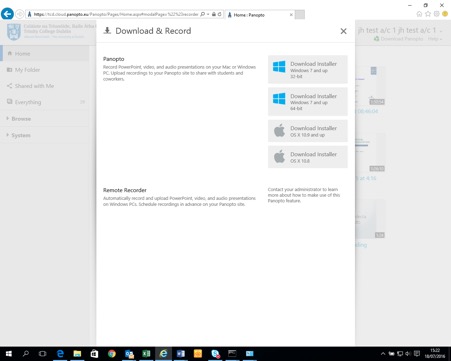
- Select Download Panopto in the pop-up window to begin downloading the application.
- Click the Save button, then click Save As, and save the file panoptorecorder.exe to your computer’s desktop. Other web browsers may automatically download the file for you, so you just need to find it on your screen to run it.
- Locate PanoptoRecorder.exe in your downloads and run the application. The installer will self-extract and begin the installation.
- The Panopto Setup window will display. (Note the folder the software will be installed to, also take note particularly of the other two fields, where lecture recordings will be stored locally on your Windows PC and that they will be stored in the Panopto cloud location as well.)
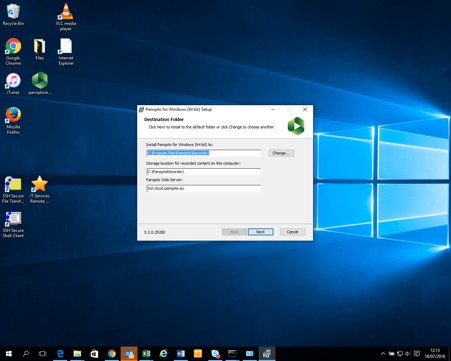
- Click Install to begin the installation.
- Once complete, the Panopto logon screen will reappear, and a Panopto Application Shortcut icon will also be added to your desktop.
How to install Panopto on Mac via the Trinity Panopto Portal
- Open a web browser such as Safari or Firefox and navigate to http://panopto.tcd.ie
- Enter your Trinity computer account username (in the form username@tcd.ie) and click Next. If you forget to type the '@tcd.ie' part of your username, you will get an error message. Note: If you have signed in to Microsoft 365 with a second account, rather than seeing the above window, you will see a window called "Pick an account." Choose the Trinity account, and you will be automatically signed into Blackboard.
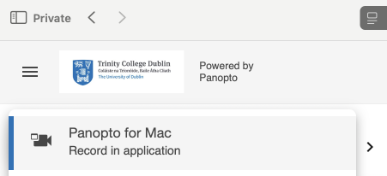
- Click on the <+Create> button and choose the <Panopto for Mac – Record in Application> option.
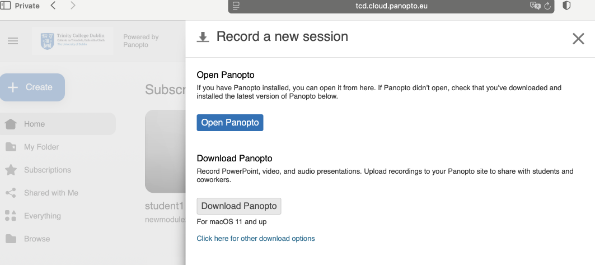
- Then click the <Download Panopto> button to download the Panopto installer file (dmg) to your downloads area on your Macintosh.
- In your taskbar, you will find the Panopto application installer file in your downloads folder.
- Click on the Panopto application installer file to begin the installation process. Follow the installation wizard steps until completed accepting the default options. You may be asked to enter your Mac computer's password to complete the installation.
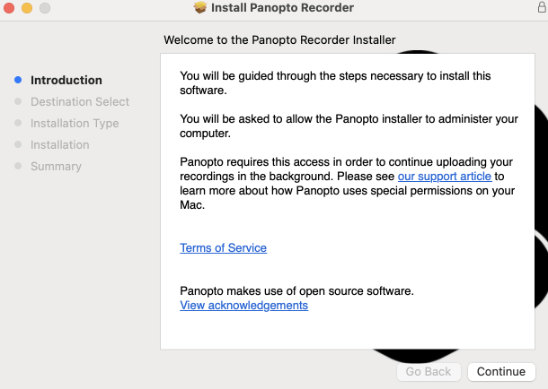
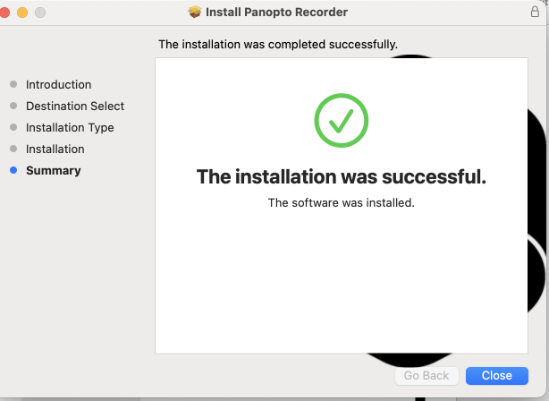
7. Now that you have installed the Panopto Recorder software on your Mac Computer, click on your Launchpad in the bottom left-hand corner of your taskbar and search for the Panopto Recorder application.
8. Drag the Panopto Recorder application icon to your taskbar for ease of access when you want to use it.
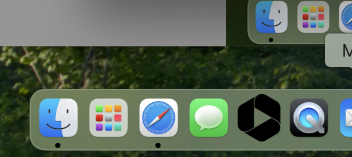
9. After the installation is complete, you are ready to record lecture material using Panopto on your own device.