
How to install Panopto if using Blackboard
Pre-requisite Steps:
Before you can use Panopto to record videos in Blackboard, you will need to link the Panopto Lecture Capture Link to each Module that you'll want to record videos for. These steps must be carried out for each Module and will provide you with a link to run the Panopto Lecture Capture Software.
How to install Panopto on Windows PCs if using Blackboard
-
- Log into Blackboard.
- Select one of your modules in your Module List which has been set up with Panopto.
- Click the Create button and select Panopto for Windows.
- Open Panopto: If you have Panopto installed, you can open it from here. If Panopto doesn’t open, check that you’ve downloaded and installed the latest version.
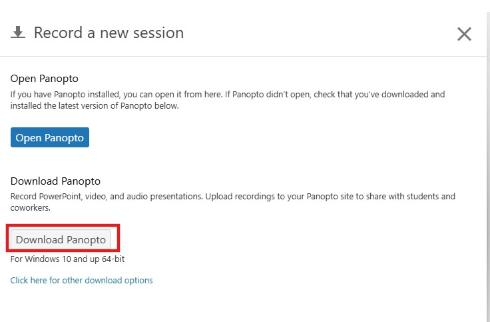
- Click on Download Panopto to record PowerPoint, video, and audio presentations. Upload recordings to your Panopto site to share with students.
- The downloaded file will be called panoptorecorder.exe. Once the download is complete, double-click this file to launch it.
- Click Next and then Install. You will be directed to a Panopto sign-in page
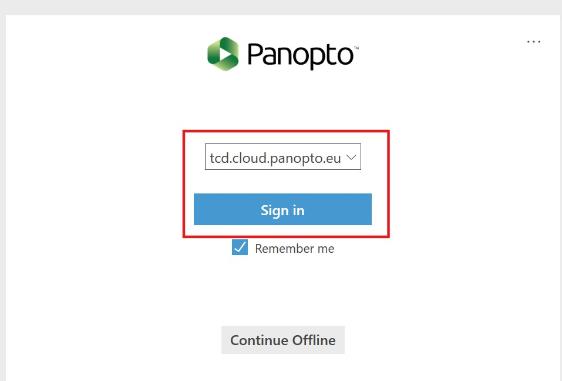
After the installation is complete, you are ready to record lecture material using Panopto on your own device.
Select your operating system below for instructions
How to install Panopto on Windows PCs if using Blackboard
-
- Log in to Blackboard.
- Select one of your modules in your Module List which has been set up with Panopto.
- Click the Create button and select Panopto for Windows.
- Open Panopto: If you have Panopto installed, you can open it from here. If Panopto doesn’t open, check that you’ve downloaded and installed the latest version.
- Click on Download Panopto to record PowerPoint, video, and audio presentations. Upload recordings to your Panopto site to share with students.
- The downloaded file will be called panoptorecorder.exe. Once the download is complete, double-click this file to launch it.
- Click Next and then Install. You will be directed to a Panopto sign-in page
After the installation is complete, you are ready to record lecture material using Panopto on your own device.
How to install the Panopto Application recording software onto your Mac if using Blackboard
The steps below assume that you have already followed the steps to enable Panopto for one or more Modules in Blackboard.
1. Sign in to Blackboard and go to your Ultra module. Click the Panopto Lecture Capture icon in your content area, which you set up earlier, to open the Panopto folder.
2. Click on the <+Create> button and choose the <Panopto for Mac – record in Application> option.
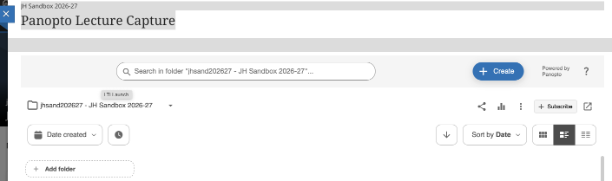
3. Click on the <Download Panopto> button. Download the Panopto Recorder installer file dmg onto your Mac.
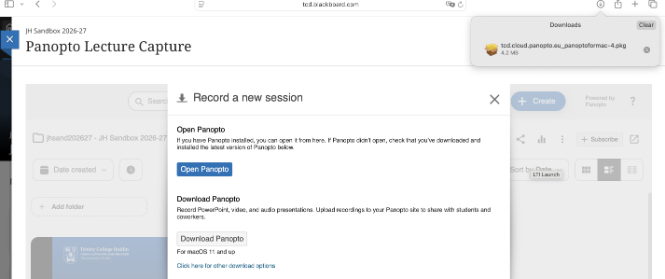
4. Click on the Panopto installer file to install using the installation wizard. Accept all the default options suggested. You will be prompted to supply your Mac computer's local password to allow the installation to proceed and complete.
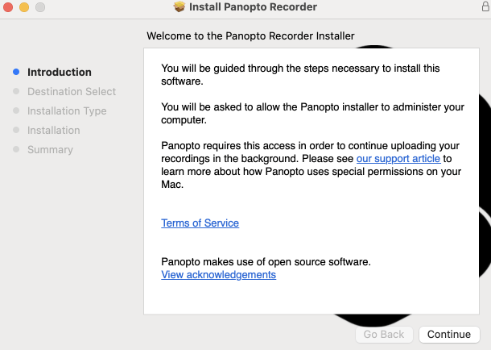
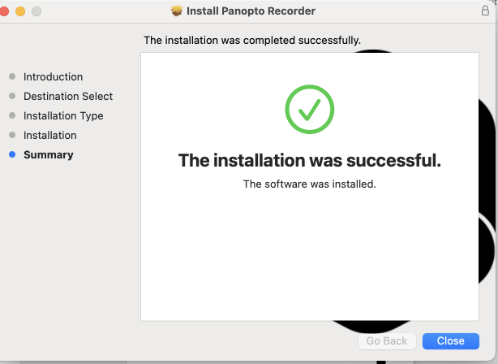
5. Now that you have installed the Panopto Recorder software on your Mac Computer, click on your Launchpad in the bottom left-hand corner of your taskbar and search for the Panopto Recorder application.
6. Drag the Panopto Recorder application icon to your taskbar for ease of access when you want to use it.
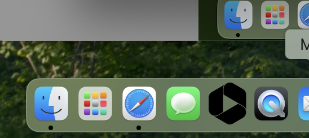
7. After the installation is complete, you are ready to record lecture material using Panopto on your own device.