Microsoft is changing the way users complete multi-factor authentication (MFA). If you currently use a text message (SMS) or phone call to verify your identity when signing in to your Trinity account, you will need to switch to use the Microsoft Authenticator app instead.
If you do not set up the Microsoft Authenticator app, then when signing into your account, you will begin receiving prompts to do so.
If you already use the Microsoft Authenticator app to approve sign-in requests, no action is required.
How to add the Microsoft Authenticator app as a sign-in method to your account
Step 1: On your phone, install the Microsoft Authenticator app
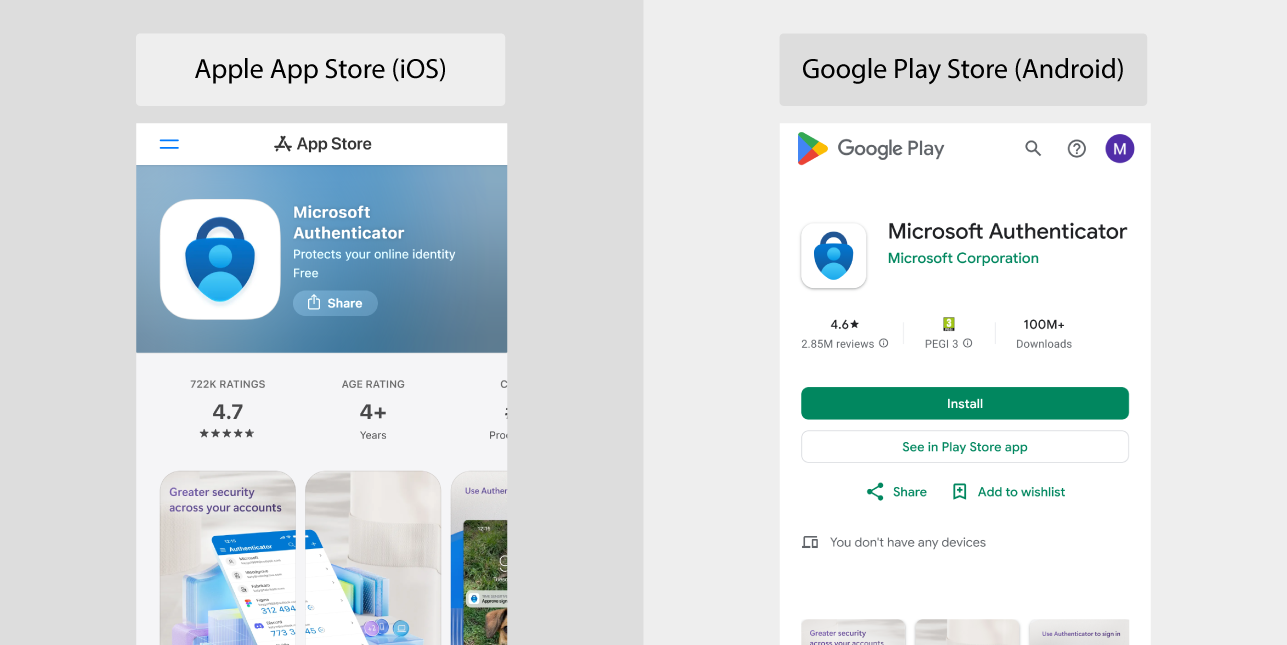
Download and install the Microsoft Authenticator app on your phone. The links for the app for both iOS and Android devices are shown below.
Only install the official free Microsoft Authenticator app
If you search for "Authenticator" in the Apple App Store or Google Play Store, you may see other authenticator apps that are not published by Microsoft. Some of these apps charge a fee or require a subscription.
The official Microsoft Authenticator app is free to download and use. Please ensure you install the Microsoft-published app and not a third-party alternative.
Step 2: On your computer, open the Microsoft security info page
On your computer, open a web browser and sign into your Microsoft account "Security info" page at https://mysignins.microsoft.com/security-info.
After signing in, you may receive an MFA prompt to proceed past this point.
Step 3: Add Microsoft Authenticator as a new sign-in method
- On the "Security info" page, click on the Add sign-in method option and choose Microsoft Authenticator.
- Follow the prompts on screen until you see a QR code.
- On your phone, open the Microsoft Authenticator app, tap the + in the top right corner and choose Work or school account.
- Select Scan a QR code and point the phone camera at the QR code on the computer screen.
- You will then see a notification to say the account is added to the app.
- Switch back to the computer and click the Next button.
- Microsoft will then display a number on the computer screen as well as send a notification to the Microsoft Authenticator app on the phone. Enter the number you see on the computer in the Microsoft Authenticator app.
- After entering the number. go back to the browser and you will see a message saying Authenticator Added. Then click Done.
Microsoft Authenticator will now have been added as an additional sign-in method to your account.