
Viewing and Submitting a Turnitin Assignment
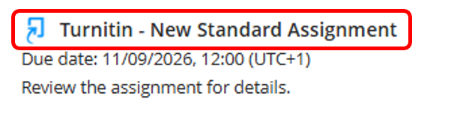
The exact location/name of the folder & Assignment will vary depending on the module's design, and typically the Assignment will be in a folder in the Module Content area called Assessments or Assignments. Click on the Assignment Name/link for an assignment to view the Submission area/Dashboard and to upload your submission.
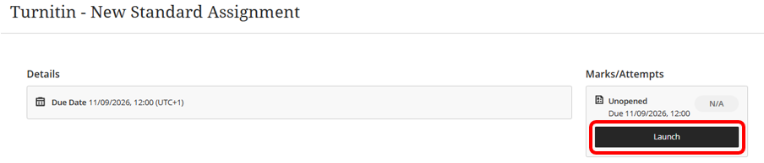
On the panel that appears, click on Launch
Viewing the Assignment Details
Below is a description of the key parts of the Turnitin Assignment Dashboard/Submission Area. The settings may display differently depending on the options selected by the Instructor when creating the Assignment.
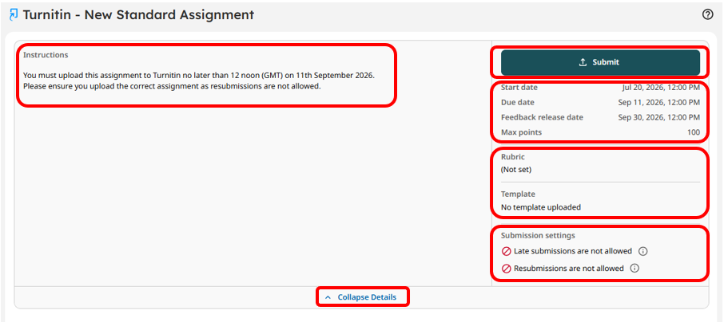
- Instructions - Instructions provided by your Instructor.
- Submit - The button you select to upload your file.
- Start date - The date and time you can begin submitting your Assignment.
- Due date - The due date and time of the Assignment. Your Instructor determines whether assignments can be submitted after this date, so check with them if needed.
- Feedback release date - The date and time your Instructor will release any grading or feedback.
- Rubric - If your Instructor has attached a rubric to the Assignment, you may select it to view it. Instructors use rubrics to grade submissions. More information on Rubrics is available on the Turnitin guides pages here.
- Template - If your Instructor has uploaded a template with the Assignment, it will be available for download. The content of the template will be automatically excluded from your similarity score.
- Late submissions: One submission may be made after the due date if you were unable to submit it before the due date. Your Instructor determines whether late submissions are allowed.
- Resubmissions - You may resubmit your Assignment up to 3 times every 24 hours until the due date. Resubmissions overwrite your previous upload, so they will not cause a match in your Similarity Report. Your Instructor determines whether resubmissions are allowed.
- Collapse/Expand Details – Collapse or expand the Assignment details and settings.
Additional Information
Click on the Submit button to upload your assignment.

Note: If this is your first time using Turnitin, you will need to accept the licence agreement. If you encounter an issue accepting the agreement, try another web browser such as Chrome or Firefox. Use the scrollbar on the right side of the pop-up if needed, then click the Accept button.
Select Browse Files to upload the file from your device or Drag and Drop your file to the space provided.
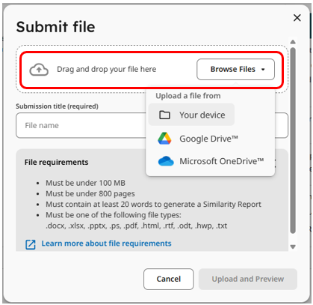
Change the Submission title if you wish and click Upload and Preview.
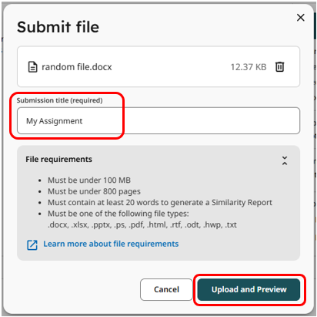
Turnitin will show you a preview of the file you are submitting. When you are ready, click Submit.
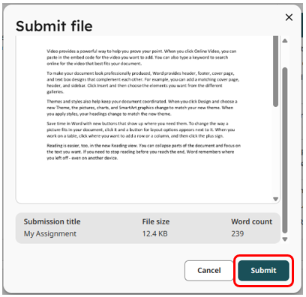
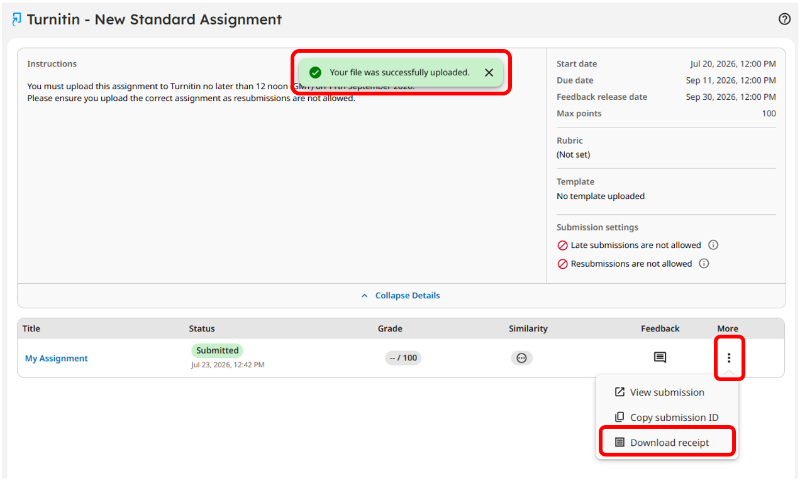
Your file will commence uploading. Once it has uploaded, a pop-up will appear stating "Your file was successfully uploaded".
Click on the submission Title to view it in Feedback Studio and confirm the document has uploaded correctly.
Note: Make sure to download the receipt, as no email notification will be sent to say the file has been uploaded. Select the three dots within the More column and click Download receipt.
If your instructor has enabled resubmissions for an assignment, access the assignment link again from your Blackboard module and click Launch to resubmit.
A Resubmit option will be available to select. The resubmission will overwrite your previous submission.

Return to the Assignment submission area by selecting the Assignment link in your Blackboard module and select Launch.
Your Assignment Title, Status, Grade, Similarity Percentage and Feedback columns will display depending on the assignment settings. Click on the Assignment Title to view your submission.

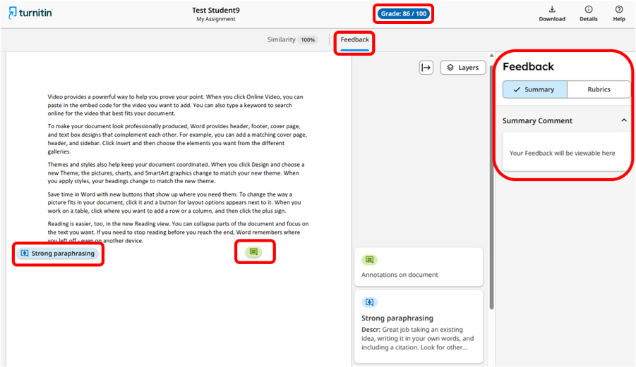
After the Feedback Release Date, your grade and any feedback will become available. Click on the Grade pill or Feedback icon to view any Feedback that your instructor has provided.
Your Feedback will appear in the panel on the right or annotated within the document. Your Grade appears along the top. More information on reviewing your Grade is available on the Turnitin guides pages here.
Depending on your instructor's settings, a Similarity Report will be available. This will take between 15 and 45 minutes to generate. To view the Similarity Report, click on the Similarity Percentage.
The Enhanced Similarity Report will open. Match Groups break down highlighted matches into four categories based on the usage of in-text citations and quotation marks. Click on the Sources tab to reveal the individual Sources in your Similarity Report. Use Filters to exclude small matches and bibliographies if needed.
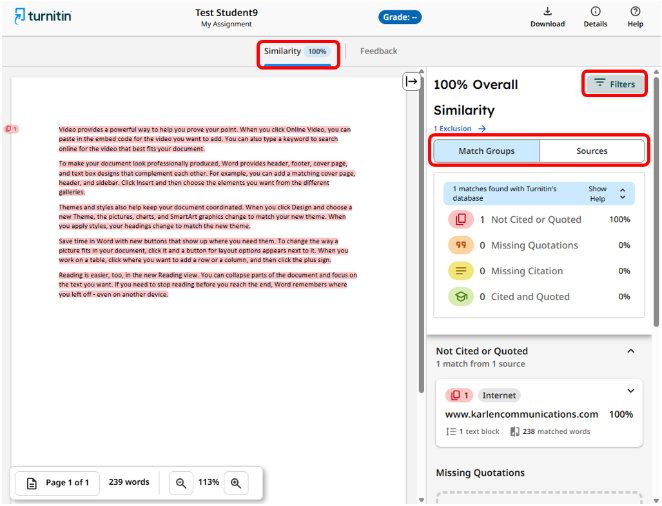
Click to learn more about the Enhanced Similarity Report from Turnitin