Edit your Panopto-created videos and content
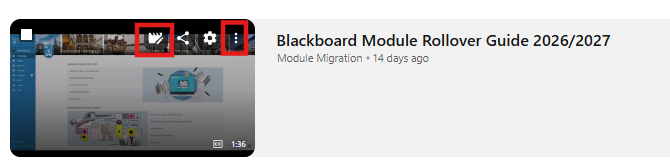
- If you wish to edit a previously recorded session within Blackboard, navigate to the relevant module and click on the 'Panopto Lecture Capture' link listed in the Module content area. Hover over the recording you want to edit, then select the Edit button.
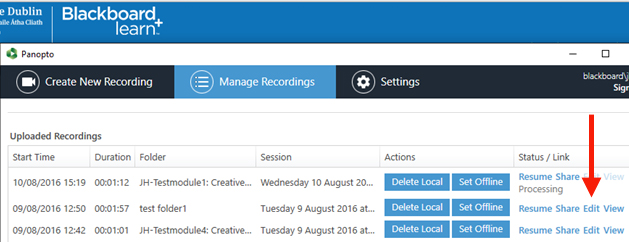
- Alternatively, if you have completed a recording in the Blackboard Portal, then after the lecture recording has uploaded to the Trinity Panopto site, you can choose the Edit link to the right of the session details, as shown below. There is also an Edit link in the email confirmation you receive after you finish a recording and it has been processed.
- Click the link below for full instructions on the available editing options, including how to trim your recording.
- Log out of Blackboard once you have completed your work.
Click to learn more about editing from Panopto
