
Managing Student Submissions in New Standard Assignment
This guide provides an overview of the New Standard Assignment submission area. This is where the student submissions appear when you access the New Standard Assignment. Below are some key components to help manage submissions.
Step 1. Accessing the Assignment Inbox
Step 2. Key parts of the Assignment Inbox
Step 3. Exporting / Downloading Submissions
Accessing the Assignment Inbox
To access the Assignment Inbox, go to the Blackboard module, then the folder containing your Turnitin assignment, and click on the Assignment Name.
Key parts of the Assignment Inbox
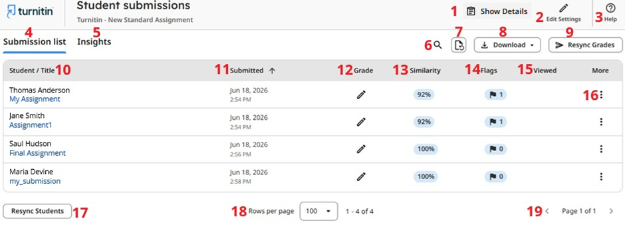
- Show Details - Contains the assignment details, which can be hidden and expanded using the Show Details button. Within the assignment details, you can view any instructions, review the assignment scheduling, review a summary of the assignment settings, copy the assignment ID, view the attached rubric (if one has been applied) and download a copy of the assignment template (if one has already been uploaded).
- Edit Settings - Edit the assignment settings.
- Help - Access the Turnitin Guides pages.
- Submission list - This tab contains all the submissions that have been made and is the default view when you access an assignment.
- Insights - The Rubric Insights tab within your assignment provides an overview of how each submission performed based on its overall grade and its rubric criteria. A Rubric must be added to an assignment to use this.
- Search - Search for a specific student or submission.
- Rerun reports - Check for any updates to the submission list without reloading the webpage. This includes updated submission data or refreshed reports.
- Download - Download selected reports and submission files. See "Downloading Submissions" for a full description of the available options.
- Resync grades - Re-send assignment grades to the gradebook.
- Student / Title - The student's first and last name, followed by the title of their submission file.
- Submitted - The date and time the submission was received. Late submissions appear in red. Any extensions given show in orange.
- Grade - Displays the assigned grade. A pencil icon indicates the submission is ungraded.
- Similarity - The similarity score of the submission. If a Similarity Report is not available, dashes will appear.
- Flags - Shows a flag icon and the number of flags identified for the submission.
- Viewed - A checkmark indicates the student has opened their submission and viewed their grade or feedback.
- Three dots - The three dots within each row contain options to submit a file on behalf of the student, grant the student an extension, request a deletion of the submission, open the student's report, download reports for that student and copy the submission ID.
- Resync students - Updates the student roster in the submission list to ensure all enrolled students are accurately reflected.
- Rows per page - Displays the number of rows (students) per page and the total number of students.
- Pages - Displays the number of pages in the submission list.
Grant a student an extension
Extensions can be granted to individual students in the New Standard Assignment to allow more time to submit their assignment.
Access the assignment within your Blackboard module and open it.
Locate the student’s row of the submission list and select the three-dot More menu at the end of the row. Select Grant extension from the menu that appears.
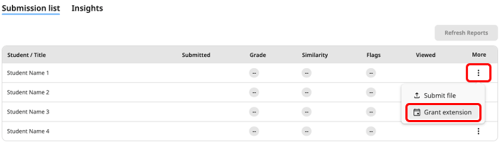
A menu will open where you can choose to extend the due date for the selected student by several days or hours. Select Extend by, and the new extended due date will be displayed as you make your selections. Select Confirm.
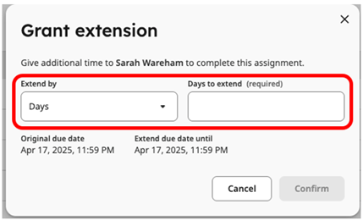
An indication of the extension will appear in the submission list for the specified student.

Request a deletion of a student submission
Select the three-dot More menu at the end of the row for the student and then select Request deletion from the dropdown options.
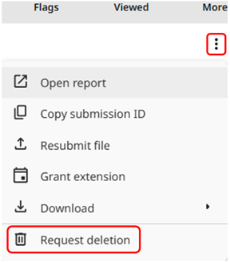
Review the confirmation, and when ready to continue, select the confirmation checkbox, then select the Request Permanent Deletion button.
The request will be sent to your administrator, and the submission will be hidden from your assignment. If the request is rejected, it will reappear.
Just need to replace an existing submission? As an instructor, you can resubmit on a student's behalf, and that will overwrite their previous submission.
Downloading Submissions
You can download student submissions and reports in bulk using the Download button at the top right of the submission list.
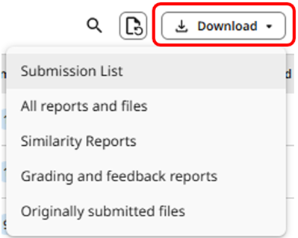
- Submission list - Download a CSV file of all student submissions. This includes details such as the submission date and similarity scores.
- All reports and files - Download all available files and reports for each student. This includes original submissions, similarity reports, grading and feedback. Files are organised in folders by report type and student name (or placeholder name if anonymous grading is on).
- Similarity Reports - Export PDF versions of Similarity Reports for all submitted files.
- Grading and feedback reports - Download PDFs that include any grades and feedback left by the instructor.
- Originally submitted files - Download the original file(s) uploaded by each student in their original format (e.g., .docx, .pdf).
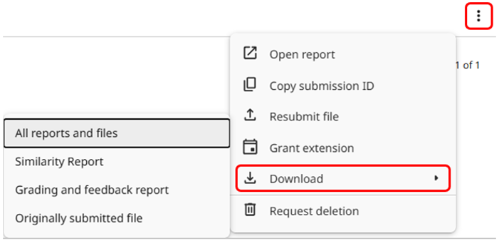
You can also download submissions and reports for an individual student. Select the three dots at the end of the student row and select Download from the menu that appears.
Submitting a file on behalf of the student
You can submit a file on behalf of a student in a New Standard Assignment. Access the assignment within your Blackboard module and open it.
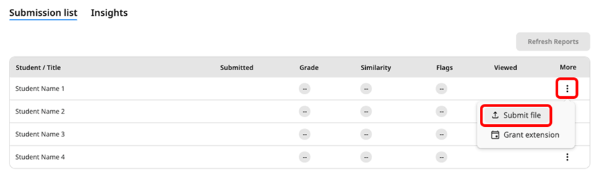
Locate the student's row on the submission list and select the three dots option at the end of the row. Select Submit file from the menu that appears.
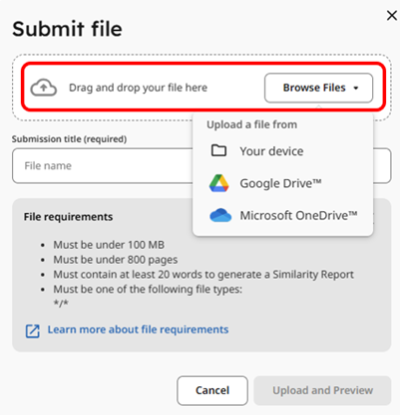
You can drag and drop the file or select Browse Files to upload it from your device. The submission title will autofill based on the file name. If you would like to rename it, you can in the Submission title text box.
Select Upload and Preview. Once the file has uploaded, you will have a chance to preview it before submission. This allows you to confirm this is definitely the file you want to submit on behalf of the student.
Select Submit to submit the file and allow time for the file to submit.
You should then see a File submitted successfully notification on the Submission list, with the file and the submission date/time appearing beside the student.
