
Main Navigation
There have been several small changes to the main top-level navigation in Blackboard, intended to provide a cleaner layout.
More Compact Navigation Items
The navigation menu has been adjusted so that the size of its items is reduced, making the menu more compact.

User Profile
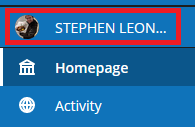
Your user profile can now be found at the top of the navigation menu and will display your profile picture if you have added one.
Log Out Button
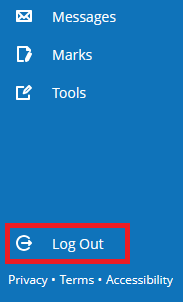
The ‘Log Out’ option has been moved to the bottom of the navigation menu, separate from the other options.
Within Modules
There have been a number of changes to modules in Blackboard aimed at reducing visual clutter and making it easier for staff and students to move between modules.
Full Screen Pages
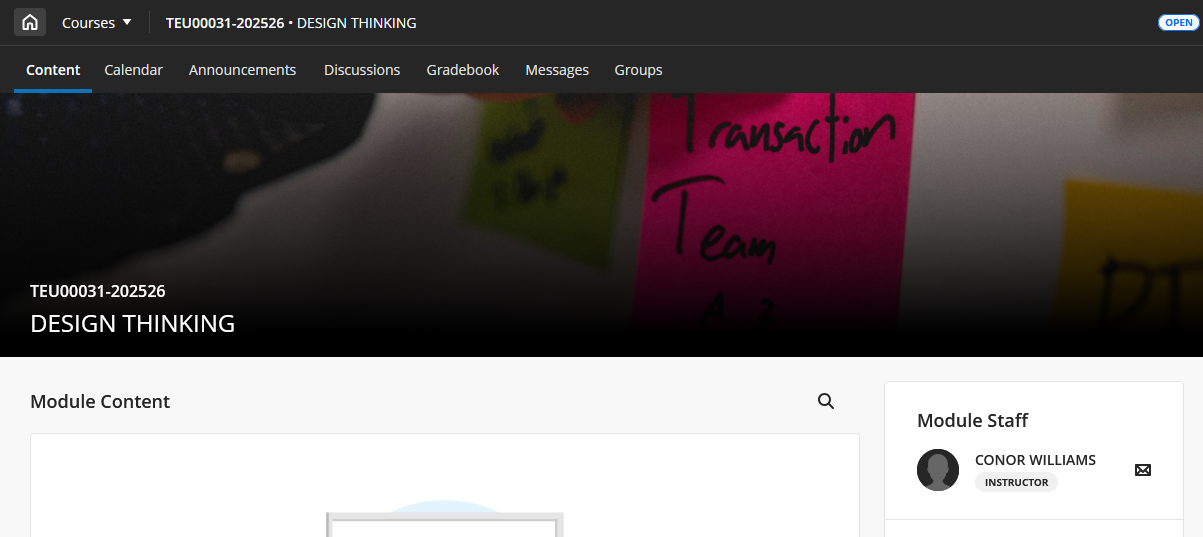
Modules will now open in a full-screen mode, meaning they will no longer slide out from the right-hand side of the page.
Replacement of X Button with Home Button
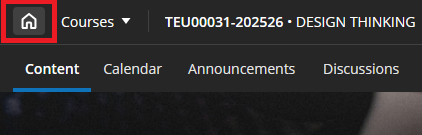
The blue X button previously located in the top-left corner of a module has been removed. It has been replaced with a Home button, which returns you to the Blackboard homepage.
Updated Module Banner
The module banner now spans the full width of your screen. The name of your module and module ID can now also be found here.

Module ID and Name in Header
Your module’s ID and name are now found in the header bar of the module. Clicking on them will return you to the main content page of your module if you are currently in a different location.

Module Switcher
A new Module Switcher is available at the top of a module page. It will allow you to quickly switch between modules you have recently been in or move back to your Module List.
