Gradebook Settings
You can use gradebook settings to customise your gradebook. Select the Settings button to open the Settings panel.
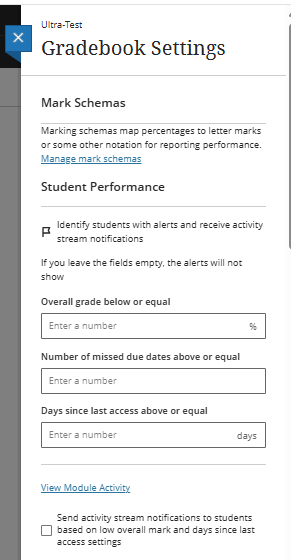
Mark Schemas
Mark schemas map assessment scores to percentages, letter grades, or other performance metrics for reporting. You can choose to display grades in different ways with grading schemas. A schema takes the points scored on an item and compares them to the item's total points possible to derive a percentage. This percentage is then mapped to a score range and displayed as a grade, such as a letter (A, B, C) or Pass/Fail.
The default marking schemas available are:
- Points
- Percentage
- Complete/incomplete
- Letter
Manage Mark schemas
- In the Gradebook, select Settings.
- In the Gradebook Settings panel, select Manage Mark Schemas to view the schemas available in your module.
- You can rename the default schema in your module and modify the Mark Ranges.
Click to Learn more about Mark Schemas from Blackboard
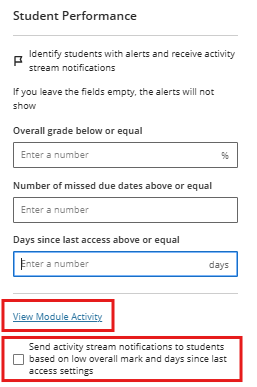
Student Performance
You can receive alerts in your activity stream about student performance and activity. You can set an alert for the number of days a student is inactive. If you've set up the overall grade for your module, you can also receive an alert when a student's overall grade percentage drops below a certain point.
Select View Module Activity to go to the Module Activity report. Note: This report won't display if there's not enough data in your module to populate it.
Automatic Zeros
Automatic Zeros is a feature in Blackboard Ultra that automatically assigns a mark of 0 to any assignment whose due date has passed and the student has not submitted.
If you assign automatic zeros, your settings are applied to these gradable items:
- Assignments and group assignments
- Tests and group tests
- Gradable individual and group discussions
- Discussions
- Journals
- Scorm
- Manual grade items
- LTI items
The automatic zeros setting doesn't apply when you collect submissions offline. If you collect submissions offline, you must manually create the student attempts and submission dates and times.
This may be problematic after rollover, and if you do not adjust dates for assignments & tests, all students will receive an automatic zero if this option is enabled.
To ensure that the Automatic Zeros are off:
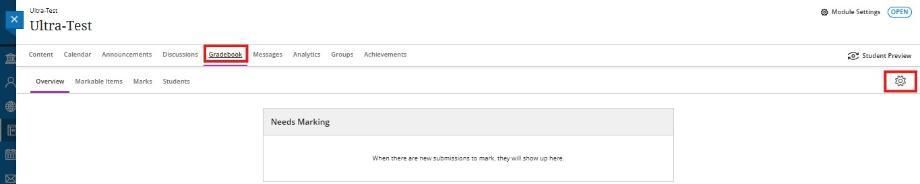
- Select Gradebook located on the top navigation of your module
- Click on the settings cog on the right-hand side of the screen
- Scroll down to Automatic Zeros to ensure the option is not ticked and green.
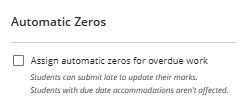
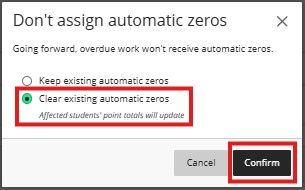
- It is possible to clear the automatic zeros. Please note: Clearing automatic zeros will only remove zeros that were assigned automatically to non-submitters; it will not clear any marks of 0 that you awarded as the marker. If Automatic Zero is ticked, please untick it and select the following option.
Overall Mark
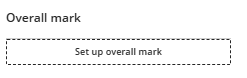
The overall mark is a calculated field that displays a running tally of all graded items that count toward the module grade.
Students Visibility
Use the Students Visibility setting to hide or show unenrolled students.
With this option turned on, students are hidden from these gradebook areas:
- Grades page
- Students page
- Calculation student list
- Markable items student list
- Submission tab for an assessment
- Student Activity tab for an assessment
Grade Categories
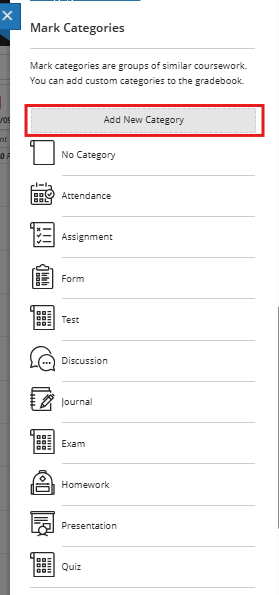
Grade categories are groups of similar coursework. You can add custom categories to the gradebook.
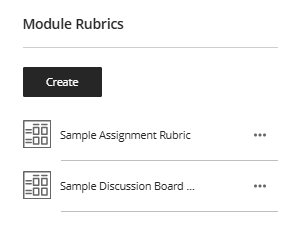
Module Rubrics
A rubric is a scoring tool you can use to evaluate gradable work. You can provide clear descriptions of the work characteristics for each part at varying skill levels. You can create a new rubric from the Gradebook Settings panel.