
Download/Upload Marks
Download Marks
If you want offline records of student answers for certain types of markable items, you can download and re-upload results as an Excel (XLS) file or a comma-separated values (CSV) file.
- In the Markable items view, select Download Results from the More options menu.
- In the Marks view, select the markable item at the top of the grid and then select Download Results from the menu.

Select the assessment(s) you wish to download under Record details. Toggle Include feedback for selected item to ensure feedback details are included in the download.
Select the File type and save location. Click Download.
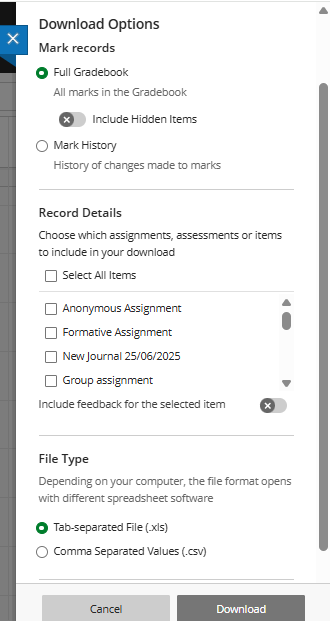
The results file contains this information for each student:
- Last name
- First name
- Username
- Student ID
- Last Access
- Availability
- Assessment & Mark
Upload Marks
If you wish to mark offline, download the Gradebook for the assessment item using the steps above, enter the grades and feedback in the spreadsheet, and re-upload it to the Ultra Gradebook.
- Enter the grades under the Assessment title column, and the feedback under the Feedback to Learner
- You can format your feedback text using HTML tags if required.
- Save the file.
- To upload, select the Upload Gradebook icon in the top-right corner.

- Drag and drop the file into the designated area, or browse to select it.
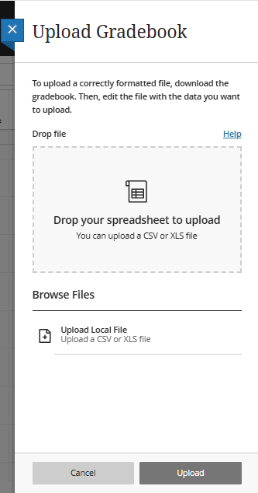
- Press Upload. Refresh the Gradebook page to view the changes. The assessment should now include updated grades and feedback.