
Downloading Submission
Note: You cannot download group submissions or discussions.
The file is created in the background could take a few minutes, depending on the file size.
- To access the download submissions option, ensure you are on the Marks Tab in the Gradebook page.
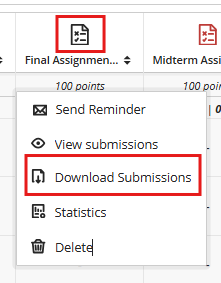
- To download the submissions, click on the Assessment icon, select Download Submissions from the pop-up.
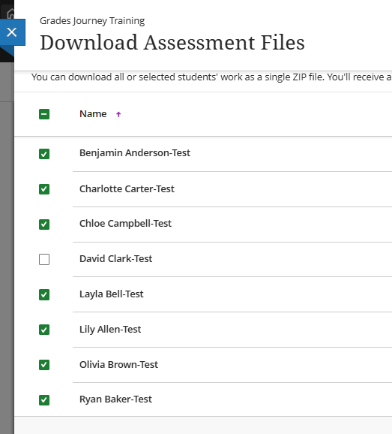
- Select the checkbox next to the Name column to select all submissions or select submissions individually. If you select all, only submissions with files and text provided by students in the editor are included in the ZIP file. If you allowed multiple attempts, the files for all attempts for each student are included.
- Select Create ZIP File to start the process.
- In the pop-up box, select Send. The file is created in the background, and the process takes a few moments, depending on the file size.
- You receive an email and a module message when the ZIP file is ready to download to your computer. On your module's Messages page or in your email, select the Download now link.