
Blackboard rollover guide for the new academic year 2025/26
The 2025/26 modules spaces are now available in Blackboard in preparation for the new academic year.
Lecturers have a choice to:
- Option 1: Copy or "rollover" the course material from the "Ultra Placeholder" module to the 2025/26 Ultra module or;
- Option 2: Copy or "rollover" the course material from the 2024/25 "Original" module to the 2025/26 Ultra module or;
- Option 3: Build the 2025/26 Ultra module with new content and activities.
Rollover Options: Please choose option 1, 2 or 3
Option 1: Copy or "rollover" the course material from your Ultra module to the 2025/26 Ultra module
Please use this option if you have already copied content from your Original module to your "Ultra Placeholder" module and are happy with how it is presented in your "Ultra Placeholder" module.
Watch video guide for copying module content within Blackboard Ultra
Your "Ultra Placeholder" module (with prepared Ultra content) and 2025/26 "Ultra" module space should be listed on your Module List when you log in to Blackboard.
(If the 2025/26 modules are not present on your module list, please contact your School Office to ensure you are timetabled to the modules in CMIS)
For this example, the copy process moves from the "Ultra Placeholder" module "TCD4321-PLACEHOLDER" to the 2025/26 Ultra module "TCD4321-202526".
- Click on and open the 2025/26 Ultra module from your module list on Blackboard e.g. TCD4321-202526
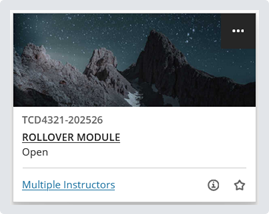
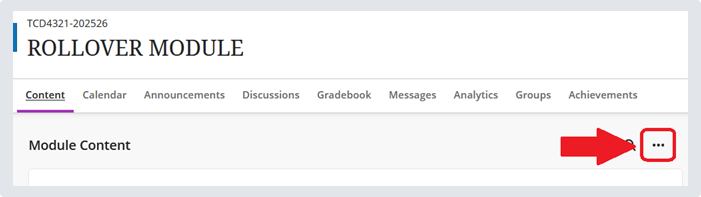
- Within the "Content" tab, select the ellipsis tool (three dots) in the top right of the page
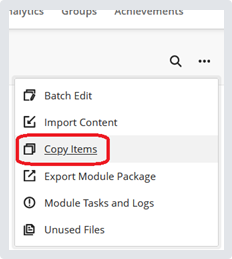
- Select "Copy Items" from the menu that appears
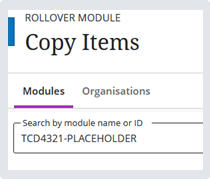
- Search for your "Ultra Placeholder" module e.g. TCD4321-PLACEHOLDER
- Select the check box to the left of the "Ultra Placeholder" module name to select all the content within it. The checkbox should fill with a green tick. Then click "Start Copy".
This will copy your entire content from your "Ultra Placeholder" module to your 2025/26 Ultra module.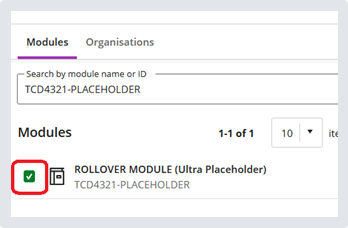
The copy should take no more than a few minutes (depending on the size of the module).
A "Copying content" spinner displays at the bottom of the Module Content page and updates to "Copy complete!" when the process has finished.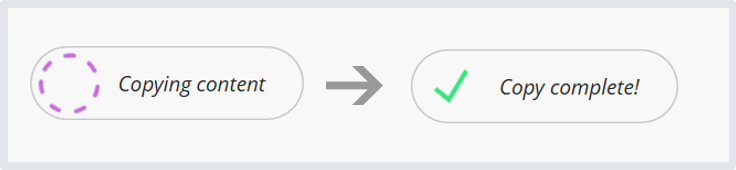
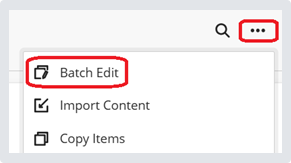
- Access your 2025/26 Ultra module to check that your content has copied over successfully. Check that your content is visible to students. You can make individual items "Visible to students" or use the "Batch Edit" feature (located in the ellipsis tool/three dots at the top right of the Module Content page) to make several items visible at once.
Option 2: Copy or "rollover" the course material from an Original module to an Ultra module
When copying content from your Original module to your new Ultra module, we recommend copying segments of your module or individual elements, taking only what you need. This is a much more manageable, less overwhelming approach to the copy process.
Your Original module and Ultra module spaces should be listed on your Module List when you log in to Blackboard.
(If the new modules are not present on your module list, please contact your School Office to ensure you are timetabled to the modules in CMIS)
For this example, the copy process moves from the original module "TCD4321-202425" to the 2025/26 Ultra module "TCD4321-202526".
- Click on and open the 2025/26 Ultra module from your Module List on Blackboard
- Within the "Content" tab, select the ellipsis tool (three dots) in the top right of the page
- Select "Copy Items" from the menu that appears
- Search for your Original module e.g. TCD4321-20245
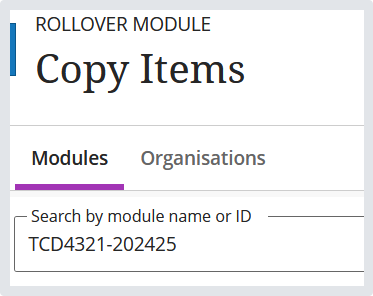
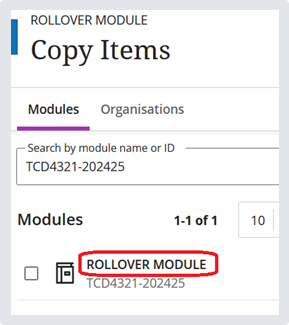
- Select the module title to view the sections/content areas contained within it that you wish to copy over.
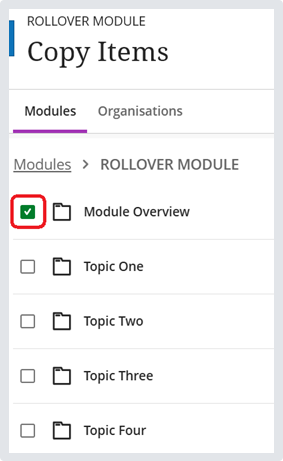
- Select the checkbox beside the segment/content area you wish to copy over and click "Start Copy".
The copy should take no more than a minute (depending on the size of the segment/content area).
A "Copying content" spinner displays at the bottom of the Module Content page and updates to "Copy complete!" when the process has finished.
We have detailed video guides available on this copy process within the Ultra Staff Training module in the "3. Migration" section. - Access your 2025/26 module to check that your content has copied over successfully and re-arrange or amend content if necessary.
Please note. Content that you copy is automatically set to "Hidden from students". You can make individual items "Visible to students" or use the "Batch Edit" feature (located in the ellipsis tool/three dots at the top right of the Module Content page) to make several items visible at once.
If the system encounters problems with a content copy, an error report appears at the top of the Module Content page. Select View Exceptions to learn more about why the content failed to copy.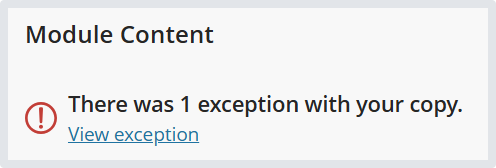
Most exceptions are not significant and won't require any adjustment from you. For some exceptions, you may need to manually create this item in your new module. - Repeat steps 6 and 7 above for any other remaining segments/content areas you wish to copy. However, you may not wish to copy old Announcements across, as these are typically time-specific.
Option 3: Build the 2025/26 Ultra module with new content and activities
For guidance on building your modules from scratch:
- First log into mymodule.tcd.ie
- Once logged in, view our Blackboard Ultra Staff Training module which has video guides on the Ultra interface and how to build content, activities within your module