
Assessment
There is a range of learning technologies that can be assessed in Blackboard, including journals and discussions. However, in terms of online exams, the core technologies used are Blackboard assignments, Turnitin assignments, and online tests.
Click for more Information on each assessment type
/filters:quality(100)/prod01/channel_3/media/tcd/blackboard-ultra/images/assessment/Turnitin-sized.jpg)
Turnitin
/filters:quality(100)/prod01/channel_3/media/tcd/blackboard-ultra/images/assessment/Blackboard-Assignment.jpg)
Blackboard Assignments
/filters:quality(100)/prod01/channel_3/media/tcd/blackboard-ultra/images/assessment/Blackboard-Test.jpg)
Blackboard Tests
/filters:quality(100)/prod01/channel_3/media/tcd/blackboard-ultra/images/assessment/Blackboard-Discussions.jpg)
Blackboard Discussions
/filters:quality(100)/prod01/channel_3/media/tcd/blackboard-ultra/images/assessment/Blackboard-Journal.jpg)
Blackboard Journals
/filters:quality(100)/prod01/channel_3/media/tcd/blackboard-ultra/images/assessment/Panopto-logo.jpg)
Video Assignment with Panopto
/filters:quality(100)/prod01/channel_3/media/tcd/blackboard-ultra/images/shutterstock_2520838075.jpg)
Creating Calculation Columns
Grade columns display marks for the different activities in your module. You can create columns for: Markable items, Calculation & Total Calculation columns & Overall Mark
General Advice
Learn more about Online Exams
By adopting an instructional design approach and appropriate technologies, lecturers can develop diverse methods of assessment, grading, and feedback, thereby making the grading process more efficient. Technology-enhanced learning can support innovative approaches to assessment, reflective learning and the construction of new knowledge. Online assessment can positively impact learning and support students in acquiring digital literacy skills.
Overview
You can support assessment practices with your students using frequent, low-stakes online tests in Blackboard. You can create a quiz with questions - such as multiple choice or fill-in-the-blank - that are graded automatically, or you can create a test which includes short-answer questions, which you can grade manually. You can then analyse the results of a test to get detailed statistics, which you can use to identify issues with students' understanding, which you can address in your tutorials and lectures.
You can use online tests to:
| • Create continuous assessment opportunities |
| • Provide students with detailed formative feedback on their responses |
| • Build a pool of questions which you can reuse across your modules |
| • Support academic integrity by randomising questions |
| • Analyse results to identify gaps in student learning |
Online Exam tips for staff
- Ensure all submissions are visible/contain valid files straight after an exam.
- If an individual student has an issue accessing or submitting through Blackboard, please discuss other options with them as proof of completion until the Blackboard issue is resolved.
Handling Submission Queries
If a student has issues submitting, we advise them to contact the module instructor so there is a record of the issue and the instructor can decide whether to allow an additional attempt based on the circumstances. The module instructor must initially perform clearing/resetting attempts. If an instructor cannot resolve the issue themselves, they can contact us for advice at itservicedesk@tcd.ie.
Accessing Blackboard as an External Examiner
Signing into Blackboard
To avoid signing into Blackboard with your home institution account, please read our advice on avoiding this problem before proceeding.
- Browse to mymodule.tcd.ie and click on the Click Here to Log In button.

- Enter your Trinity computer account username (in the form username@tcd.ie) and click Next. If you forget to type the '@tcd.ie' part of your username, you will get an error message

- Note: If you have signed into Microsoft 365 with a second account, then rather than seeing the above window, you will see a window called Pick an account. Choose the Trinity account, and you will be automatically signed into Blackboard.
- Enter your Trinity computer account password and click Sign in.
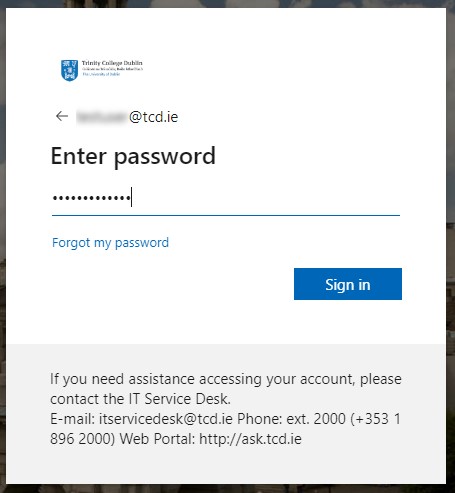
- If asked if you want to Stay signed in?, you can click No.
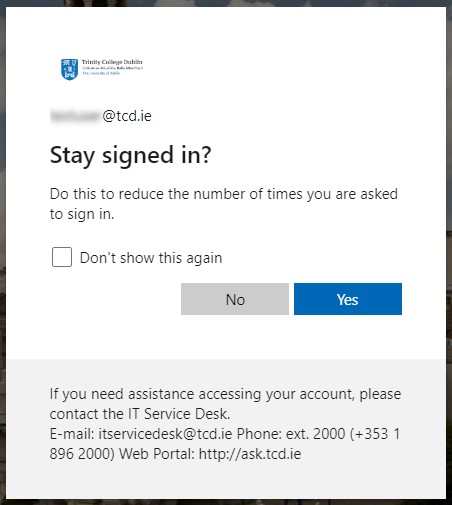
- You will then be signed into Blackboard and see the landing screen.

- Click Modules in the left navigation to access all modules that your account has been enrolled on.
- Click on a specific module name from the "Modules" list to access module content.
- If you have any queries about the content in Blackboard, please get in touch with the nominating Trinity School or Department that enrolled you.
Avoid signing into Blackboard with your home institution account
The Trinity Blackboard VLE uses single sign-on (SSO) technology. What this means is that if you are already logged into Microsoft 365 using your own institution's credentials, you may be auto-logged into Trinity's Blackboard VLE without being prompted to input your Trinity computer account details.
To avoid this situation, we recommend using either option a, b, or c below before attempting to sign in.
- Use an alternative (not your default) web browser.
- You may be signed in with your institution's credentials in your default browser. We recommend using an alternative to your default browser for accessing Blackboard using your Trinity credentials. The most common browsers are:
- Sign out of your default web browser
- In your default browser, open a web page that uses your institution's credentials, such as your institution's email service
- Sign out of the service
- Close and then relaunch the browser
- Sign into Blackboard using your Trinity credentials
- Sign in to Microsoft 365 with a different account
- Open a Microsoft 365 web page that uses your institution's credentials, such as your institution's Microsoft Outlook email service
- Once signed in, click on your initials or profile photo in the top right of the screen and choose Sign in with a different account
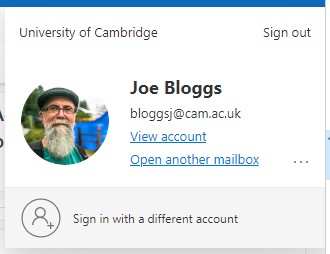
- On the Pick an account screen, choose the Use another account option
- Follow the prompts to sign in with your Trinity credentials
Module Enrolment
Please contact your school or module instructors if you have not been added to the required modules, as they manage enrolment for external examiners.
Accessing and Correcting Scripts
Please see our guide below, which covers how to access and correct scripts in Blackboard. We highly recommend checking with the module lecturers first, as the exact set-up differs per module, and they may use specific tools or grading options. The guide below is intended as initial general guidance.
Module Mark Entry and Progression Guides from Academic Registry
Anonymous Assignments
Anonymity must be applied before any student submits for Blackboard Tests, Assignments and Turnitin Assignments.
Settings compatible with anonymous grading within Blackboard Tests & Assignments
These settings and features work with anonymous marking:
- Due date. When a due date passes, anonymous marking remains in effect.
- Prohibit late submissions.
- Prohibit new attempts after the due date.
- Multiple attempts.
- Allow class conversations.
- Formative assessments.
- Time limit.
- Rubric.
- Two graders per student.
- SafeAssign: Results are hidden while anonymous marking is enabled. After you post marks, names are shown, and you can view the Originality Reports.
Settings not compatible with anonymous marking
These settings and features don't work with anonymous marking:
- Peer review.
- Post assessment marks automatically.
- Assessment results settings – for anonymous assessments, marks and feedback are made available once marks have been posted.
Click to Learn more about Blackboard Anonymous Marking
Turnitin
You can enable Anonymous Marking the setting up your assignment. Select the checkbox to obscure student names within the assignment inbox, Similarity Report, and online grading until the assignment's feedback release date. Student names may be revealed for an assignment by clicking on the anonymous marking enabled button to reveal the author's name for the paper. Once a name has been revealed, it cannot be re-anonymised.
Group Assignments
Blackboard Tests and Assignments, Discussions, Turnitin Assignments
Turnitin does not have a group assignment feature - all students will be able to submit individual files.
You create a group assignment nearly the same way you create assignments for students to complete individually. Gradebook items are created automatically.
Note: If students with accommodations are in a group, all students in that group inherit the accommodation for that item. For example, you create a group assignment and one group member has a due date accommodation. That group's work isn't marked late if they submit after the due date.
Creating Offline Assignments
Adding a Calculation Column for Offline/Manual Assignments for a Blackboard Assignment or Test,
- Create your Blackboard Assignment or Test as normal.
- In the settings, select Collect submissions offline.
- Add your assignment or test details, due dates, and max points (100) as normal.
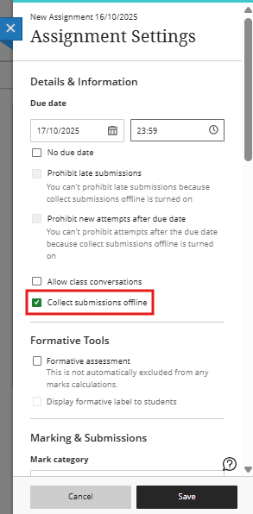
Create an offline assessment as a Gradebook item
- Click on Markable Items in Gradebook.
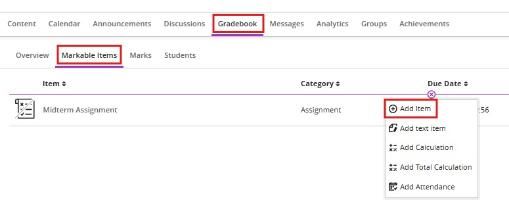
Hover over a line between two gradable items and click on the "+" that appears.
Select Add Item.
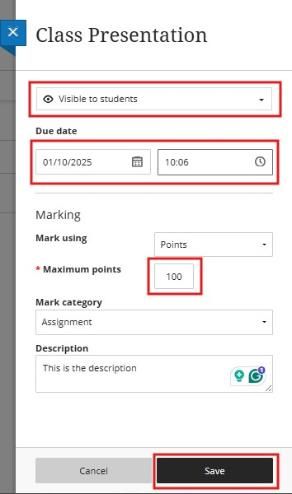
- Enter a descriptive name for the column.
- Choose whether the item is Visible to students.
- Select a mark schema from the dropdown menu.
- To use Grades Journey, the maximum points need to be 100.
- Select the correct Mark Category.
- Add a description.
- Click Save.
Click on the Marks Tab to view your Manual Column.
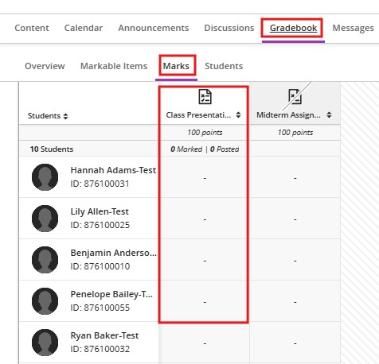
In the grid, you can select a student's markable item to open a menu with these options:
- View - Go directly to the assignment submission and start marking.
- Post (Release to Students) - Post a mark that's been assigned but not yet released to students.
- Add or edit exceptions - If an assignment is timed or has a due date, you can add exceptions here, as well as allow multiple attempts.
- Add or edit exemptions - You can remove an assignment from being counted towards a student's overall mark.
What is the difference between Discussions and Journals?
Discussions are open to all students or groups of students. Students can comment on the posts of others. You can allow students to post anonymously in Discussions.
Journals are private between the student and the Instructor. Other students cannot view the content of another student's Journal.
Turnitin and Blackboard SafeAssign Similarity Reports
It is important to note that the similarity scores for Turnitin or Blackboard SafeAssign reports are not a measure of plagiarism within a piece of work but represent where there are similarities to other sources (journals, essays, books, etc.). A submission with a high similarity score might be satisfactory once the bibliography, cover sheet, etc., are accounted for. In contrast, a submission could have a low score but could be heavily paraphrased from other sources without citation. Lecturers should advise their students not to focus solely on achieving a similarity score below a certain percentage, as there are many other dimensions to consider when correctly citing sources. Example advice from the Turnitin website.
Similarity Reports are typically generated after 15-30 minutes for first submissions, but may take longer during peak assessment periods. Resubmissions take 24 hours to generate and cannot be expedited. Therefore, for some assessment types with tight deadlines, it may not be practical for students to see their score before the submission deadline; therefore, design your assessment with this in mind.
Managing Submission Issues
If a student has issues submitting, we would advise them to contact the module instructor in the first instance. Please do not advise students to contact the IT Service Desk directly for issues such as resetting or deleting assessment attempts. This should be handled by the module instructor(s), as they manage the assessment settings within a module.
We strongly recommend that if there are submission issues due to account/access problems, etc., with an individual student, please accept the submission via email as proof of submission until the issue is resolved. If an instructor cannot resolve the issue themselves, the instructor can contact us for advice via itservicedesk@tcd.ie.
How to Post (Release) Marks to Students
Select Gradebook on the Top navigation

You can post marks from:
- The Overview Marks or Markable items views in the Gradebook
- The Submissions page of the assessment
To release a mark, select Post mark, which appears next to each mark you haven’t released yet, or select Post All Marks to release all marks and feedback to your students. Posted marks are labelled as posted.
When you post marks, students can view them, along with any feedback you provide. All feedback, including ungraded attempts, is shown to students.
You cannot hide a mark once it has been posted, unless the entire assessment is hidden from students.
How to access and try out the Online Exams Practice Module for students
Teaching and Learning IT has created a practice module for students to practice submitting attempts using these tools. Click on the link under Institutional Announcements after logging in to Blackboard to access this.
Online Exams Practice Module
IT Services has created a practice module for students to practice submitting attempts using the assessment tools in Blackboard. You will need to self-enrol in this module before proceeding; please see the instructions below.
Joining the Online Exams Practice Module - Full Steps
- Log in to Blackboard via mymodule.tcd.ie
- On the Institution Page, under Blackboard Guides for Students, click the link for the Online Exams Practice Module.
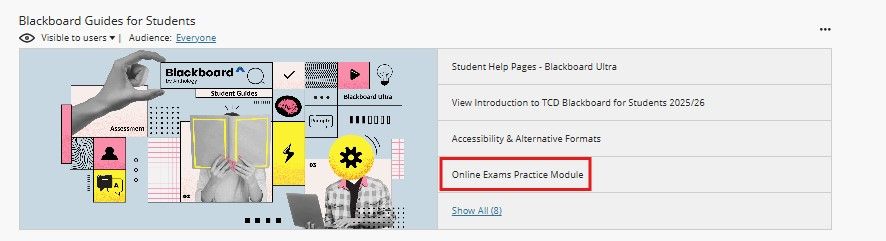
- Click on the Enrol button.
- Click on the Submit button on the bottom right of your page.
- Your page will then say you have been enrolled. Click on the OK button on the bottom right of the page to access the module.
- You will be able to access the module from your Module List.
Alternatively
- Log in to Blackboard via mymodule.tcd.ie
- Click on Module in the left navigation, then select Module Catalogue from the top right corner.
- Use the search bar
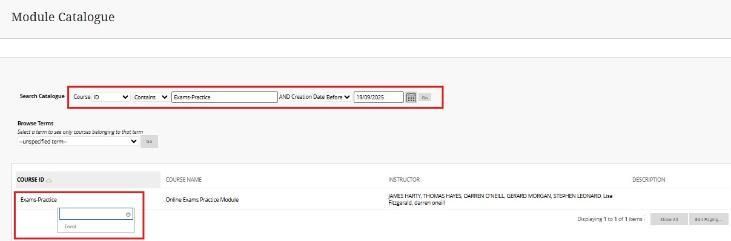
- Click on Enrol
- The Online Exam Practice Module will appear on your module list.
Additional links to Blackboard External Help
Below are external links and additional resources to help you get started with Blackboard Assignments.
If you are new to using online assignments, we would recommend that you create a standard online assignment as above before using some of these features.
Blackboard Assignments Hub Page
If students or staff are experiencing issues accessing Blackboard or specific modules, please contact the Teaching & Learning IT team via the IT Service Desk by one of the following methods.
You can email the service desk at itservicedesk@tcd.ie. Please ensure you fill in the 'Subject' field with Ultra: when emailing.
Service desk opening hours are:
Monday - Friday: 09:00 - 17:00