
Turnitin
Turnitin is integrated into the College's VLE, Blackboard, and is designed to streamline the online assignment process. It offers instructors robust functionality for providing detailed student feedback—including annotations, rubrics, voice recordings, and text comments—and is widely recognised for its ability to generate Originality Reports to detect potential plagiarism.
/filters:quality(100)/prod01/channel_3/media/tcd/itservices/images/miscellaneous/research-it.jpg)
/filters:quality(100)/prod01/channel_3/media/tcd/blackboard-ultra/images/shutterstock_2449452223.jpg)
Turnitin - Frequently Asked Questions
Where can I locate the option to create Turnitin (LTI) assignments in Ultra?
- From the Modules page in Blackboard, select the module the Turnitin assignment needs to be added.
- Within the Module Content section of the module, navigate to the area you wish to add your Turnitin assignment to (eg, your dedicated Assessments' area).
- Select the purple plus sign (+) that appears when you hover your cursor between the content items. From the dropdown menu, select Add Third Party Tool.
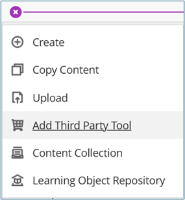
Or from the right-hand menu, click on View Third-Party Tools under the Details & Actions.
From the list of Available Third-Party Tools, locate and click on the Turnitin Assignment icon.
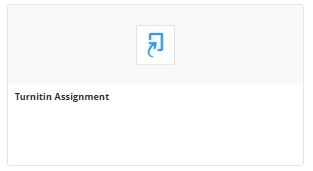
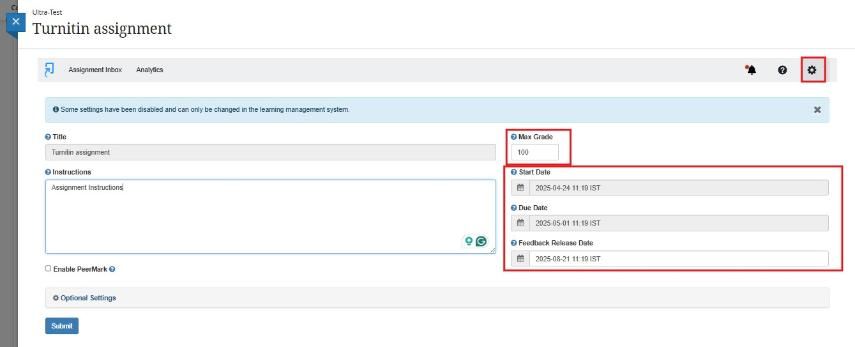
From here, everything is the same as you are accustomed to.
Are there accessibility features in Turnitin Feedback Studio?
Turnitin's accessibility program aims to integrate accessibility into the entire product development life cycle, ensuring that our website and applications are both accessible and usable.
Turnitin evaluates its products against the WCAG 2.1 AA standard of the World Wide Web Consortium (W3C) and Section 508 of the Rehabilitation Act. Learn more about accessibility at Turnitin.
For information on the accessibility features of Turnitin Feedback Studio, please visit the Turnitin website.
How do I submit on behalf of a Student?
It is possible to upload on a student's behalf, and it will appear just like any other submission.
Open the assignment inbox, and you can upload in one of two ways:
Along the list of options is a drop-down marked Submit on Behalf of Student – select the student from the list (note there is a search box if there are many students), and this will open the usual Submit box.
or
The second method is to locate the student in the list, click the three dots on the right-hand side of the name, and select the Upload option to open the usual Submit box.
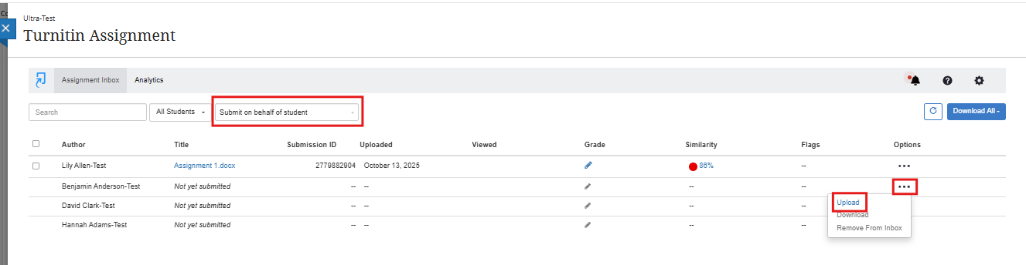
Note: This generally works if students have not already submitted. If there is already a submission and you have allowed resubmissions, this will work. If there is a submission already sitting there and resubmissions are not permitted, then clicking on the three dots gives you the option to Remove from Inbox.
Are email receipts still sent to students on Submission?
Email submission receipts are not currently supported with Turnitin Feedback Studio LTI integrations; however, following a submission, students are presented with a banner within their assignment dashboard that provides a link to download a submission receipt. They can also access their assignment dashboard at any time to download a copy of the submission receipt using the receipt icon.
Blackboard is displaying Turnitin assignment grades before the scheduled release date for feedback.
Visit the Gradebook on Blackboard and check that the corresponding column for the assignment and the Total column have not been posted. If they have been posted, students will be able to see their grades and feedback. You are unable to unpost marks; however, you can hide the Turnitin assignment from students.
If students or staff are experiencing issues accessing Blackboard or specific modules, please contact the Teaching & Learning IT team via the IT Service Desk by one of the following methods.
You can email the service desk at itservicedesk@tcd.ie. Please ensure you fill in the 'Subject' field with Ultra: when emailing.
Service desk opening hours are:
Monday - Friday: 09:00 - 17:00