
TCDpolls
/filters:format(webp)/filters:quality(100)/prod01/channel_3/media/tcd/itservices/images/Untitled-design-(5)-1695X414.png)
This service is for Staff and sponsored teaching assistants. TCDpolls, powered by Vevox, allows staff and students to have real-time engagement during their lectures or webinars via the following features:
When using TCDpolls, you will either create content (such as a poll) or be asked to participate in a poll created via the service.
- By default, staff members have access to TCDpolls to create content.
- Staff members can also sponsor teaching assistants to allow them to use TCDpolls to create content.
- Content can be created either via the web dashboard or via the PowerPoint Add-in.
- Users who are creating content should familiarise themselves with the Terms of Use of the service.
Additional Resources
Web Dashboard
Staff can sign in to the TCDpolls web dashboard at tcdpolls.tcd.ie.
Steps to log in
- Browse to tcdpolls.tcd.ie
- Click on 'Login with SSO'
- If you are already logged in to Microsoft 365, you will be taken directly to the TCDpolls web dashboard.
- If not logged in to Microsoft 365, enter your Trinity email address (in the form bloggsj@tcd.ie) and password to continue
TCDpolls’ (Vevox) PowerPoint add-in
Staff can install the TCDpolls (Vevox) add-in to their desktop version of Microsoft PowerPoint. The add-in does not work with the web app version of PowerPoint. This add-in lets you create poll slides in your PowerPoint presentation.
Starting Thursday, 16th January, the existing Vevox add-in will no longer appear in your PowerPoint ribbon. You will need to add the latest version of the Vevox add-in to PowerPoint to continue using TCDpolls after this date.
Key Information
- The new TCDpolls Vevox add-in retains the Getting Started button and familiar features, while offering performance enhancements and improved functionality.
- Poll question slides created with the old version will work seamlessly with the new add-in- no updates to your existing slides are needed.
The TCDpolls Vevox PowerPoint add-in lets you import and run polls directly from your PowerPoint presentation. Once participants respond to the polls, the results can be displayed in real time during the presentation. The add-in will only work with the desktop version of PowerPoint. It will not work in the online version of PowerPoint.
Installing the add-in
The add-in can be installed from inside PowerPoint. The installation steps are outlined below:
- Open the desktop version of PowerPoint
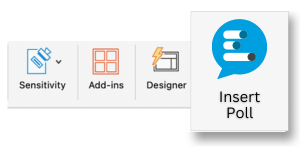
- Click on the Home menu item, then click the Add-ins menu button.
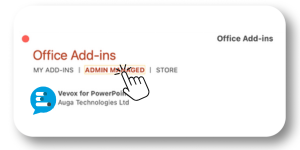
- Click the +More Add-ins button, then click the Admin Managed tab, select the Vevox for PowerPoint Add-in, and click the Add button.
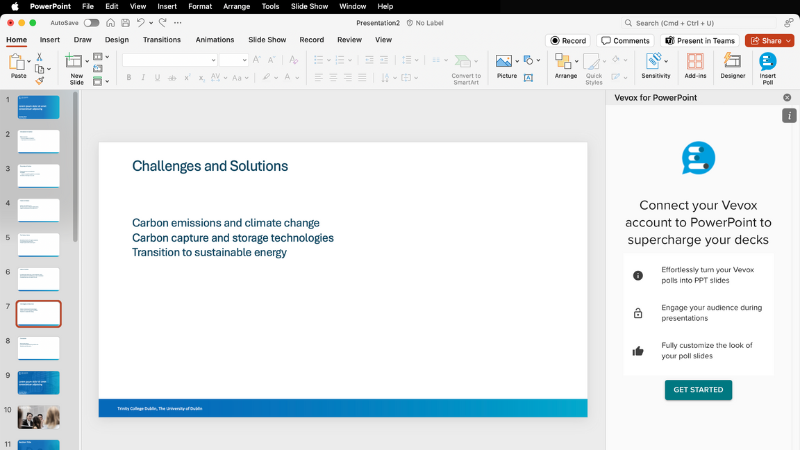
- Once done, the new Vevox Add-in ribbon will appear in the right-hand side of PowerPoint.
Participating in a TCDpolls (Vevox) session
Once the organiser shares the session ID (a nine-digit code), participants can join the session via the vevox.app website or by scanning the QR code on the presenter's screen.
This quick video shows you how participants can join and answer Vevox questions either on their mobile, tablet or computer.
Sponsoring teaching assistants for Creator role access
Staff members who would like their teaching assistants to create and run polls can apply for creator role access to the service via our online form.
Creator role access would be granted to a teaching assistant for one academic year only. Staff members can reapply on behalf of the teaching assistant at the beginning of the Michaelmas term for any subsequent year.
If the teaching assistant no longer requires creator role access to the service at the end of the academic year, they should download any poll content they need before access is removed.
If you require support with using Blackboard for teaching and learning, instructional design and development of modules, and any activities associated with the discipline of teaching. Additionally, if you are experiencing issues with any of the integrations or with accessing Blackboard or specific modules, please contact the Teaching & Learning IT team via the IT Service Desk using one of the following methods.
You can email the service desk at itservicedesk@tcd.ie.
Service desk opening hours are: Monday - Friday: 09:00 - 17:00