
Panopto Installation & Setup for Webcasting
How to install Panopto on Windows PCs if using Blackboard for Webcasting
- Log in to Blackboard.
- Select one of your modules in your Module List, which has been set up with Panopto.
- Click the Panopto Lecture Capture link in the content area.
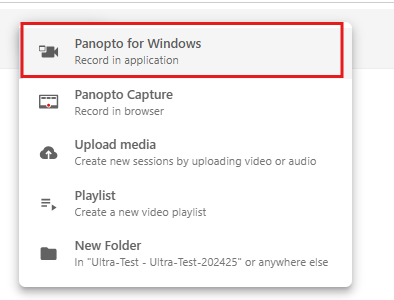
- Click the Create button and select Panopto for Windows.
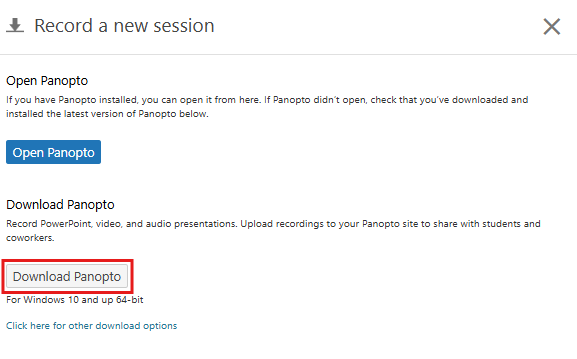
- Select Download Panopto in the pop-up window to begin downloading the application.
- Locate PanoptoRecorder.exe in your downloads and run the application. The installer will self-extract and begin the installation.
- In the Panopto Setup window, you should note or change the listed 'Storage location for recorded content on this computer'. This folder will be used to save recordings you choose to save 'locally' or when recording in offline mode.
- Click Next and then Install.
Click to Learn more bout how to Download and Install Panopto for Windows
How to install Panopto on Macs if using Blackboard
- Log in to Blackboard.
- Select one of your modules in your Module List, which has been set up with Panopto.
- Click the Panopto Lecture Capture link.
- Blackboard may show a message stating that cookies are disabled for this website. Click the Safari menu listing in the top left corner, choose Preferences from the drop-down menu, click on the Privacy tab and for Cookies and website data, turn on Always Allow. Click the Lecture Recordings link in the left panel in Blackboard once more.
- Click the Create button and select Record a new session. From the list of installer files on the right, select the listing titled "Download Installer."
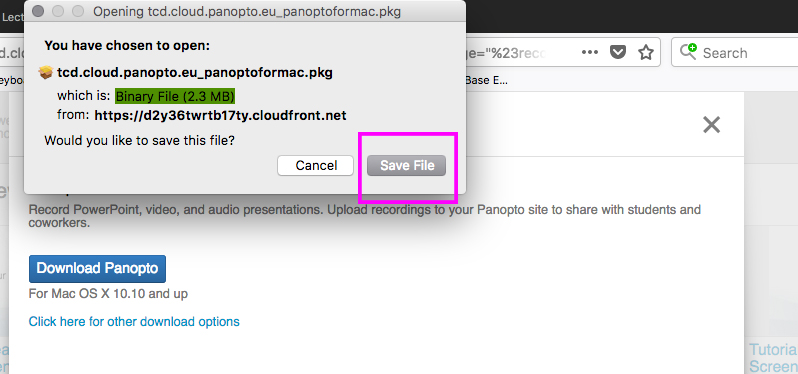
- The downloaded file will be called Panopto Recorder.pkg. Once the download is complete, double-click the file to launch it, then select Continue.
Click on Continue in the Install Panopto Recorder menu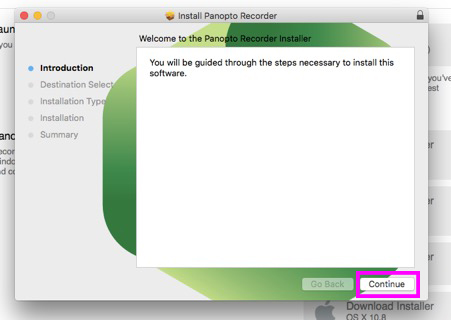
Accept the default installation location. If prompted, enter the installation credentials. Click Install Software.
-
Once installation is complete, click Close.
Click to Learn more bout how to Download and Install Panopto for Mac
Trinity Panopto Portal
The Trinity Panopto Portal is a video content management web portal at panopto.tcd.ie that a staff member can sign in to create and record video content. It can be used to create and store staff training videos, it can record events such as professor inaugural talks, record live lecture streams, flipped classroom scenarios, record research fieldwork, audio only podcasts. It lets you share video content at the user level, the trinity organisation level, or the public internet level.
Panopto
Note: For lecture video materials for your students, use the Panopto-integrated service within Blackboard. The Panopto portal is for non-Blackboard video material, for a wider audience.
How to install Panopto on PC via the Trinity Panopto Portal
- Open your web browser, such as Google Chrome or Firefox, and navigate to http://panopto.tcd.ie
- Enter your Trinity computer account username (in the form username@tcd.ie) and click Next. If you forget to type the '@tcd.ie' part of your username, you will get an error message. Note: If you have signed in to Microsoft 365 with a second account, instead of seeing the above window, you will see a window titled "Pick an account." Choose the Trinity account, and you will be automatically signed into Blackboard.

- Once logged in, click on the Download Panopto link under your name in the top right-hand corner of your screen.
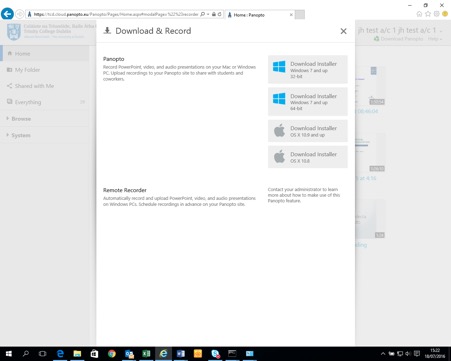
- Select Download Panopto in the pop-up window to begin downloading the application.
- Click the Save button, then click Save As, and save the file panoptorecorder.exe to your computer’s desktop. Other web browsers may automatically download the file for you, so you just need to find it on your screen to run it.
- Locate PanoptoRecorder.exe in your downloads and run the application. The installer will self-extract and begin the installation.
- The Panopto Setup window will display. (Note the folder the software will be installed to, also take note particularly of the other two fields, where lecture recordings will be stored locally on your Windows PC and that they will be stored in the Panopto cloud location as well.)
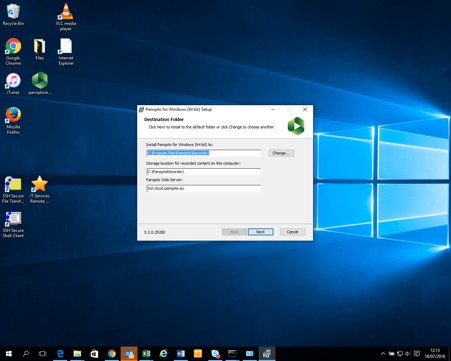
- Click Install to begin the installation.
- Once complete, the Panopto logon screen will reappear, and a Panopto Application Shortcut icon will also be added to your desktop.
How to install Panopto on Mac via the Trinity Panopto Portal
- Open a web browser such as Safari or Firefox and navigate to http://panopto.tcd.ie
- Enter your Trinity computer account username (in the form username@tcd.ie) and click Next. If you forget to type the '@tcd.ie' part of your username, you will get an error message. Note: If you have signed in to Microsoft 365 with a second account, rather than seeing the above window, you will see a window called "Pick an account." Choose the Trinity account, and you will be automatically signed into Blackboard.
- Once logged in, click on the Download Panopto link under your name in the top right-hand corner of your screen.
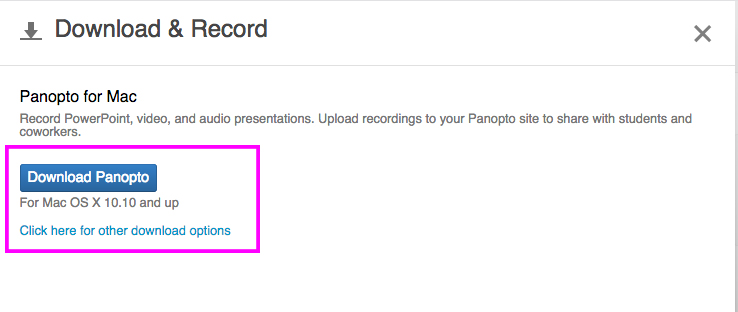
- You'll then be prompted to Save File to your computer
- The Panopto Recorder.pkg will download and appear as a down arrow in the top-right corner of your web browser. Click on the down-arrow icon and then double-click on the Panopto Recorder download.
- Click on Continue in the Install Panopto Recorder menu
- Accept the default installation location. If prompted, enter the installation credentials. Click Install Software.
Click Close when you see that the installation was successful.