
Record a video using the Panopto Capture browser application
The instructions below outline how to record a video using Panopto Capture in your web browser and make it available in your Blackboard module. Panopto Capture lets you easily record from your desk, laptop or mobile device's web browser.
Click to Learn more about how to create a Video using Panopto Capture from Panopto
- Log in to Blackboard via Google Chrome if possible - other browsers may work, but Chrome will give the best compatibility with Panopto Capture.
- Select the module from your Module List that you wish to add the recording to - remember that you must have already set up Panopto in your Blackboard module before you can use Panopto.
- Click on Panopto Capture, then Create -> Panopto Capture
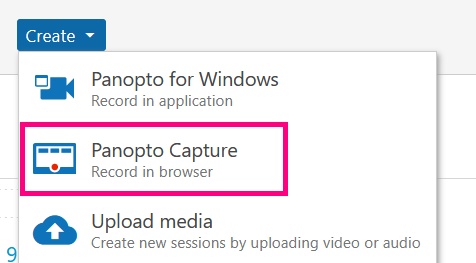
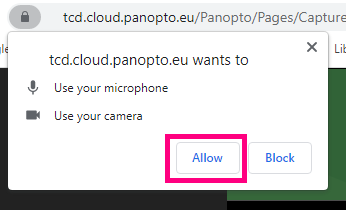
- Accept any browser prompts to grant Panopto access to your microphone and webcam. If there is an issue, please see Panopto's page on granting permissions in your browser.
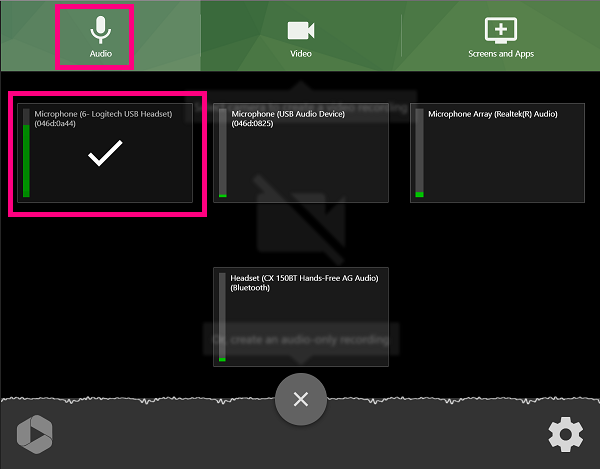
- Click the green Microphone button and select the correct microphone from the list; for example, if using a headset, ensure it is selected and not your webcam's microphone.
- Then click on the Video icon and select your webcam or camera if you want to record these during the session
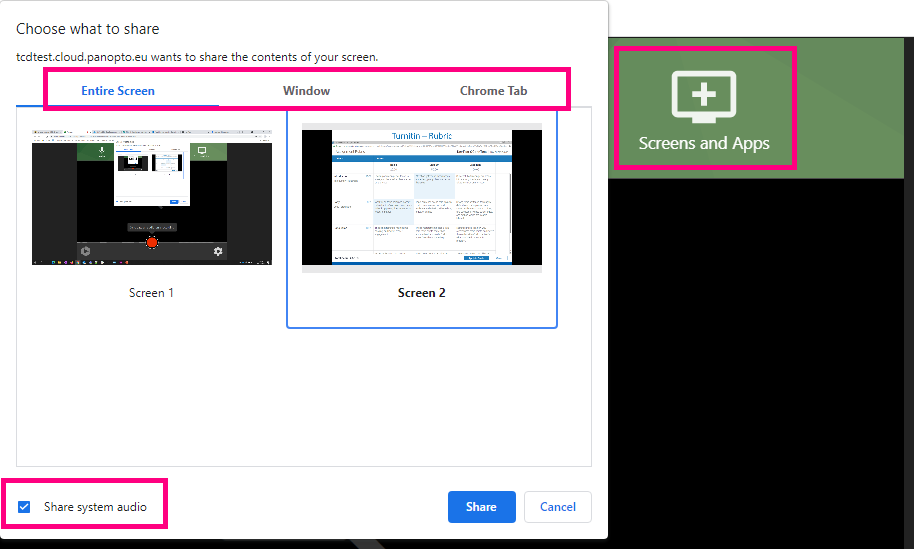
- The next step is to select 'Screens and Apps' and choose what you want to share during the recording. For example, you could share your entire screen or just a specific window, such as PowerPoint. If you want to share audio from your computer (example - an audio file or video), ensure you select the 'Share System Audio' box when sharing the entire screen
- You can hover over the video streams to select options such as blurring your background if you are using a webcam
- Click on the large record button at the bottom of the screen when you are ready to begin
- Click the button again when you have finished
- Once the recording has ended, you can play it back, edit it, or redo it. If you need to remove a mistake, you can choose Edit rather than redoing the whole recording.
- If you are happy with the recording, enter a title and description, then choose either View or Edit depending on whether you need to make changes
- Note that it takes a few minutes for your recording to be fully uploaded to Panopto. You will get an email to your inbox when it is processed.
- By default, the new lecture recording will be viewable by the students enrolled in that module when they log in to Blackboard.
- The Share option is required only if you want to share the video with users not enrolled on your module.
- Once finished, close the window, and you will see the recording listed in your module's Panopto folder
Below is a Panopto video guide that provides an overview of the process.