
Panopto Video Editing & Sharing
The instructions below outline how to edit any videos recorded in Panopto, whether in a lecture theatre or on your own device. If you are editing in one of the Senior Lecturer Pool Rooms, Panopto is already installed and available for use. If you wish to edit on your own device, you must have the Panopto software installed. The steps below assume that you have already set up Panopto for your Module in Blackboard.
How to edit your Panopto-created videos and content
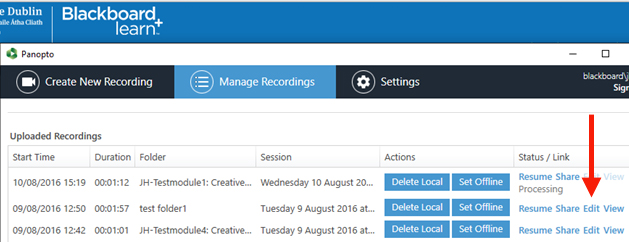
- If you have just completed a recording in the Blackboard Portal, then after the lecture recording has uploaded to the Trinity Panopto site (after Processing is finished), you can choose the Edit link to the right of the session details, as shown below. There is also an Edit link in the email confirmation sent to you after you have finished a recording and it has been processed.
Alternatively, if you wish to edit a previously-recorded session, then navigate within Blackboard to the relevant module, select the recording in your video library, hover over the recording you want to edit and select the Edit button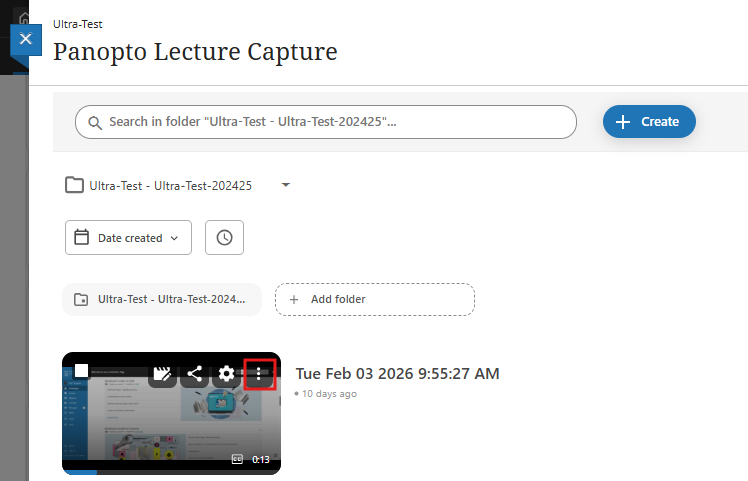
- Click the link below for full instructions on the available editing options, including how to trim your recording.
- Log out of Blackboard once you have completed your work.
Click to Learn more about editing from Panopto
How to share your Panopto-created videos
Sharing Lecture Recordings within a module in Blackboard
For lecturers who have recorded lectures within Blackboard under a module, students enrolled in that module will, by default, have access to those lecture recordings; they will see them once they click their module.
Other Users
For lecturers who have recorded lectures in Blackboard for a module and want to share them with other users outside the module's enrolled students.
- Click on the module or folder where you have your recording
- Highlight the lecture you would like to share and click on the Share button
- Click on the Add People and Groups and type in the person’s email address you’d like to invite to view the lecture recording
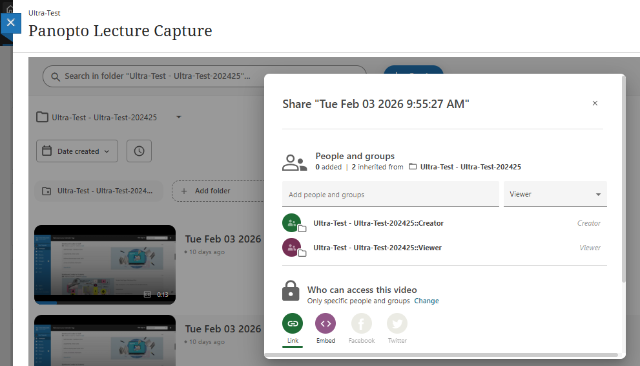
- The targeted person will receive an email invitation to view the lecture recording.
Videos inherit sharing permissions from the folder they are located in. Depending on the sharing permission set for the folder, the sharing permission options for videos may change and will appear as follows:
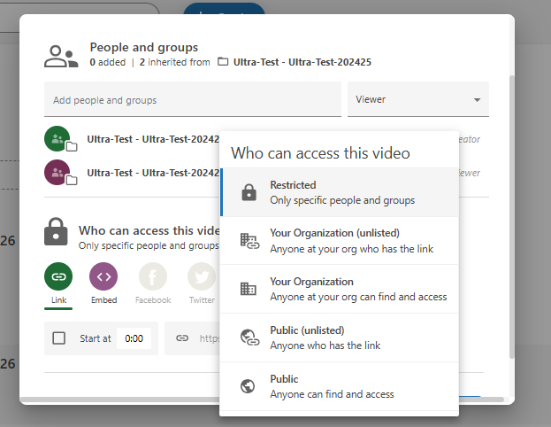
- Restricted
- Your Organisation (unlisted)
- Your Organisation
- Public (unlisted)
- Public: If your parent folder is set to Public, then videos in that folder will be Public, as well, and cannot be changed.