
Record a lecture in a Senior Lecturer Pool Room or using your own device using the Panopto desktop application
The instructions below outline how to make a screen-capture recording (audio and video), using the Panopto Desktop App, in any of the Senior Lecture Pool Room lecture theatres in Trinity. This service is only available to Trinity staff who have been set up as instructors on Module(s) in Blackboard.
If using your own device, the instructions below outline how to use the Panopto desktop application.
Panopto Capture browser application
It is also possible to record a video using the Panopto Capture Browser App instead of the Desktop App.
For a feature comparison between the Desktop and Browser versions, please refer to Features, differences between, and capabilities of Panopto's recorders.
The exact steps differ slightly between Windows PCs and Apple Macs, so please choose the relevant option below to see the instructions for your computer.
How to record using Panopto in Blackboard for Windows PCs
- Log in to Blackboard.
- Select the Module from your Module List that you wish to record a lecture to - remember that you must have already setup Panopto for your Module in Blackboard before you can use Panopto for the first time in that Module.
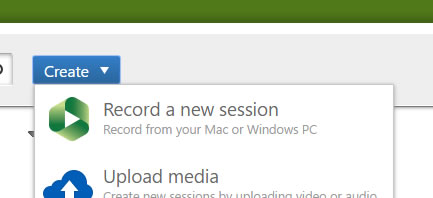
- Click your Panopto Lecture Capture link that you created for this Module and then choose Create, and then Record a new session.
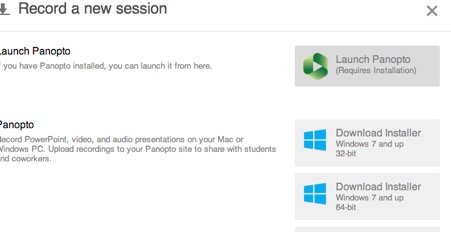
- Click Launch Panopto - the Panopto app will open on the 'Create New Recording' tab.
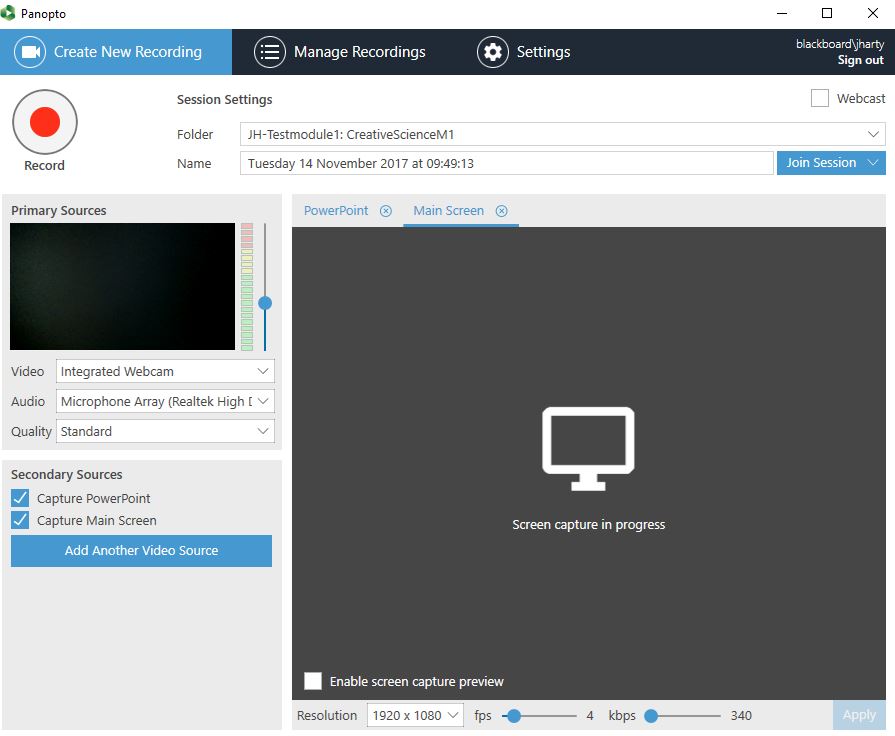
- On the above screen, you can see the Folder that the recording will be listed under for that Module.
- Beside Name, enter a sensible name for this recording session.
- On the left, you will see that 'Capture Main Screen' is selected by default, meaning that all actions carried out on the computer screen will be recorded.
- Under Primary Sources, Video would refer to additional video devices and would be left off.
- Usually, Audio is already selected to record audio through the mic, and you can set a Quality level.
- You can select to 'Capture Computer Audio' if you wish to record audio generated by applications you use during your recording.
- There is a 'Webcast' option towards the top right that generates a web address you can share with anyone who is not present but who you wish to see the presentation as it happens.
- Record & Pause: Click Record to start; use Pause as needed during the lecture.
- Stop & Review: Click Stop when finished. Select Upload (or delete to record again) to save it to the TCD Panopto Cloud storage location. A copy is also stored on the local Windows computer.
- After choosing Upload, the Manage Recordings window will display, showing you a historical list of recordings, with the most recent at the top.
- Note that it may take a few minutes for your new recording to be fully uploaded to the TCD Panopto Cloud. When this process is complete, you will also receive an email to your Trinity email account to confirm the video has been uploaded successfully.
- By default, the new lecture recording will be viewable to students enrolled in that module when they log in to Blackboard.
- The Share option is required only if you want to share the video with users beyond the students enrolled in your Module.
How to record using Panopto in Blackboard for Apple Macs
- Log in to Blackboard.
- Select the Module from your Module List that you wish to record a lecture to - remember that you must have already setup Panopto for your Module in Blackboard before you can use Panopto for the first time in that Module.
- Click your Panopto Lecture Capture link that you created for this Module and then choose Create, and then Record a new session.
- Click Launch Panopto. As the software is already installed on the Senior Lecture Pool Room computers, you can ignore any 'installation required' message that may appear.
- The Panopto Recorder window opens:
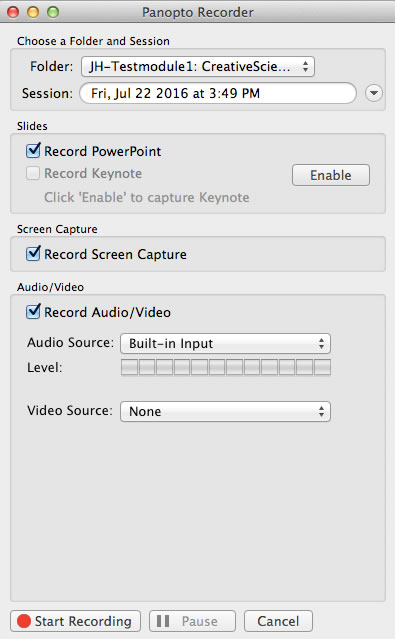
- Beside Folder, you will see where the recording will be saved.
- Beside Session, you should enter a sensible name for this recording session.
- Under Screen Capture, you will see 'Record Screen Capture' selected, meaning that all actions on the computer screen will be recorded.
- Under Audio/Video, you will see that the listing for Audio Source is set to 'Built-in Input', referring to the lecture theatre mic
- Video Source refers to video beyond the screen capture, such as a webcam, and is usually set to 'None'.
- Once you are ready to record, click Start Recording, and when finished, choose Stop Recording.
- If you are not happy with the recording, you can choose Delete. Otherwise, it will take 1-2 minutes to upload the video to the TCD Cloud Panopto site, and you will receive an email to your Trinity email account once the upload is complete.
Trinity Panopto Portal
The Trinity Panopto Portal is a video content management web portal at panopto.tcd.ie that a staff member can sign in to create and record video content. It can be used to create and store staff training videos, it can record events such as professor inaugural talks, record live lecture streams, flipped classroom scenarios, record research fieldwork, audio only podcasts. It lets you share video content at the user level, the trinity organisation level, or the public internet level.
Panopto
Note: For lecture video materials for your students, use the Panopto-integrated service within Blackboard. The Panopto portal is for non-Blackboard video material, for a wider audience.
How to record using Panopto in the Trinity Panopto Portal for Apple Mac
- Log onto the Mac (Mac Mini) computer in the public theatre or seminar room with your Trinity username and password.
- Launch a web browser (such as Safari or Firefox) and type in (http://panopto.tcd.ie)
- Enter your Trinity computer account username (in the form username@tcd.ie) and click Next. If you forget to type the '@tcd.ie' part of your username, you will get an error message. Note: If you have signed in to Microsoft 365 with a second account, instead of seeing the above window, you will see a window titled "Pick an account." Choose the Trinity account, and you will be automatically signed into Blackboard.

- Once you are logged into the TCD Cloud Panopto Portal window, click on the Create button.
- Click the Create button again, then choose Record a new session to create a new lecture recording.
- Click on the Launch Panopto button.
- The Panopto Recorder window will open, and you can choose several settings:
- The default folder for storing your recordings is the my folder.
- You can change the Session name from date and time to something more meaningful if you want.
- You can click the Record PowerPoint box if not already ticked.
- You can decide whether to enable the Record Screen Capture box to record your mouse movements and clicks during the recording session.
- You can click the Record Audio/Video box and choose whether to record audio (most people will want to record audio); some may want to record video if there is a camera in the room.
-
Record & Pause: Click Record to start; use Pause as needed during the lecture.
-
Stop & Review: Click Stop when finished. Select Upload (or delete to record again). This may take a few minutes to complete. Once it is fully complete, an email confirmation will be sent to your email address that the lecture recording is ready for editing, sharing and viewing.
- In the Panopto Recorder window, you can monitor the recording status in the Status field, and once completed, you should see the three options at the bottom of the window: Share, Edit, and View Online.
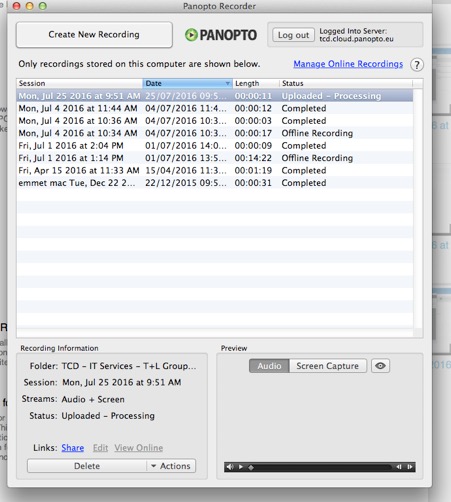
- If you are not happy with the recording, you can either delete the whole recording or highlight the recording you want to delete and click the Delete button in the Panopto Recorder window.
- Always log out of Panopto and Macintosh when finished to secure your account.
Additional Notes:
- There is an Edit option that lets you edit the recording.
- You can also view the recording online, play it back, and review it.
- Once the upload completes, you can click the Share option to send to your recipient list or to targeted email addresses.
How to record using Panopto in Trinity Panopto Portal for Windows PCs
- Log onto the Windows computer in the public theatre or seminar room with your Trinity username and password.
- Launch a web browser (such as Firefox or Google Chrome) and type in (http://panopto.tcd.ie)
- Note: Do not click on the Panopto Recorder in the Start menu, as this method of accessing the portal to record lectures displays in a smaller window, which makes recording more difficult, so this method is not recommended
- Enter your Trinity computer account username (in the form username@tcd.ie) and click Next. If you forget to type the '@tcd.ie' part of your username, you will get an error message. Note: If you have signed into Microsoft 365 with a second account, then rather than seeing the above window, you will see a window called Pick an account. Choose the Trinity account, and you will be automatically signed into Blackboard.
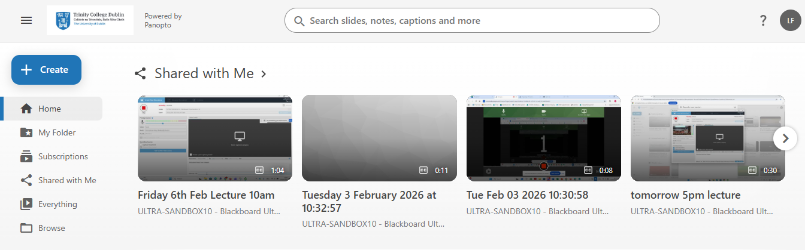
Once logged into the TCD Panopto Cloud Portal, there is no need to download the Panopto Software onto the Windows computer, as IT Services has it pre-installed.
-
-
Name & Save: Use "My Folder" and replace the date-stamp with a descriptive title.
-
Media Sources: Select your video/audio; enable "Capture Computer Audio" to play clips (e.g., YouTube).
-
Display: Toggle PowerPoint and Screen Capture as needed.
-
Live Stream: Select Webcast to generate a URL for off-site viewing.
-
- Record & Pause: Click Record to start; use Pause as needed during the lecture.
- Stop & Review: Click Stop when finished. Select Upload (or delete to record again).
- The Manage Recordings window will be highlighted, and it will take a few minutes for the recording to be uploaded and saved.
- Once uploaded, you will have options to view (playback), edit (the recording) and share (to users you haven’t already shared with). You will find tutorials on the Panopto website on how to edit and share your recordings.
- You'll be able to see your uploaded lecture in the main TCD Panopto Cloud window, under your folder name, where you can edit the recording and more.
- Always log out of Panopto and the Windows desktop when finished to secure your account.
Record a screen capture or video on your own device
How to record using Panopto on iOS
Once you have installed the Panopto app on your iOS device, you can begin recording.
- Tap on the Panopto app and type in your Trinity username and password
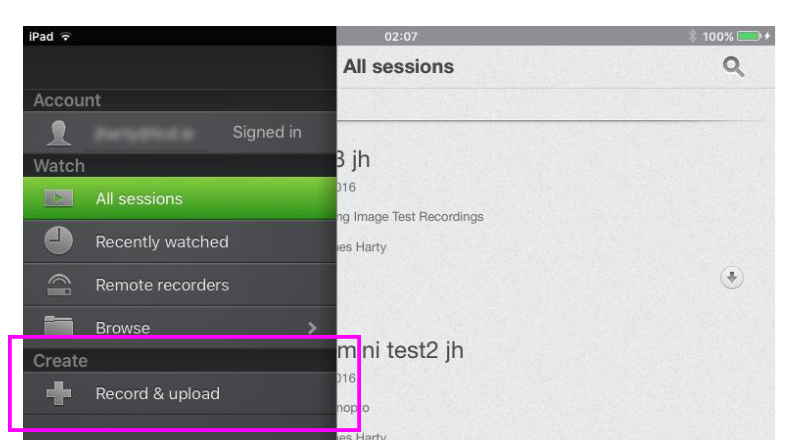
- Tap on the 3-horizontal bar icon on the top left-hand corner, under the pop-down menu, tap on the Record and Upload option under the create section
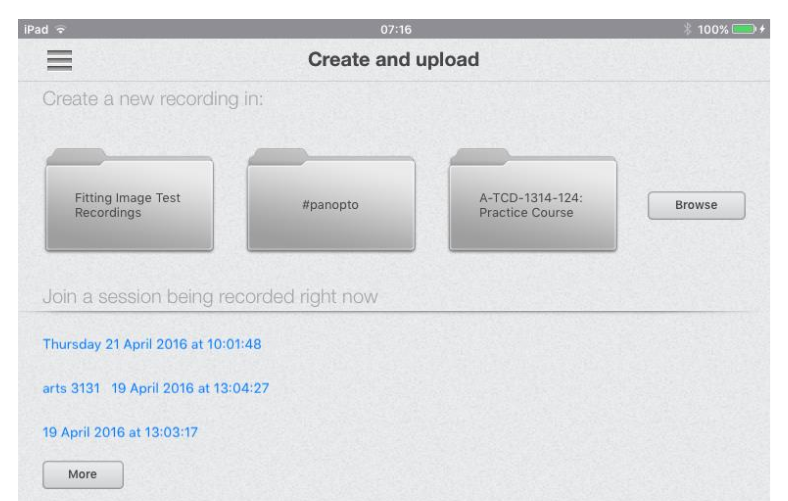
- Tap on the folder where you want to store your recording and the Create a New Session window will open
- Tap the Start Recording button after typing in a title for the recording
- Tap the red Record button (Note: your iPad may ask you if you would like to use the installed video & audio recording tools; if so, then accept these prompts)
- Tap the red Record button again to stop and save the recording
- At this point, you will be able to choose between Retake or Use Video
- Tap the Use Video button
- Tap the Upload button
- Once the lecture recording has been uploaded, you can tap to playback
- You also have the option to share with users by tapping the share button