
Copying Collaborate recordings to a Panopto folder in Blackboard
Sign in to Blackboard, go to the specific Blackboard Ultra module, and Class Collaborate is located in the Details and Actions area of the module.
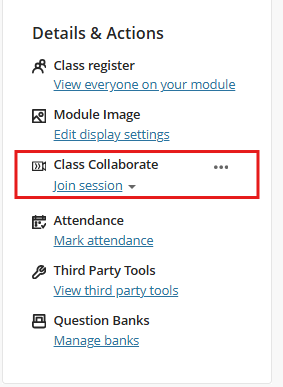
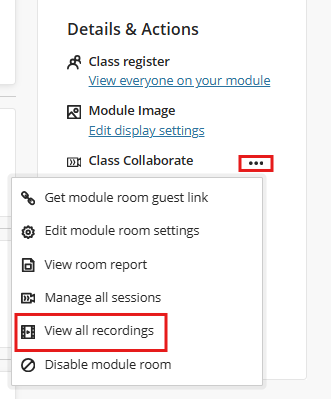
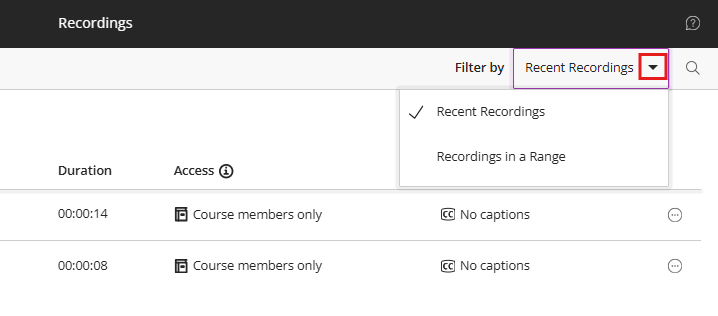
Click the three dots, then select View all Recordings from the drop-down menu to display the collaborative recordings for your module. If you don’t see any recordings, change the Filter by: field to recordings in a range rather than recent recordings. Collaborate only shows the last 30 days of recordings; anything further back requires a date-range search to display.
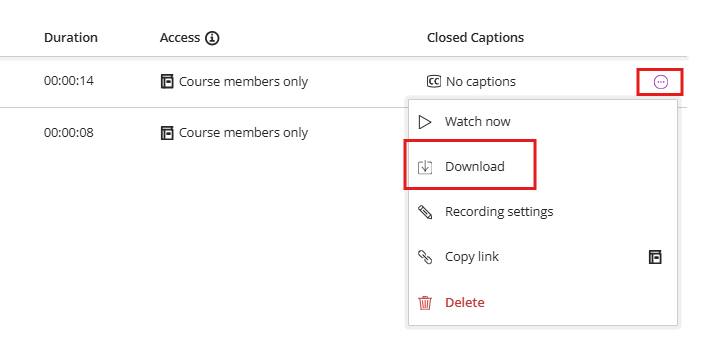
Click the symbol with three horizontal dots and a circle around them labelled Recording Options, then click Download from the pop-down list. This will trigger the download of this recording as an .mp4 file to your downloads folder on a Windows PC and to the Downloads folder on your Macintosh computer.
Now go to the module where you already have Panopto Recordings set up in the module content area, and click the Lecture Recordings link.
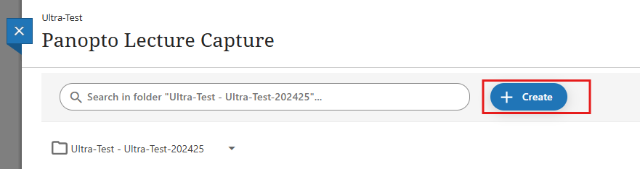
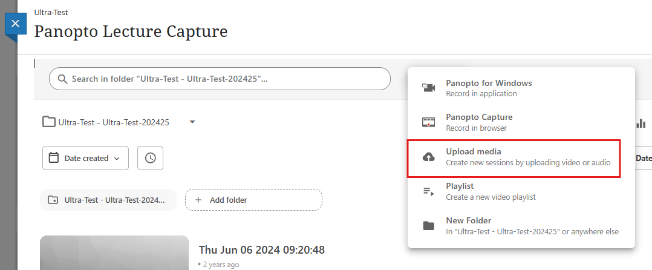
Click the Create button, then choose the Upload Media option.
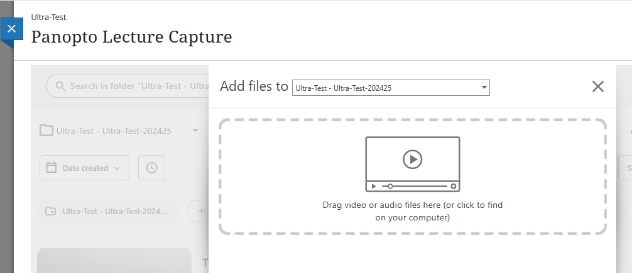
Drag the collaborate recording .mp4 file from your downloads folder into this drop area, and the recording will begin uploading to your Blackboard module's Panopto folder.
Once the upload has completed, you will be able to play back or edit your Class Collaborate recording (.mp4) within Blackboard Panopto as required.