
How to setup Panopto for your Blackboard Module
Before you can use Panopto to record videos in Blackboard, you will need to link the Panopto Lecture Capture Link to each Module that you'll want to record videos for. These steps must be carried out for each Module and will provide you with a link to run the Panopto Lecture Capture Software.
- From the Modules page in Blackboard, select the module to which Panopto needs to be added.
- Within the Module Content section of the module, navigate to the area you wish to add Panopto.
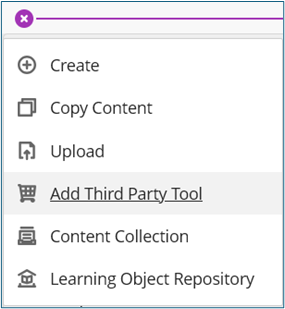
- Select the purple plus sign (+) that appears when you hover your cursor between the content items. From the dropdown menu, select Add Third Party, Tool.
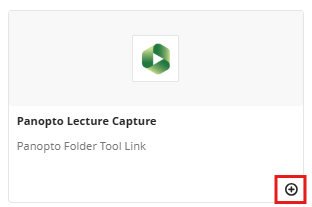
- Select Panopto Lecture Capture from the list of Institution Tools that appear.
- There is now a new 'Panopto Lecture Capture' link listed in the Module content area. This provides links to add Panopto video content to your Module and also allows enrolled students to playback any recorded videos.

- Make sure 'Visible to Students' is selected so that students enrolled on the module can see the link.
- Repeat the steps above for all Modules that you wish to record video content for.
How to set up a Blackboard Ultra module with the Panopto Lecture Capture Service Folder
Staff Video Guide on how to set up a Blackboard Ultra module with the Panopto Lecture Capture Service Folder